

55printing Online Designer: A Safe Browser Workflow
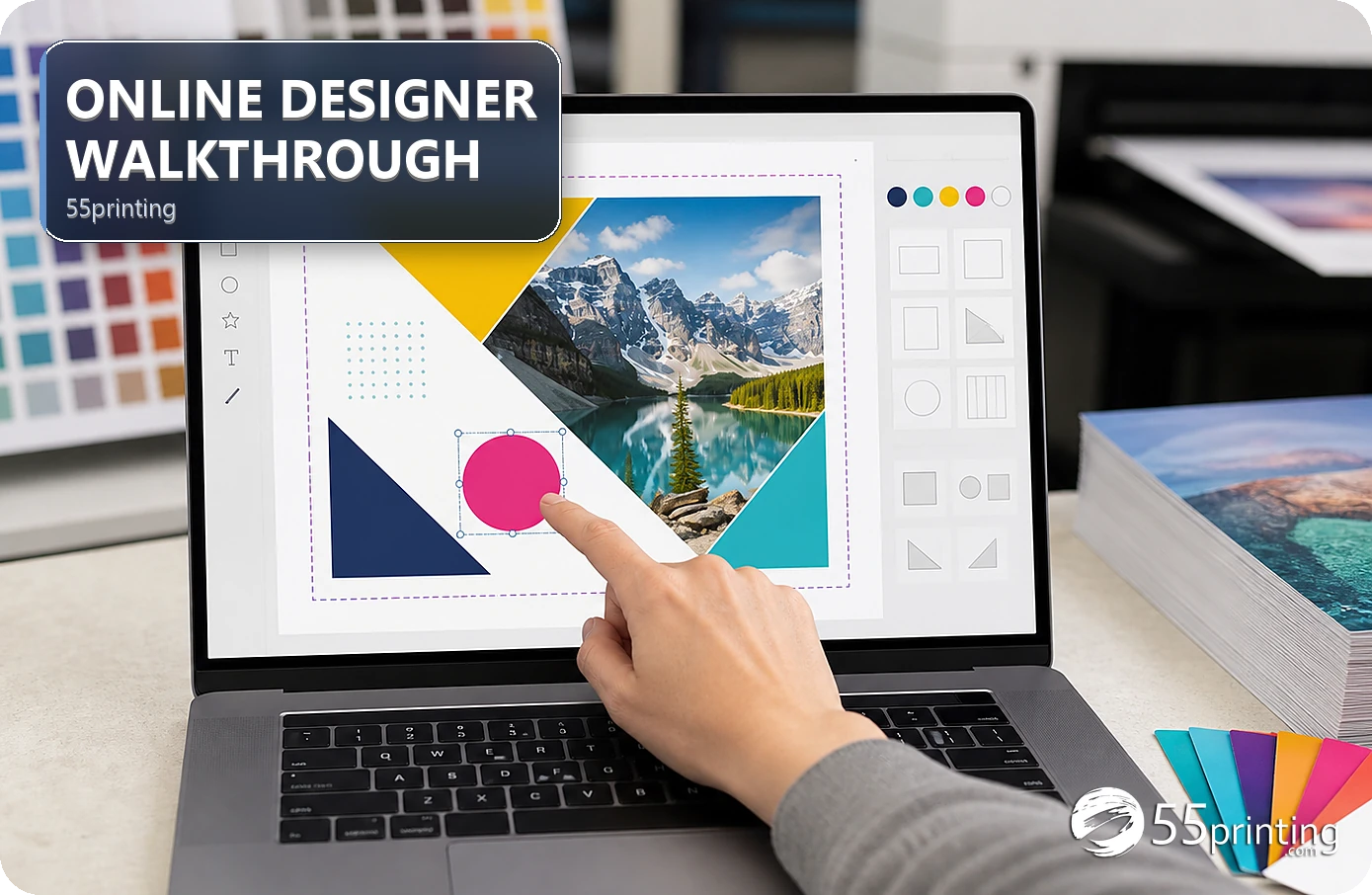
Use 55printing Online Designer when the job fits the current browser editor and you want to build or adjust a layout in one workspace. Start with the product template, keep logos proportional, save a named version, reopen it to check persistence, and request a proof. The editor does not replace a safe-zone check or final copy review.
The 55printing Online Designer is a browser-based route for creating or adjusting a print layout. The guest route currently leads to an account boundary, so check the visible sign-in state before planning the work. Once access is available, use the product canvas and template as the source of geometry, then treat saving, reopening, copy review, and proof as separate checkpoints.
How should you check access and project fit?
Open the current Online Designer route and note whether the page asks you to sign in or provides an editor immediately. Do not promise anonymous editing or account behavior from an old screenshot. If the job needs complex layered artwork, a special fold, or an exact brand system, decide whether the browser editor is the right place before investing time.
Gather the product, finished size, text, logo, photos, and preferred page order first. A browser editor can make placement easier, but it cannot choose the business goal, verify the phone number, or supply missing brand assets. Keep the source assets named and separate from the saved project.
- Confirm the current access state.
- Choose the product canvas before styling.
- Keep approved logos and copy available.
- Decide what must be checked in proof.
How do you start a design in the correct canvas?
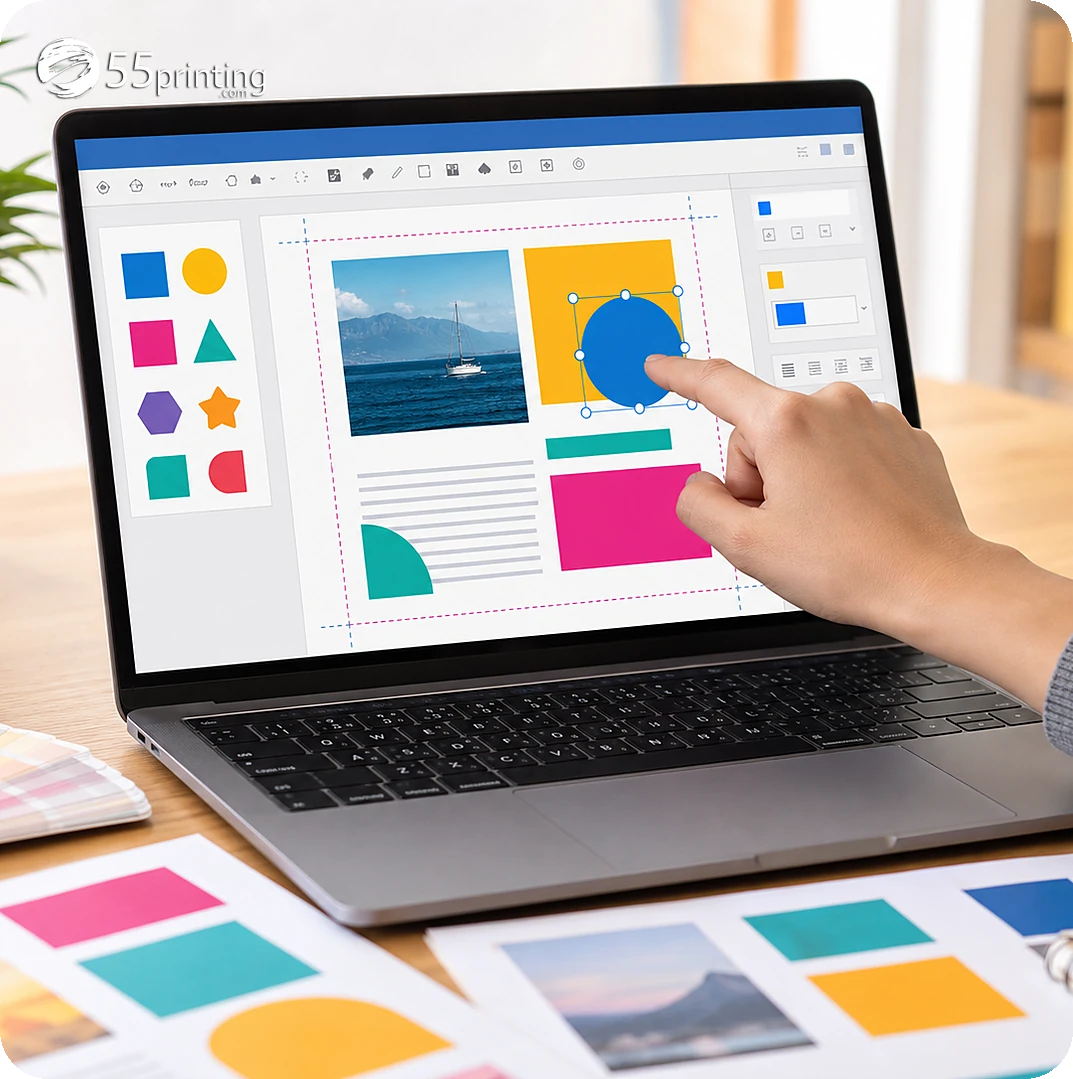
Use the matching 55printing guideline template or the product canvas shown in the current editor. Confirm orientation, bleed, safe zone, page side, and panel sequence before adding small details. A design can look balanced and still be on the wrong canvas if the document started from a generic size.
| Project state | First move | Review risk |
|---|---|---|
| New card or flyer | Choose the product canvas | Wrong size or side order. |
| Approved logo available | Place and lock proportions | Stretched or softened mark. |
| Copy still changing | Resolve wording first | Line breaks change later. |
| Saved project reopened | Compare every element | Missing or moved object. |
| Ready for production review | Use uploader and proof | Editor view is not approval. |
What should you check while building in the browser?
Add one content group at a time and keep important text inside the safe zone. Preserve logo proportions, inspect thin lines, and compare the design at normal reading size. If the editor exposes snapping, guides, or layer controls, use them as aids and still inspect the final composition yourself.
- Confirm product and side.
- Place background and bleed-aware artwork.
- Add approved copy and check spelling.
- Place logos without changing proportions.
- Inspect alignment, margins, and small type.
- Save a version name before leaving.
Do not use a decorative effect to hide a layout problem. If the source image is soft or the canvas is wrong, return to the appropriate tool or template. The Online Designer is a placement workspace; it is not a substitute for source-quality diagnosis.
Why should you save and reopen the design?
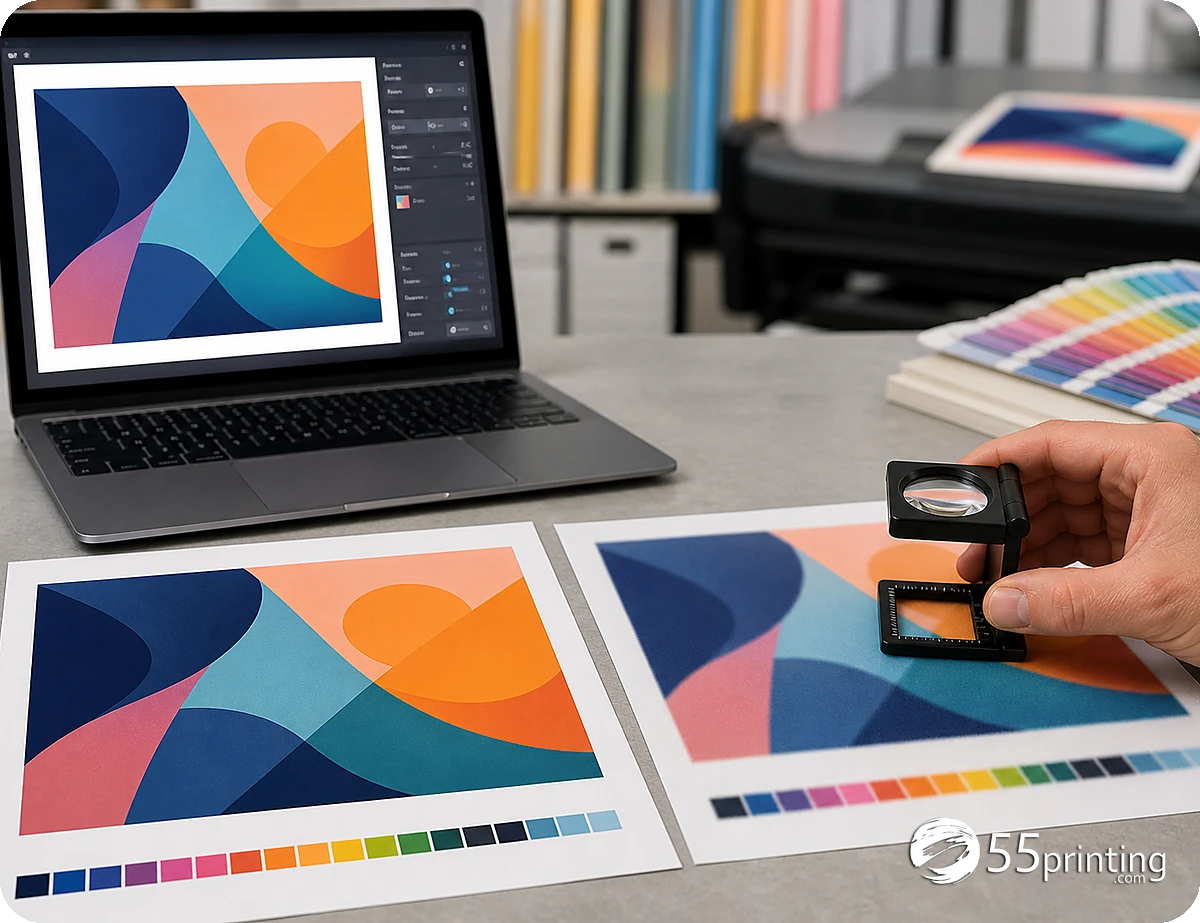
A save action and a fresh-session review answer different questions. Saving records a project; reopening checks whether the correct page, text, images, and placement return. Use a version name and compare the reopened design with the last deliberate change. If anything is missing, capture the issue before the design becomes the only copy.
Keep a local note with the product, project name, source assets, and intended proof checks. Do not state that a saved session is permanently available unless the current account interface says so. The durable rule is to keep a source copy and make the saved project easy to identify.
What happens after the browser design looks finished?
Review the complete design, then use the File Uploader or the current handoff route. Identify the product, side, version, and any special concern in the note. Compare the result with the free PDF proof before approving production. Check text, crop, bleed, safe zone, page order, and logos again.
Which projects fit the browser editor?
Simple card with approved assets
A card with settled copy, one logo, and a known canvas can be a reasonable editor project. Keep the logo proportional and proof the final text.
Flyer with a soft photo
Resolve the source photo first. Placement tools cannot make a low-detail image sharper at the finished size.
Complex folded layout
Start from the exact template and confirm panel order. If the editor does not expose the needed geometry, use another layout path and proof it.
What happens if the studio sends you to sign in?
A logged-out request for the Online Designer on October 9, 2026 returned HTTP 302 to the account sign-in page, with a return path. That is not a missing page. Sign in, finish the canvas this walkthrough describes, and export the PDF. Then open the PDF in Color Profile Check and record CMYK or RGB, plus any ICC profile or output intent. The hub described that reading the same day.
Do not invent studio buttons from this article, and do not treat RGB as an automatic defect. The checker does not convert the export. Save the mode in your project note and review the PDF on the proof.
Questions customers ask
What is 55printing Online Designer?
It is a browser-based design route for creating or adjusting a print layout. The current guest path should be checked for its access state because it may lead to an account boundary. Use the product canvas, save a version, reopen it, and review a proof before approval.
Do I need an account to use Online Designer?
Check the current route before planning the workflow. The guest route observed in this audit led to a My Account boundary, so the page should not promise anonymous editing. If sign-in is required, use the available account path and keep the project name and source assets traceable.
Should I start with a template?
Yes, start with the product canvas or matching guideline template when the job has a defined size, bleed, safe zone, or panel order. A generic canvas can make a design look finished while its geometry is wrong. Confirm the product and side before adding text or images.
How do I protect a logo in the editor?
Use an approved source asset, preserve its aspect ratio, and inspect it at normal reading size and close zoom. Do not stretch, redraw, or place the mark across a trim risk. If the source is soft, resolve that issue before relying on browser placement.
Why should I reopen a saved design?
Reopening tests whether the saved project returns the correct page, text, images, and placement. A save confirmation alone does not compare the project with your intended version. Use a clear name, keep source assets, and capture any missing or changed object before handoff.
Can Online Designer fix a blurry image?
No. It can place an image, but placement does not add missing source detail. Use a clarity or source-replacement workflow first, then inspect the image at the finished product size. A proof can reveal a problem, but it cannot turn a tiny screenshot into a reliable asset.
Does the editor check bleed and safe zone?
The current editor may show product guides, but the final decision still belongs to the product canvas, safe zone, and proof review. Keep text and exact marks away from cut risks, compare the design with the applicable template, and inspect every side before approval.
What should I do after the design is saved?
Reopen the saved project, compare copy and objects, then use the current upload or handoff path with the product and version in the note. Request the free PDF proof and check crop, bleed, safe zone, page order, type, and logos before production approval.
Choose the right canvas, preserve source assets, reopen the saved version, and proof the finished layout.