

Images to PDF: Merge Print-Ready Pages Without Losing Order
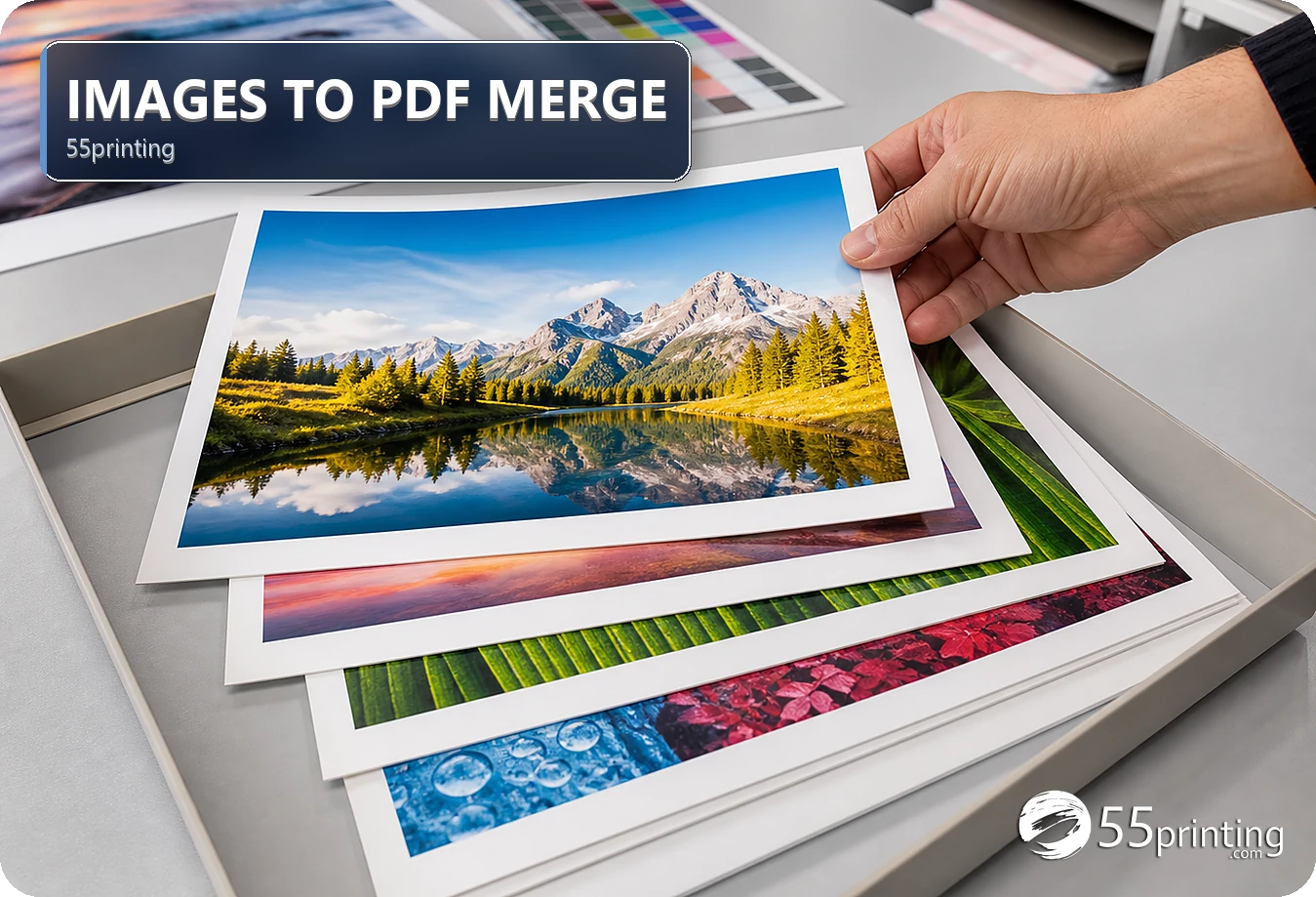
Use Images to PDF when separate page images need to become one reviewable document. Sort and label the images, confirm each page size and orientation, decide whether each file needs a blank white page after it, merge a copy, then inspect page order, crop, text, and resolution. The merged PDF is a container; it does not repair a low-detail image or fix a wrong page canvas.
Separate JPG or PNG files can represent the pages of a card set, booklet, menu, or proof packet, but a merge tool cannot infer the intended order or finished canvas from filenames alone. The Images to PDF tool from 55printing helps assemble a reviewable PDF, including an optional blank white page between files when each source is its own section. Prepare the images and their page roles first, then treat the merged file as a new version that needs a complete check.
What should you prepare before merging images into a PDF?
Make a page list before opening the tool. Give every image a page number, side name, and version, such as cover-front, inside-left, or back. Open each source and check that it belongs to the same job. A file can have the right filename and still be the wrong export, orientation, or revision.
Keep the originals unchanged and work from copies. Check whether the images share a finished size and orientation. If a document mixes portrait and wide-format pages, decide whether that mix is intentional. If the pages are meant to share one canvas, rebuild the outlier before merging instead of letting the tool scale it without a visible decision.
- Sort pages by the intended reading order.
- Record each image’s product, side, orientation, and version.
- Keep JPG and PNG originals outside the merged-file folder.
- Remove duplicate pages before starting the merge.
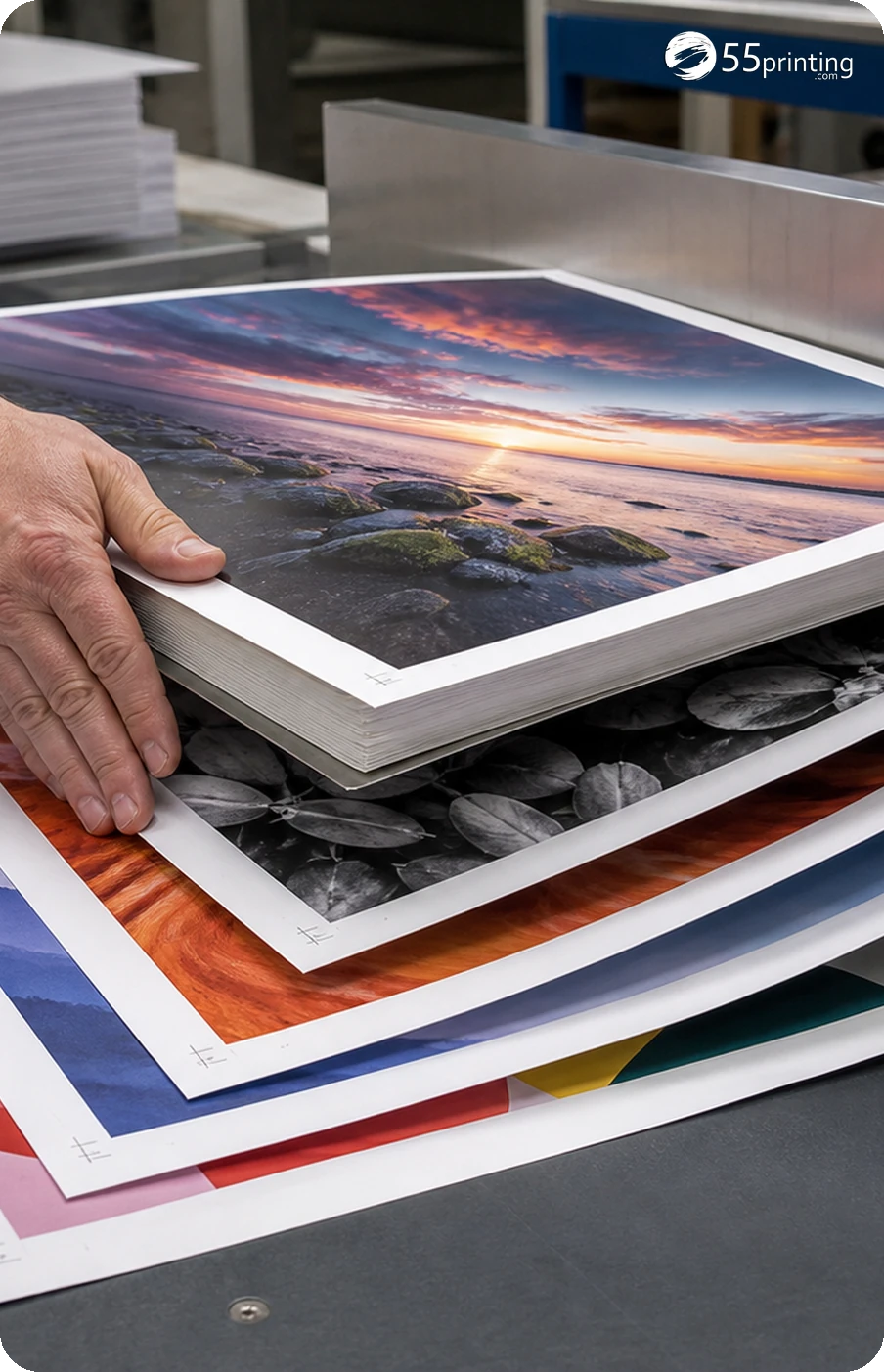
How do you keep page size and orientation consistent?
Confirm the finished product size before combining images. A PDF can contain pages with different dimensions, but that may not match the intended job. Check the matching 55printing guideline template when the pages need a particular canvas, bleed, safe zone, or panel order.
| Page condition | First action | Risk to review |
|---|---|---|
| Same size and portrait orientation | Sort and merge a copy | Verify order and crop. |
| Same size and wide-format orientation | Sort and merge a copy | Check that pages were not rotated. |
| Mixed portrait and wide-format by design | Document the intended sequence | Review each page on its own canvas. |
| One image is a different size | Rebuild or resize before merge | Unplanned scaling can soften type. |
| Bleed or safe zone is missing | Fix the page layout first | Merging cannot create missing margins. |
Do not solve a page-size problem by repeatedly merging the same images. A clean PDF wrapper cannot make a small source sharper or place content inside a safe zone. Resolve the source layout, export a new image, and record which version entered the merge.
What is a safe Images to PDF merge sequence?
Open the Images to PDF route and add the prepared copies in the page-list order. Use the visible controls on the current page. If the interface allows reordering, compare the displayed order with the written list before starting the merge. Save the output with the job name, document role, and version.
- Place the source copies in a numbered working list.
- Confirm the selected files match the list.
- Check the displayed order before merging.
- Turn on blank white pages between files when each queue item is its own section.
- Create one merged PDF and keep the images available.
- Open the PDF in a viewer and inspect every page, including any blank separators.
- Record the output filename and any page-level changes.
For a multi-page job, one final filename is easier to track than several unnamed exports. Keep the source images because they show how each page began. If a page needs correction, replace that page from a corrected source rather than editing the merged PDF without a version note.
When should you leave a blank white page between files?
Enable Insert a blank white page between files on the Images to PDF tool when each uploaded file is a section that should stay together, and the next file should start after a clean divider. The tool adds one completely blank sheet after every file except the last. Pages inside a multi-page PDF stay grouped; the white page goes between files, not inside them. Blank pages match the export size, carry no marks or labels, and count toward the page limit.
That separator pattern is a practical print advantage for menus, training packets, binder tabs, proof sets, and any handoff where collating is easier with a white page between groups. Most free merge tools only stack pages end to end, so this control is worth using when the job is organized by file, rather than by page count alone.
- Use blank pages when file groups must remain readable as separate sections.
- Leave the option off when the queue is already one continuous reading order.
- Count blank sheets in the final page total before upload or print.
- Confirm in the viewer that no blank sits after the last file.
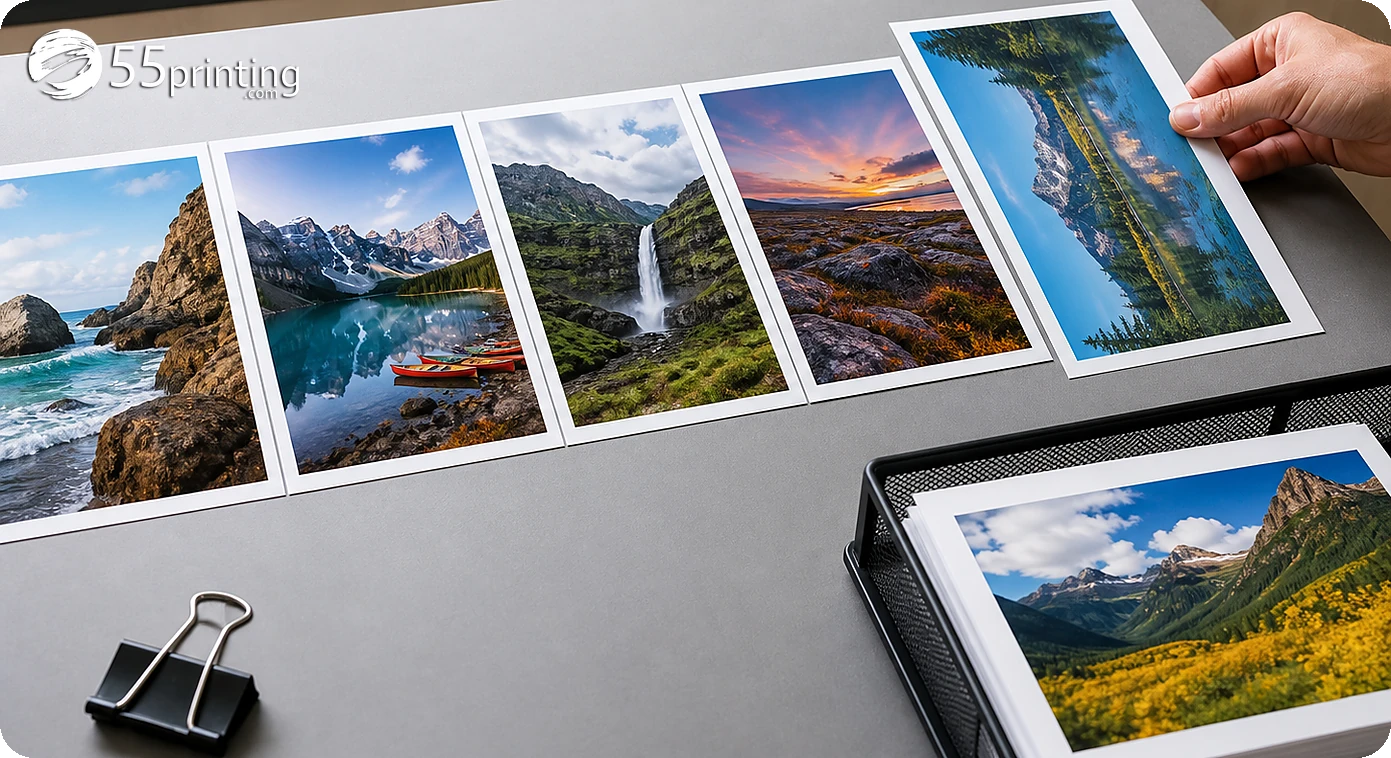
What should you inspect in the merged PDF?
Start with page count and order, then inspect each page at normal reading size and close zoom. Check that the first and last pages are present, fronts and backs are paired correctly, and no image has been stretched, clipped, or rotated. Look at small type, phone numbers, QR codes, logos, fine rules, and any image that began as a low-detail JPG.
Open the PDF properties or page view when you need to confirm dimensions. Compare the document with the page list and the original images. If the merged PDF changes a page’s crop or makes the page size unclear, return to the source layout. The act of merging should be easy to explain and reproduce.
How should you upload a merged PDF for review?
Use the File Uploader with a filename that identifies the product and version. In the note, list the page count, orientation, and any intentional mixed-page treatment. Say which source images were used and point out any page that needs special attention. This gives the reviewer a clear path back to the individual page.
Before approval, compare the merged file with the free PDF proof and the original page list. Review crop, bleed, safe zone, page order, text, and logos. A merged PDF can be organized and still contain an image that is too small or a page that is wrong, so the proof remains a separate checkpoint.
Which image-to-PDF jobs need extra care?
Front and back card pages
Label the sides before merging and confirm that the front and back remain paired with the same product and orientation. A correct page count does not prove the sides are in the right order.
Sectioned print packet with blank dividers
When each file is a section, enable blank white pages between files so binders, menus, or training sets keep a clean divider. Inspect the output to confirm blanks sit between groups and never after the last file.
Mixed portrait and wide-format packet
Document the intended rotation and inspect every page on its own canvas. If the mix is accidental, correct the source images before creating the PDF.
Photo pages from a phone
Check perspective, glare, pixel detail, and crop before merging. The PDF can hold the photos, but it cannot repair a soft or angled capture.
Questions customers ask
Can I merge JPG images into one PDF for print?
Yes, a merge workflow can assemble separate JPG pages into one PDF for review or a requested handoff. Sort the pages first, confirm their finished size and orientation, and inspect the output page by page. The PDF container does not improve the detail of a soft JPG.
Should I merge PNG files with JPG files?
You can combine image types when the current tool accepts them, but inspect how each page is scaled and displayed. Keep a source copy of every image, confirm that transparency or background behavior is intentional, and compare the merged pages with the original files before upload.
How do I preserve page order in a merged PDF?
Create a numbered page list before selecting files and use filenames that show the order and page role. Compare the selected sequence with that list before merging, then check the first, middle, and final pages in the resulting PDF. Do not rely on folder order alone.
Can I leave a blank white page between files when merging?
Yes. On the 55printing Images to PDF tool, enable Insert a blank white page between files. One completely blank sheet is added after each queue file except the last. Pages inside a multi-page PDF stay together; the white page only separates files. Count those blank sheets in the final page total and confirm none appear after the last file.
Can one PDF contain portrait and wide-format pages?
A PDF can hold different page orientations, but the mix should be intentional and documented. Check each page on its own canvas and verify that the viewer did not rotate or crop it unexpectedly. If the mix is accidental, correct the source images before merging.
Does merging images fix low resolution?
No. Merging places the existing pixels into a document; it does not create missing detail. A small screenshot or soft phone photo can remain soft inside the PDF. Review small type and fine lines at the finished page size, then locate a better source when the detail matters.
What should I name the merged PDF?
Use a name that identifies the product, document role, page count or version, and date or revision when your workflow needs it. For example, a booklet review file can include the product name and v3. Keep the individual page images so the source of each page remains clear.
How do I check a merged PDF before upload?
Verify page count, order, orientation, dimensions, crop, text, logos, QR codes, bleed, safe zone, and image detail. Open every page at normal reading size and close zoom. Compare it with the numbered source list and retain the output filename in the upload note.
Should I upload the images or the merged PDF?
Use the file type requested by the workflow and keep both when the instruction is unclear. The PDF is easier to review as a document, while the images preserve the individual page sources. State which file is the merged review document and which files are the page originals.
Label the sources, confirm the canvas, inspect the merged document, and keep the individual images available for proof questions.