


BINDING EDGE · ADJUSTABLE MARGIN · PAGE SCAN
Check the left margin for a 3 hole punch
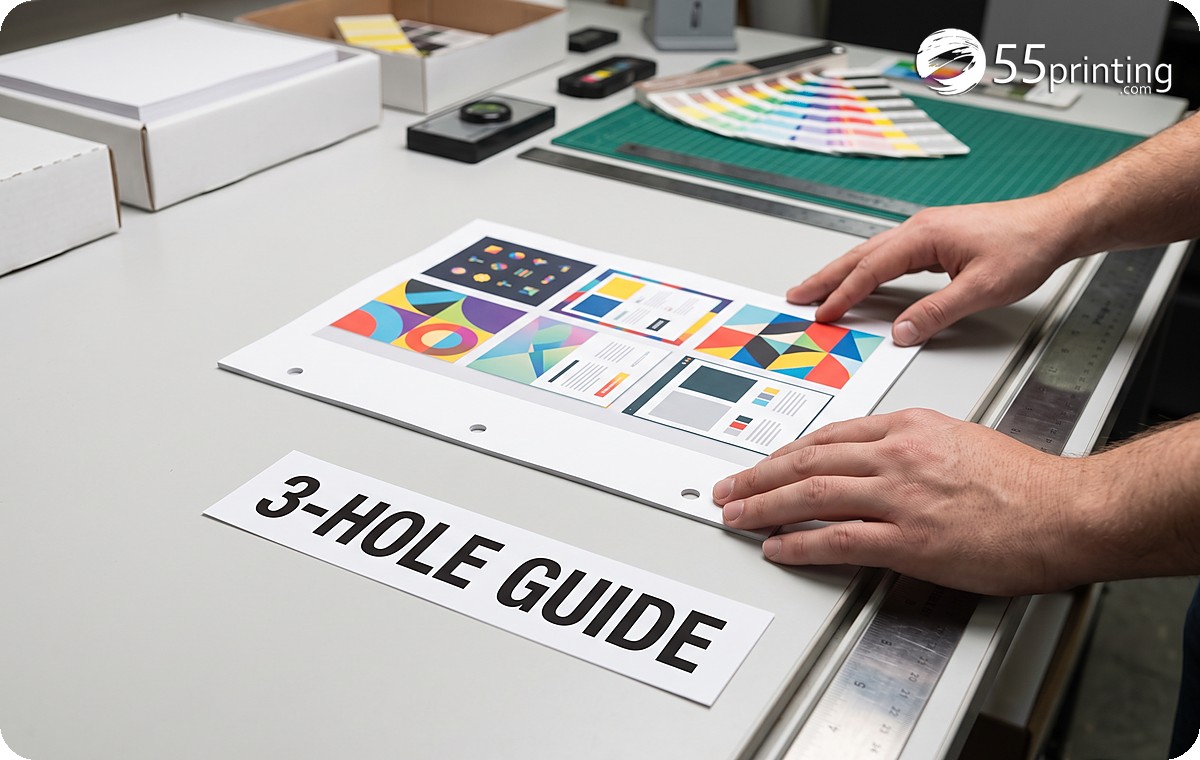
Choose the binding side and keep-clear distance. The tool renders each page, flags visible marks inside that band and downloads a page-size three-hole planning guide.
A three-hole punch needs clear paper on the binding side, but the exact safe distance depends on the punch, paper and binder. This checker does not invent one universal margin. You choose an adjustable band, the browser scans for visible marks inside it, and the downloaded guide shows where to review the job before punching.
Guide last checked and updated October 11, 2026 by the 55printing prepress team.
Pick your path
Two ways to get this done - both 100% free
Complimentary prepress service
Send us your files - we'll handle Check the left margin for a 3 hole punch
Use our File Uploader to send artwork and notes. Our team will complete this task and email you back completely free of charge.
- Upload the PDF that will be three-hole punched
- Say whether the punch enters on the left or the right
- Ask for a planning guide, not holes drawn on the art
FREE PUNCH-MARGIN CHECK
Look for content inside the binding band
Rendered locally · source is not modified
Punch clearance is a production decision, not a magic number
The scan looks for nonwhite pixels inside the selected side band on every page. A page number, rule, footnote or image can trigger the warning. That is useful evidence, but it cannot predict mechanical drift, torn stock or the diameter of a specific punch.
For duplex manuals, binding sides can alternate when the visual margin is mirrored. Choose the side that will physically meet the punch and review fronts and backs in sequence before committing the run.
How to check a PDF punch margin
- Choose the binding side. Select the physical side that will enter the punch, not merely the visual page margin.
- Set the keep-clear band. Use the production requirement supplied by your equipment or bindery.
- Review every flagged page. Open the source at that page and move critical content or confirm the warning is harmless.
What a punch-margin result means
| Finding | Meaning | Next action |
|---|---|---|
| No marks detected | Rendered band looks clear | Print one sample and punch it |
| Marks detected | Visible content enters the band | Inspect each listed page |
| Guide only | Hole positions are illustrative | Use the actual machine setup |
Three-hole punch margin questions
How much left margin do I need for a 3 hole punch?
There is no safe universal value for every machine and binder. Use the centerline and hole diameter specified by the actual finishing setup, add the production tolerance your bindery requires, then enter that keep-clear distance here and test one physical sheet.
Does this tool add holes to my PDF?
No. It scans the rendered binding band and creates a separate planning guide. It does not draw holes over customer artwork, change the source PDF or claim that the illustrated circles match a specific machine. Print the guide at actual size and compare it with the punch you will use.
Why did a blank-looking page get flagged?
Very light rules, crop marks, page numbers, scanner noise or off-white backgrounds can count as visible marks. Open the listed source page at high zoom and decide whether the detected pixels are critical content or harmless background. A crop mark inside the band is a real collision even when the page looks empty at a glance.
Can I check right-side binding?
Yes. Choose Right when the physical punch enters the right edge. Do not alternate the setting only because a duplex layout mirrors visual margins; base the choice on how the printed stack will be punched and bound. Hold the finished stack the way the binder will hold it before you pick the side.
Does the checker understand printer drift?
No. It analyzes the digital page. Paper registration, punch alignment and stack movement happen after the PDF leaves the browser. A clear report still requires a printed and punched sample from the production equipment. Add a little extra clearance when that sample shows the holes walking into the type.
What should I do with the downloaded guide?
Print it at actual size on the same sheet size, compare its band with the real punch setup, and use it as a communication aid. Do not merge it into customer artwork or send the guide itself as the production page.
We check the binding band before a three-hole punch eats a page number
A training handout came in with the lesson numbers 0.4 inch from the left edge. The shop punch needed more room. This bench flagged those pages, and we moved the numbers before the holes landed on them. The tool does not punch the PDF. It draws a planning guide we print at actual size and hold against the real machine.
55printing uses this check on binders, training sets, and any stack that will be punched after it leaves the copier. We keep teaching new punch widths as bindery jobs arrive. Daily. No ceiling.
Does 55printing use this punch check on live binders?
Yes. We scan the binding band on handouts and manuals before a three-hole punch is set. A clean digital band is not bindery certification. We still punch one physical sample, because paper registration and machine drift happen after the PDF leaves the browser.
A clear band still needs actual size and a human sample
Print the guide at 100 percent with the actual-size tool, then punch one sheet. Color and duplex questions belong on their own benches beside this one.
Create & Design
- Online Designer - Free browser design studio for cards, flyers, and more
- Guideline Templates - Bleed and safe-zone files for popular print sizes
- Paper Types Gallery - See which products use each stock, plus similar-paper picks
- AI Design Help - Staff-assisted AI help for logos and artwork
- All languages - Design, print, chat, and email in any language
- QR Code Generator - Create a free custom QR code for print
- QR Code Scanner - Test if a printed or file QR is readable and what it opens
- Free Sample Kit - Feel our paper, coatings, and finishes, mailed to your door
Files & Proofs
- Print Clear: Print Resolution Checker - Check effective PPI, print size fit and color signals before printing
- Rotate Files: PDF, JPG & PNG - Turn a file 90°, 180° or 270° in your browser without uploading it
- True Size Letter PDF - Center pages on Letter at true 1:1 size without scaling
- Mixed Page Landscape Fit - Preserve landscape pages and turn mismatched portrait pages left
- PDF Bleed Box and Edge Ink - Inspect PDF boxes and rendered ink near every edge
- PDF Duplex Readiness - Inspect page count, orientation, blank backs and duplex flags
- PDF to Real DeviceGray - Rasterize selected or all pages to true 8-bit DeviceGray
- PDF Duplex Metadata - Set long-edge or short-edge preference without changing pages
- Print Ready Preflight Check - Check dimensions, bleed planning and effective PPI before printing
- Business Card Print-Safe Check - Check the 3.5 × 2 inch card plan, bleed and image detail
- EDDM Mailpiece & Indicia Checker - Check USPS flat size, thickness, audience and indicia planning
- QR Print Readiness Checker - Decode a QR and check printed size, contrast and quiet zone
- File Uploader - Upload artwork or request a free file review
- Artwork Quality Enhancer - Restore blurry text, weak edges, and low-resolution print files
- Low-Res Text Recovery - Recover blurry text on photos, foil, and any background
- Color Profile Check - Check if a PDF is CMYK or RGB, plus the ICC profile and output intent
- Word to PDF - Convert DOC and DOCX to high-fidelity print PDF
- PDF to JPG - Export PDF pages as JPG or PNG at print DPI
- Images to PDF - Merge JPG, PNG, WebP, and PDF into one file
- Grammar Check - AI spelling and clarity check for print copy
- AI Uncrop Image - Free local image uncrop; AI extend by request
- Free PDF Proof - Get a digital proof before you place an order
- PowerPoint to JPG/PDF - Turn slides into print pages and proof images.
Plan & Budget
- Print Cost Per Piece Calculator - Model transparent setup, materials, finishing, mailing and postage assumptions
- Direct Mail ROI Calculator - Model response, conversion, CPA and break-even before a mail drop
Order & Pay
- Online Payment - Pay an invoice with card, PayPal, or wallets
- Pay Later - Order now and pay after you approve the proof
- Price Match - Ask us to review a lower competitor price
Samples & Support
- Custom Quotes - Get a written quote for special sizes, finishes, and large runs
- Custom Orders - Special sizes, finishes, or design requests
- Contact - Reach our print specialists by phone or form