


AI Uncrop Image
Free Bleed Extender
Uncrop print images past the cut line. Local Smart bleed is completely free in the form. Need true AI image uncrop? Request it and our team handles it free.
Pick your path
Two ways to get this done - both 100% free
Complimentary prepress service
Send us your files - we'll handle AI Uncrop Image
Use our File Uploader and note that you want AI Uncrop Image / AI Bleed Extender. Our team runs the AI extend (true object continuation past the edge) and emails you the result completely free of charge.
- Upload the print image that needs extra bleed (JPG, PNG, WebP, or PDF page)
- Write “AI Uncrop Image” in your notes, plus size and desired border
- Say if you need PNG, JPG, or a mounted PDF proof
Why extend bleed before print?
- Cutters need space outside the trim line (bleed).
- Names and phones should sit inside the safe zone.
- Local Smart bleed extends only the outer border; your original center stays locked.
- AI extend (by request) continues real backgrounds past the edge when photos or patterns need more than a color fill.
More free tools
Tools hub: proofs, templates, payment, and converters.
Guideline templates: official bleed and safe files.
PDF to JPG: rasterize a proof page first.
Images to PDF: combine files for upload.
Grammar Check: clean print copy before bleed extend.
File Uploader: request AI Uncrop Image or a free file review.
Need to uncrop a print image past the cut line? Use free local Smart bleed right in this form to add print-safe borders while locking your original design pixels in place. Need true AI image uncrop? Request AI Uncrop Image through File Uploader and our prepress team will run it free of charge.
Guide last checked and updated October 16, 2026 by the 55printing prepress team.
Free local fabrication in the form
Many designs are built to the final trim size with text sitting close to the edge. On a business card or flyer, that looks fine on screen and fails in production when the trim is even a hair off. The Instant path runs local Smart bleed in your browser session: it extends only the outer border using edge sampling and mirror expand methods, then pastes your original pixels back so wording never changes. This local fabrication is completely free, needs a free account, and does not use paid AI credits.
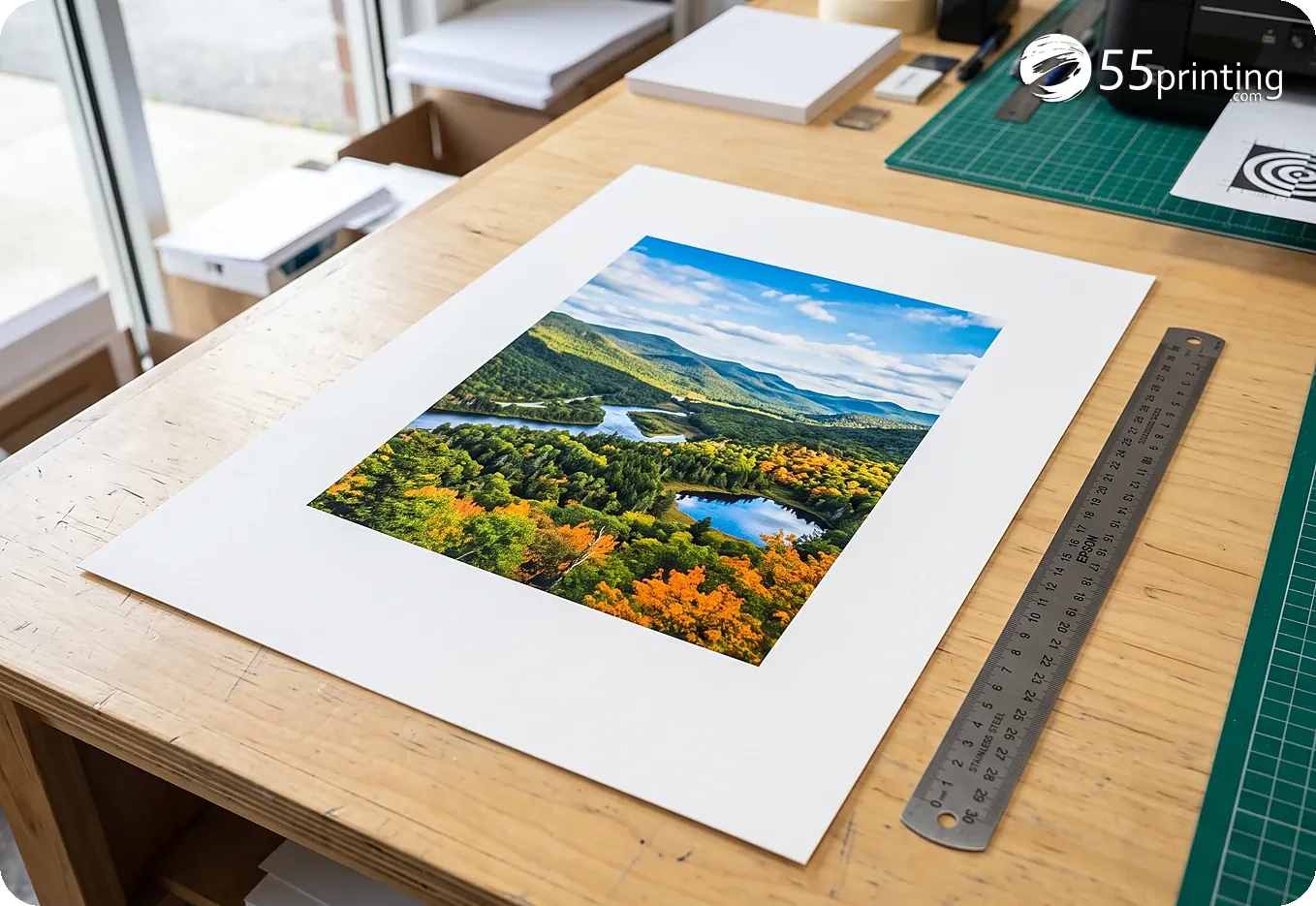
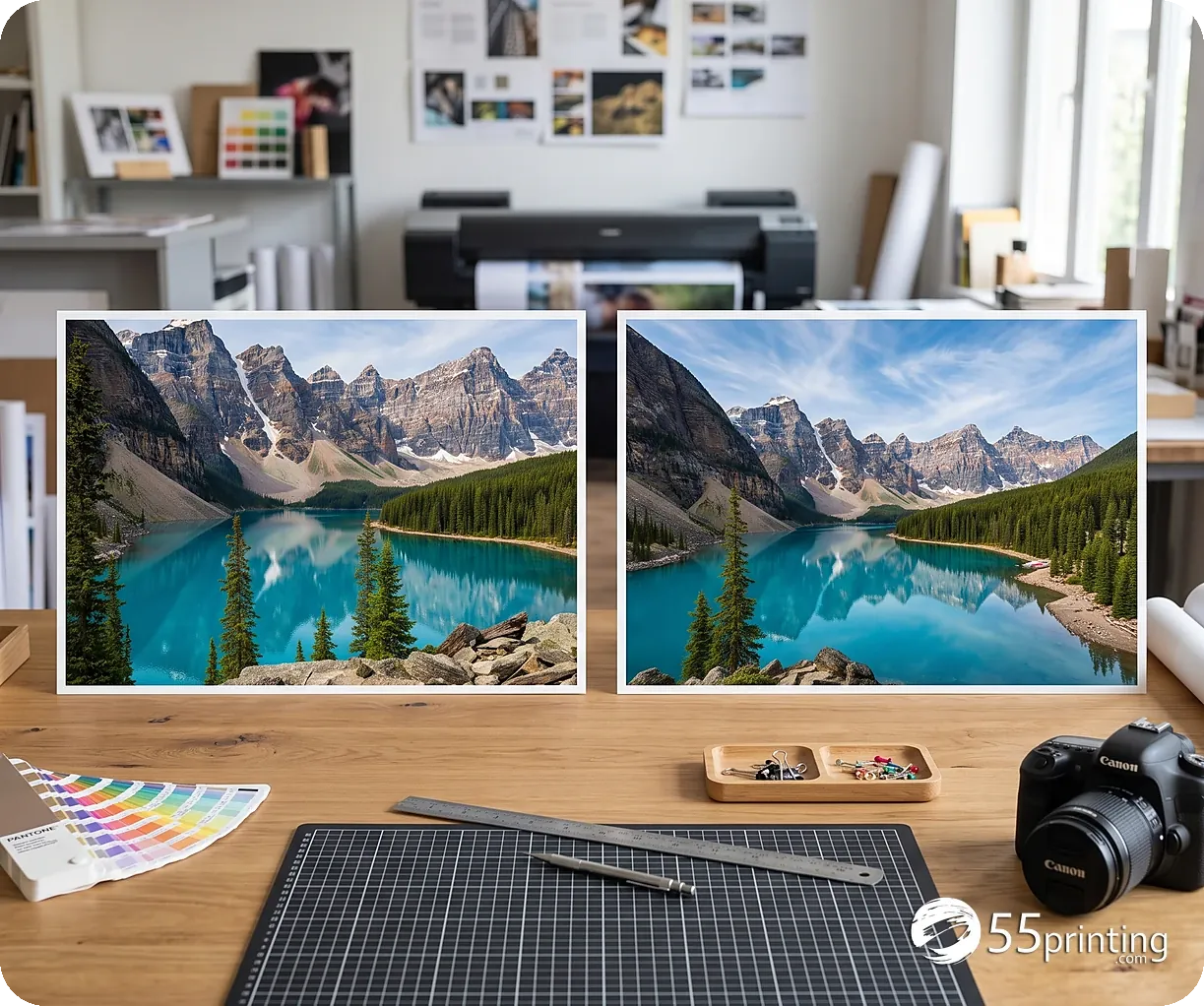
AI extend by request
When the background is a photo, gradient, or busy pattern, a local color fill may not look natural enough. Choose By request, open File Uploader, and note that you want AI Bleed Extender. Our team runs the AI extend so real artwork continues past the cut line, then returns your file by email at no charge. Use this path when logos, faces, or detailed art sit near the edge and you want a cleaner production border.
Design Studio geometry
Print-bleed presets follow the same contract as our Design Studio and proofs pipeline: choose an assumed DPI (default 300), then add equal inch margins on every side. Standard bleed is 0.125". After you download, place the file on a full-bleed template, or ask our team to mount it for a free PDF proof.
Best results
- Solid-color or simple backgrounds work great with free local Smart bleed.
- Busy patterns, faces, and hands are better as an AI extend request.
- Always review the after preview and the 100% seam zoom before printing.
- Export PNG for graphics; JPG is fine for photos. File cap is 12 MB.
Local bleed or an extend by request
| The border is | Use | What happens |
|---|---|---|
| A flat color | Local Smart bleed | It continues the edge color. The design inside does not move |
| A photo or a pattern | Extend by request | A person continues the scene. The local form does not invent that photo |
| Type tight to the trim | The official template | Move the type inward. This step does not rewrite the words |
Bleed Extender FAQ
Is the form free?
Yes. Local Smart bleed in this form is completely free. There is no signup fee and no AI credit charge for the Instant path. The edge continuation runs in your browser from the colors already on the border, so a social crop can gain the extra margin a cutter needs before you send the file to print.
What is local fabrication vs AI extend?
Local fabrication (Smart bleed) samples and continues edge colors in the form. AI extend continues the real background with AI and is available by request through File Uploader, handled free by our prepress team. Use the local path when the border is a flat color or a simple texture. Ask for the AI path when a photo scene has to continue past the crop and a flat smear would show.
Can I upload a PDF?
Yes. Drop a multi-page PDF and use the preview carousel to choose the page. Only that page is extended. Your original PDF is not replaced. Download the extended page and place it back into the full file if the other pages must stay exactly as they were.
Will this change my text?
No. After the border is generated, we lock your original image pixels back into place. Only the new border area is filled. Headlines, prices, and logos that already sat inside the crop stay on the same pixels. Zoom the seam at 100 percent before you treat the file as ready for a cutter.
How do I request AI Bleed Extender?
Pick By request above, open File Uploader, upload your artwork, and write AI Bleed Extender in your notes with the finished size and the border you need. We email the result back free of charge. Include whether the extra area is for bleed that a cutter will trim, or for a larger visible background you want to keep.
Do you store my file?
We process the image to return a result. Temporary job files are cleaned automatically. Do not upload confidential medical or payment documents here. The local Smart bleed path stays in the browser. The by-request path is the one that sends a file to prepress so a person can extend it.
What bleed distance should I pick?
The common shop value is 0.125 inches on every side, at 300 DPI, when the product does not name another measure. The official template for that product is the number that wins. This form does not read the order or guess the size. If the file is already at trim and the type touches the edge, adding a margin does not move that type inward. Compare the download with the template before you replace the file on an order.
Can I extend one side only?
Local Smart bleed on this form adds the same margin on all four sides. It does not leave one side at zero and stretch the other three. If only one edge is short of paper, request the extend through File Uploader and name the side and the distance. An uneven extend done by hand can skew a photo. Review the seam at 100 percent before you treat the file as ready for a cutter.
The photo stopped at the trim, and bleed had nowhere to go
A portrait for a postcard was cropped tight to a face. The trim needed background past the cut, and there was no wider original. Stretching the pixels would have warped the face. We built the uncrop tool so that edge can be extended on purpose.
Extend your own image here for free and judge the new margin before you order. Send the photo if you want prepress to extend it at no charge and place it on the product template. Tight phone crops are the files that opened this bench.
Do you uncrop customer photos at 55printing?
Yes. We use this tool when a social crop has no room for bleed or for a price line. Local uncrop stays on the device. Staff can also extend by request through the File Uploader. We keep improving both paths as real listing and food photos show us new tight crops.
Uncrop is the start. Enhancer, merge, and guidelines finish the piece
A grown canvas often still needs the Artwork Quality Enhancer, a merge with a map PDF, or a guideline template. Those are tools we run on the same postcard. We keep the whole list alive.
Create & Design
- Online Designer - Free browser design studio for cards, flyers, and more
- Guideline Templates - Bleed and safe-zone files for popular print sizes
- Paper Types Gallery - See which products use each stock, plus similar-paper picks
- AI Design Help - Staff-assisted AI help for logos and artwork
- All languages - Design, print, chat, and email in any language
- QR Code Generator - Create a free custom QR code for print
- QR Code Scanner - Test if a printed or file QR is readable and what it opens
- Free Sample Kit - Feel our paper, coatings, and finishes, mailed to your door
Files & Proofs
- Print Clear: Print Resolution Checker - Check effective PPI, print size fit and color signals before printing
- Rotate Files: PDF, JPG & PNG - Turn a file 90°, 180° or 270° in your browser without uploading it
- True Size Letter PDF - Center pages on Letter at true 1:1 size without scaling
- Mixed Page Landscape Fit - Preserve landscape pages and turn mismatched portrait pages left
- PDF Punch Clearance Guide - Plan an adjustable binding-side band and three-hole guide
- PDF Bleed Box and Edge Ink - Inspect PDF boxes and rendered ink near every edge
- PDF Duplex Readiness - Inspect page count, orientation, blank backs and duplex flags
- PDF to Real DeviceGray - Rasterize selected or all pages to true 8-bit DeviceGray
- PDF Duplex Metadata - Set long-edge or short-edge preference without changing pages
- Print Ready Preflight Check - Check dimensions, bleed planning and effective PPI before printing
- Business Card Print-Safe Check - Check the 3.5 × 2 inch card plan, bleed and image detail
- EDDM Mailpiece & Indicia Checker - Check USPS flat size, thickness, audience and indicia planning
- Place EDDM Indicia - Place, size, and preview an EDDM indicia, then export PDF, PNG, or JPG
- QR Print Readiness Checker - Decode a QR and check printed size, contrast and quiet zone
- File Uploader - Upload artwork or request a free file review
- Artwork Quality Enhancer - Restore blurry text, weak edges, and low-resolution print files
- Photo Enhancer - Sharpen small or blurry photos up to 4K, faces rebuilt
- PDF 2-Up Impose - Lay two PDF pages per sheet in pairs, stack, or booklet order
- Low-Res Text Recovery - Recover blurry text on photos, foil, and any background
- Color Profile Check - Check if a PDF is CMYK or RGB, plus the ICC profile and output intent
- Word to PDF - Convert DOC and DOCX to high-fidelity print PDF
- PDF to JPG - Export PDF pages as JPG or PNG at print DPI
- Images to PDF - Merge JPG, PNG, WebP, and PDF into one file
- Grammar Check - AI spelling and clarity check for print copy
- Free PDF Proof - Get a digital proof before you place an order
- PowerPoint to JPG/PDF - Turn slides into print pages and proof images.
Plan & Budget
- Print Cost Per Piece Calculator - Model transparent setup, materials, finishing, mailing and postage assumptions
- Direct Mail ROI Calculator - Model response, conversion, CPA and break-even before a mail drop
Order & Pay
- Online Payment - Pay an invoice with card, PayPal, or wallets
- Pay Later - Order now and pay after you approve the proof
- Price Match - Ask us to review a lower competitor price
Samples & Support
- Custom Quotes - Get a written quote for special sizes, finishes, and large runs
- Custom Orders - Special sizes, finishes, or design requests
- Contact - Reach our print specialists by phone or form