

AI Uncrop for Postcards and EDDM Mail Trim: Protect the Mailer Zones
Use the 55printing AI Uncrop route for postcard or EDDM artwork that needs extra image border, then compare the result with the current mailer template and required address area. Keep text, logos, codes, and mailing information in approved zones. Reopen the output and inspect the proof; edge extension is not postal compliance or approval.
Postcards and EDDM pieces have two different layout questions: does the image extend far enough for the cut, and does the mailing side preserve the current required address area and other restrictions? The current 55printing AI Uncrop route can extend image borders locally or provide a by-request path. It does not decide postal rules, product geometry, or whether a mailer is approved.
How do trim and mailer zones differ?
Start with the current product and mailing template. Mark the image area that can continue beyond the trim, then mark text, logos, QR codes, addresses, indicia, and other elements that must remain in their approved regions. A generated border belongs to the image edge; it is not a place to move required mailing content.
| Question | Review response | Stop when |
|---|---|---|
| Will the background reach trim? | Test local border extension | New edge looks wrong or incomplete. |
| Where may mailing content go? | Use the current product and mailing template | Required area is uncertain. |
| Is important text near an edge? | Reposition in the source design | Extension would affect exact content. |
| Is the piece EDDM? | Check current mailing requirements | Template or postal instruction is missing. |
How should you prepare a postcard or EDDM file?
Keep the source export and record product, side, version, orientation, and mailing use. Identify the image edge, trim, safe zone, address area, and exact copy. If the current mailer requirements are not available, pause and obtain them before extending the image. Do not use an old template because the dimensions look similar.
- Match the product and mailer version.
- Mark trim, bleed, safe, and address areas.
- Keep text, logos, codes, and mailing content separate from border work.
- Choose the local or by-request path that fits the image.
- Save the output as a new version.
- Compare the source, extension, and template.
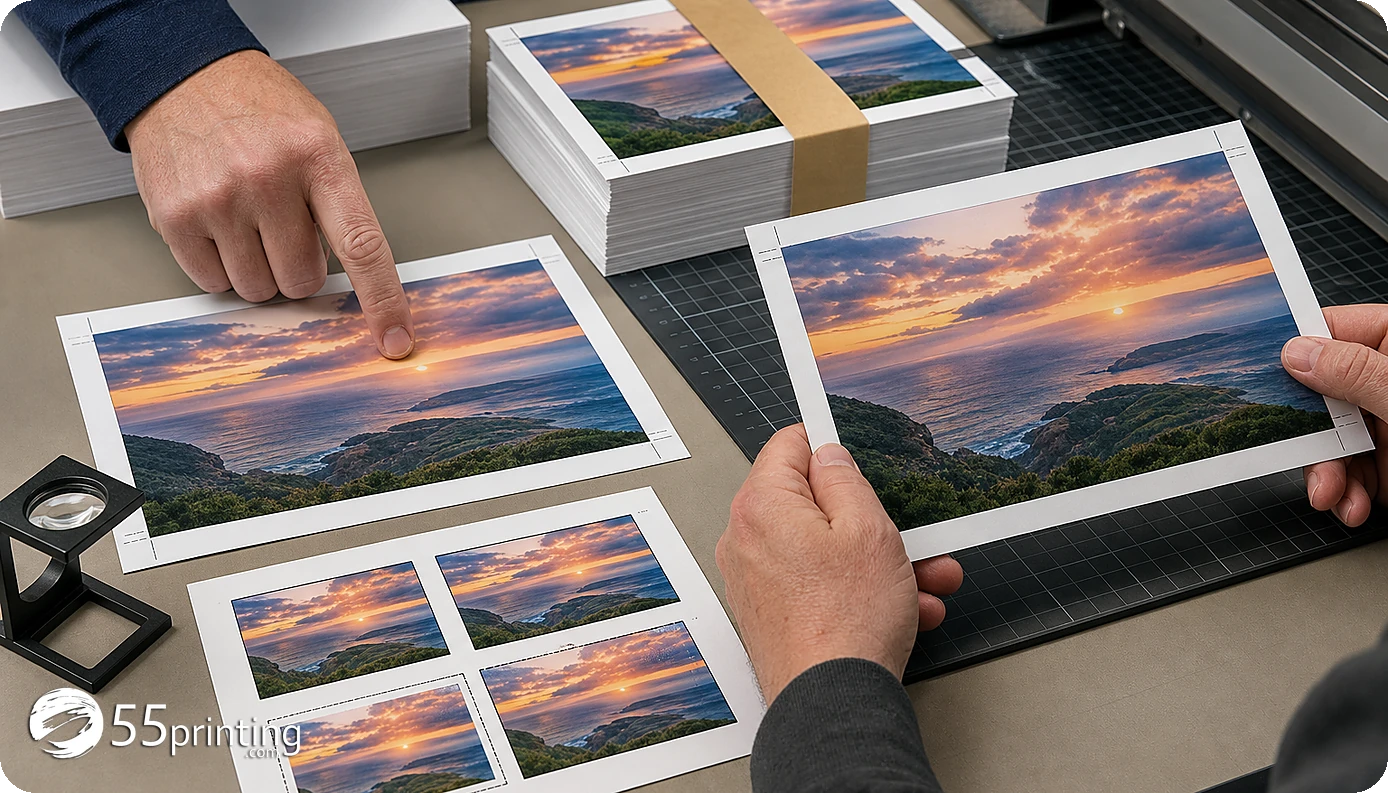
What should you review after the border extension?
Reopen the output and inspect the new edge for seams, repeated objects, odd colors, faces, logos, text fragments, and crop changes. Confirm the full canvas and the side that carries mailing information. Compare the headline, offer, date, URL, QR code, address area, and other exact content with the source.
If a border extension affects a reserved area or makes the mailing side ambiguous, return to the source layout. A proof can reveal the issue, but it does not replace the current product and mailing requirement review.
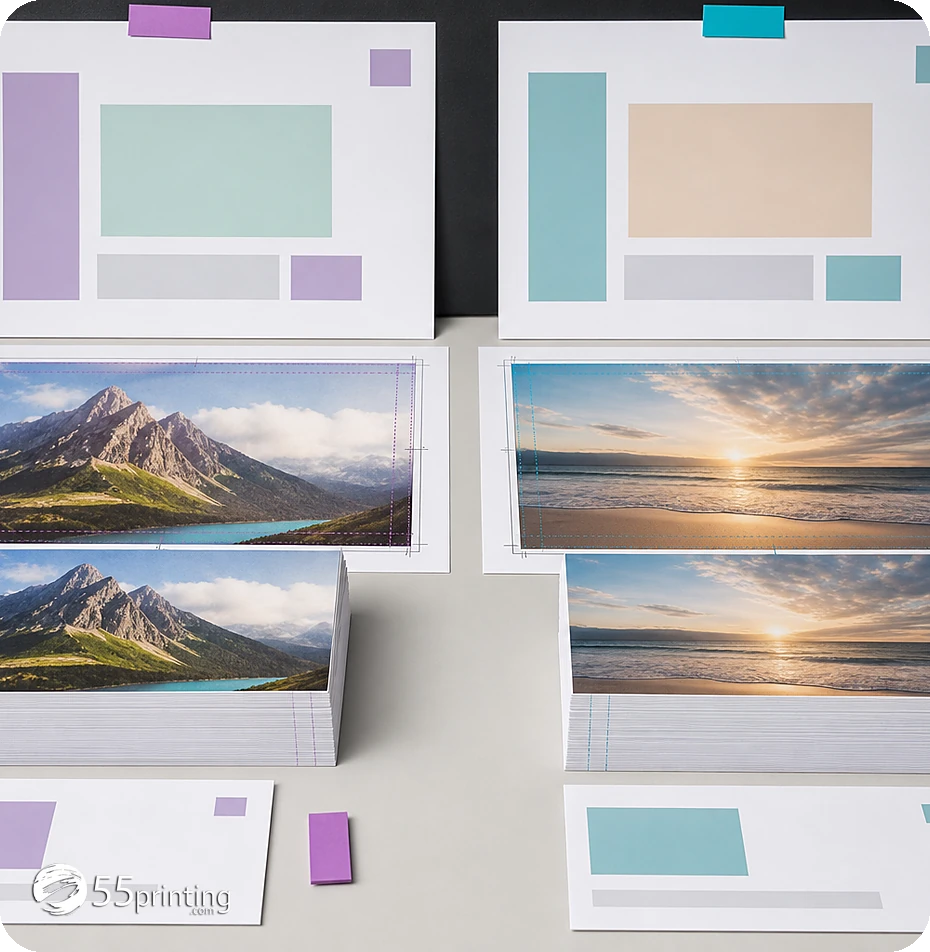
How do template, uploader, and proof complete the mailer?
Use the current guideline template for postcard or mailer size, bleed, safe zone, and orientation. Put the source and named uncrop result into the File Uploader with the mailer question stated clearly. Use the free PDF proof to inspect the full front and back, crop, copy, image continuation, and reserved mailing area.
Which mailer jobs need extra care?
Postcard with a photo edge
Check the photo continuation, trim, safe zone, and back-side information. Keep the headline and call to action in the original layout.
EDDM piece with reserved address area
Use the current mailing template and keep the required area clear. Do not assume an image extension makes the side compliant.
Mailer with QR code near trim
Keep the code and quiet space inside the safe zone, then check the destination separately. Review the code and mailing area in proof.
Which mailer reading follows a new postcard border?
A longer border can push an EDDM piece off the flat size this article is protecting. After the extension, open EDDM Mailpiece and Indicia Checker. The hub on October 9, 2026 says it checks USPS flat size, thickness, audience, and indicia planning. Write that size reading beside the mailer template name.
The checker does not approve postage, a drop date, or delivery. If the size reading disagrees with the template, correct the file before you trust the new border. Then compare the indicia area and the trim on the proof. Keep the new border only when the size reading and that proof agree.
Questions customers ask
Can AI Uncrop fix a postcard trim edge?
It can help when a background or image needs more border beyond the cut edge. It cannot decide whether the product canvas is correct or whether the mailing side meets current requirements. Compare the source, template, output, and proof. Record the source, template version, and proof question.
What is the mailing address area?
It is the area reserved by the current product or mailing instructions for address and related content. Use the current template or requirements for the specific piece. Do not infer a universal measurement from another postcard or campaign. Record the source, template version, and proof question.
Can generated border contain text?
Keep exact text, logos, QR codes, addresses, and other important content in approved layout zones. Generated border is for image continuation, not for placing business facts or required mailing information. Record the source, template version, and proof question. Add the mailing side and orientation to the record.
Does a template replace current mailing rules?
A template is a product and layout reference, but current mailing requirements can change. Recheck the instructions for the intended piece and ask for clarification when the address area or other restriction is unclear. Record the source, template version, and proof question.
What if the extension affects the back side?
Reopen the complete output and inspect the front and back separately. Check image edge, trim, copy, address area, QR code, and orientation. Return to the source design when the extension changes a required element. Record the source, template version, and proof question.
Can a proof approve EDDM compliance?
A proof helps compare the proposed file, placement, crop, and content. It does not replace a current mailing requirement review. Keep the template, requirement source, and proof version tied to the handoff. Record the source, template version, and proof question.
What if the edge looks artificial?
Compare the added border for seams, repeated objects, odd colors, and subject changes. Use a new source, manual rebuild, or current by-request path when suitable. Do not hide an implausible extension inside the final file. Record the source, template version, and proof question.
What should the handoff note say?
Name the mailer, side, source and uncrop versions, border method, template, mailing-area check, and proof question. Mention any unresolved crop, QR, or address-area concern so the reviewer checks the correct side. Record the source, template version, and proof question.
Extend only the image edge, match current requirements, and review the complete postcard or EDDM proof.