

How to Add Bleed to an Image Without Stretching It
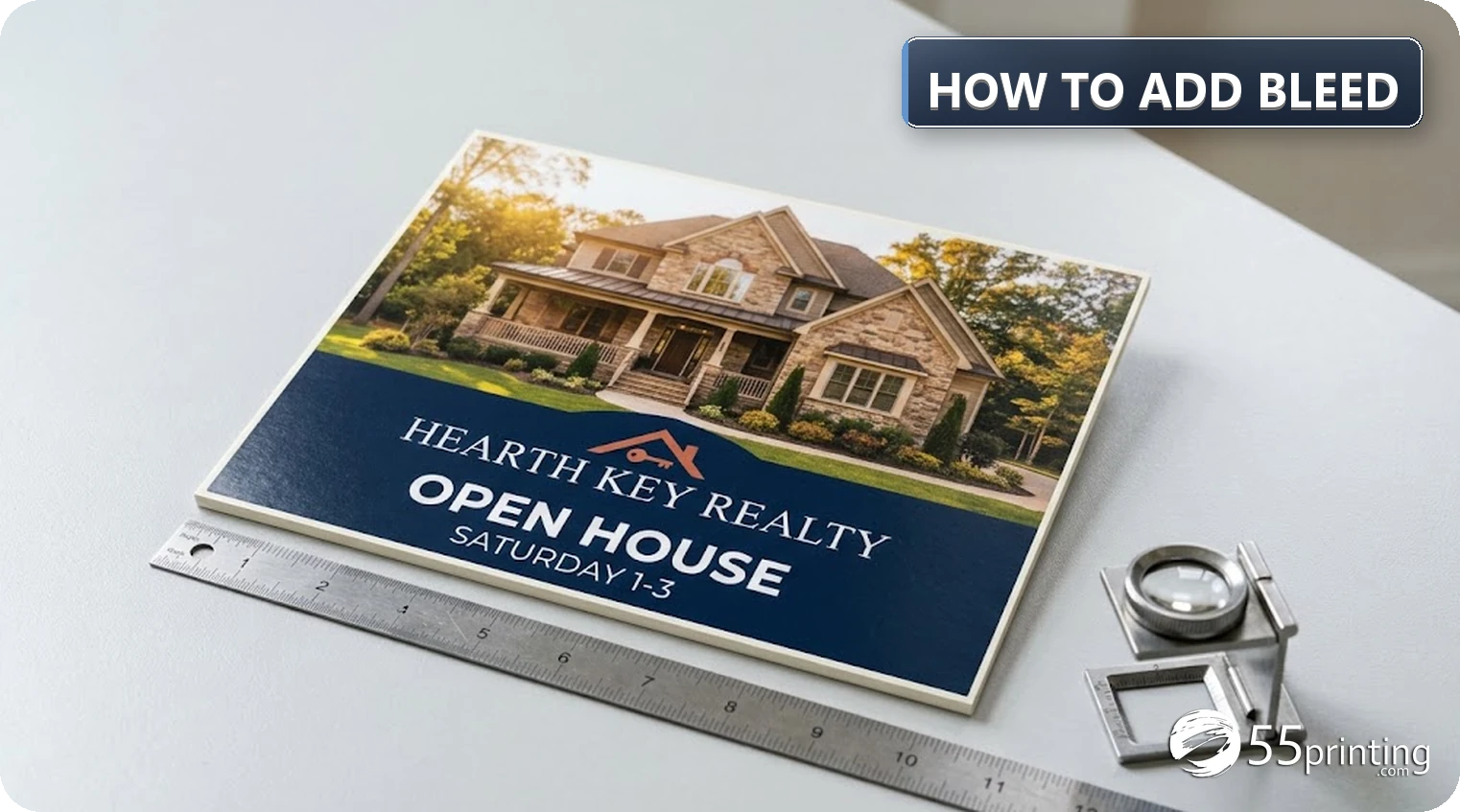
Add bleed by extending the background past the trim edge, not by dragging one side of the artwork. Use the exact product template, scale the art proportionally, and rebuild or content-aware fill only the new border. For a 55printing business card the file is 3.6" x 2.1"; for a 4" x 6" postcard it is 4.1" x 6.1"; for an 8.5" x 11" flyer it is 8.625" x 11.125".
This guide explains how to add bleed to an image without distorting the subject. A cafe owner generates a warm food scene for an 8.5″ x 11″ flyer. The image stops short of the trim, so the background is dragged sideways until it touches the edge. On screen the white gap disappears. In print, the plates look wider, the circle logo is an oval, and the lower edge is softer than the rest of the photo. That is the difference between filling a canvas and adding bleed.
Bleed is the extra artwork outside the final cut line. It gives the trim room to move without exposing a white sliver. It is not a second design, and it is not a license to distort the first one. The safe method is to extend the background while keeping the subject’s proportions, then inspect the file at the finished size before you approve a proof.
What does bleed mean on a print file?
Bleed is the area beyond the trim edge that still contains ink. The trim edge is where the finished piece will be cut. If a background, photo, or color block reaches the trim, the file must continue that artwork into the bleed area. Otherwise a slight shift in the cutter can show a thin white line.
Safe zone is the opposite boundary. It is the inside area where important content belongs. Keep names, phone numbers, URLs, QR codes, faces, logos, and legal lines away from the cut line. A full-bleed background should run outward into bleed. A headline should not.
This is why a single universal bleed number is not enough. Canva’s help page says it adds 0.125″ (3.175 mm) on all sides for products that trim, then tells readers to check with their print provider because another shop may trim at a different margin. That is the right order: confirm the product first, then set the file.
Why does dragging an image edge look terrible in print?
A one-edge drag changes the width and height by different amounts. Circles become ovals, faces widen, logos lose their proportions, and the stretched side loses pixel density. The file may look acceptable in a small preview because the preview hides the distortion. If you are learning how to add bleed to an image, the first decision is to protect the subject and change only the edge area.
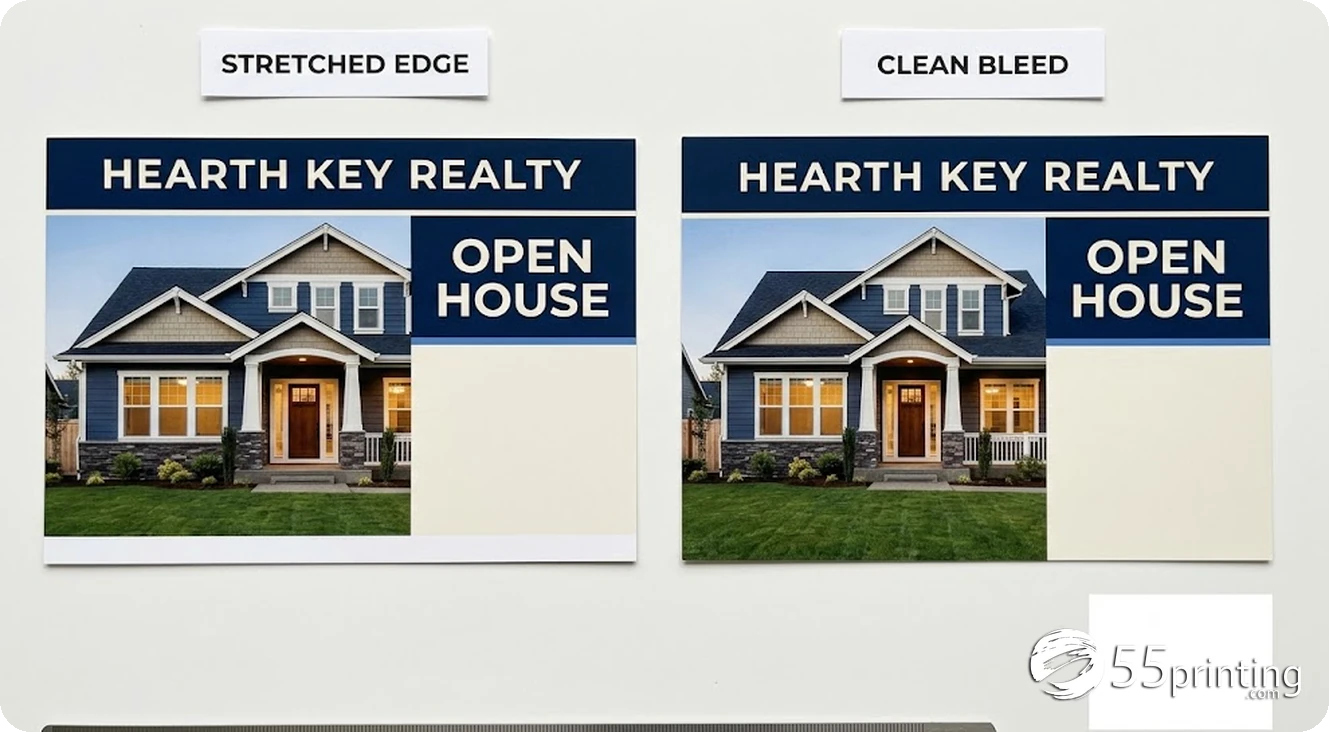
Canva’s current help text says that if you see white gaps around the design edges, you can “resize or stretch your background to cover them.” The word stretch is the trap. Scale from a corner with the proportions locked, or extend the background with a deliberate fill. Do not pull one side of a photo or a logo to close a gap.
There is a second problem: resolution. If a 1,200-pixel image is stretched across 8 inches, it delivers about 150 pixels per inch. The same image at 4 inches wide delivers 300. Stretching the edge does not create new pixels, and changing the DPI field in a file does not create them either. Adobe’s print resolution guidance describes 300 ppi as the industry standard for high-quality prints and notes that large-format work viewed from a distance can use less. The viewing distance changes the target, not the arithmetic.
A stretched border can also break a pattern, repeat an object, or pull a face into a shape that no longer matches the person. Those defects survive the trim. The pieces that were stretched do not disappear when the cutter removes the extra paper.
What bleed size should you use for a business card, postcard, or flyer?
Use the current 55printing template for the exact product. The exact answer to how to add bleed to an image depends on the item, size, and finishing. The three common examples below come from the live guideline files checked on October 27, 2026. They use different bleed amounts, which is exactly why a generic 0.125″ rule can be wrong.
| Product | Final trim size | File size with bleed | Bleed per side | Cutting tolerance |
|---|---|---|---|---|
| Business card | 3.5″ x 2″ | 3.6″ x 2.1″ | 0.05″ | 0.1″ |
| Postcard | 4″ x 6″ | 4.1″ x 6.1″ | 0.05″ | 0.1″ |
| Flyer | 8.5″ x 11″ | 8.625″ x 11.125″ | 0.125″ | 0.125″ |
The business card guide also says to keep critical elements inside the blue safe box, extend the background to the black outline, and allow 0.1″ of cutting tolerance. It recommends no borders because the cut can shift. The flyer guide uses 0.125″ bleed and 0.125″ tolerance. The postcard guide uses 0.1″ bleed total and 0.1″ tolerance. Read the exact guide for your selected size and shape, including rounded corners and specialty dies.
If you do not have the template yet, open the guideline template library and choose the product, size, and orientation. The library lists 67 business card templates, 214 flyer templates, and 266 postcard templates on the page checked for this article. Do not scale a template from a different product just because the numbers look close.
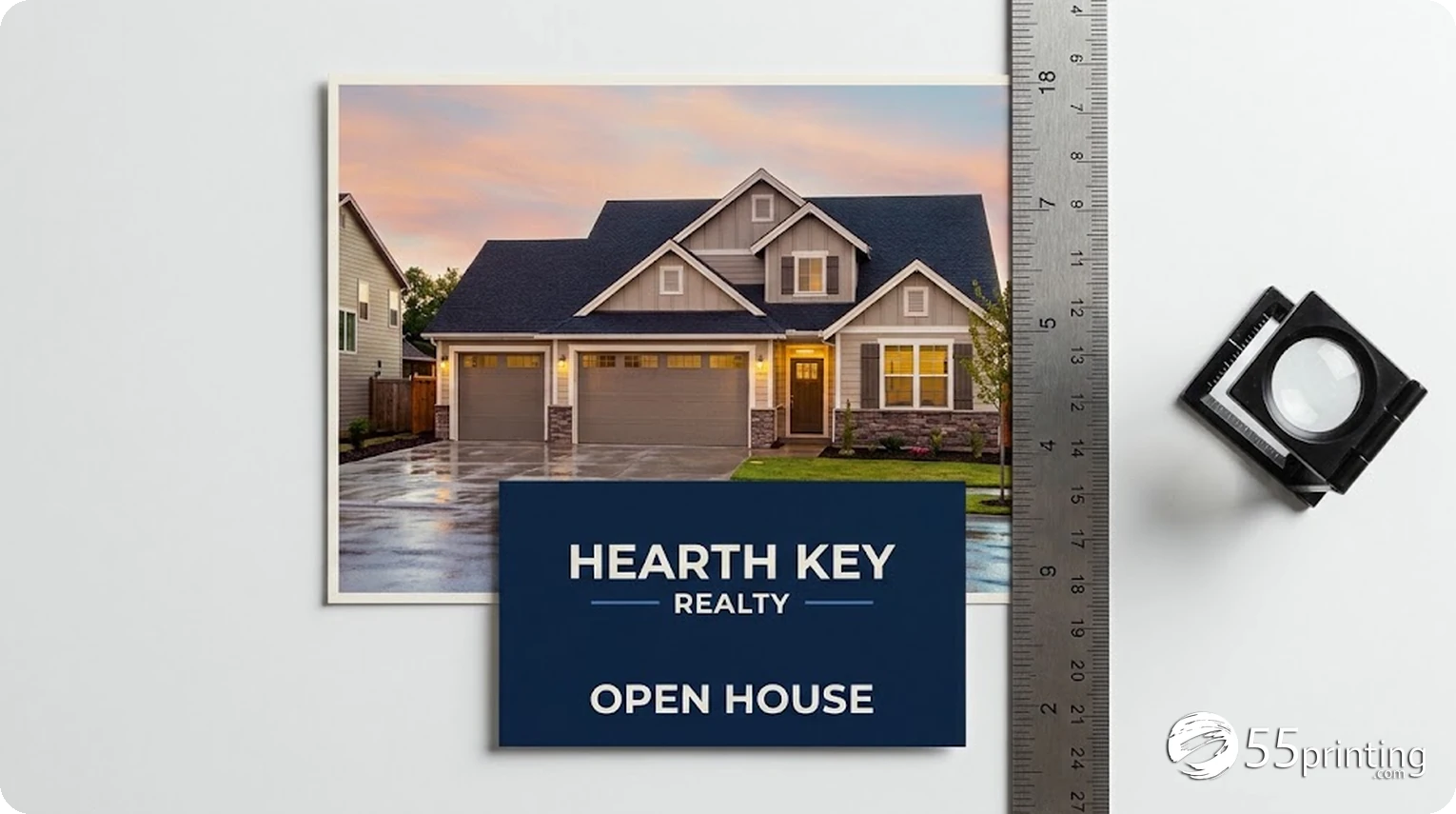
How to add bleed to an image in Canva without stretching the design
Canva has a built-in bleed view. Open the design, select File, then Settings, and turn on Show print bleed. A dashed border appears near the edge. Canva says the margin is fixed for its print specifications and cannot be adjusted, so use it as a visual guide, not as proof that the file matches a different printer’s template.
- Set the design to the exact finished size first. If the canvas is wrong, fix the canvas before you touch the background.
- Turn on Show print bleed and look for white gaps around the edge.
- If the background is short, select the background and scale it from a corner with the proportions locked. Do not pull only the left or right handle.
- If the background is a photo with a subject near the edge, duplicate the background, mirror it, or extend it with a deliberate fill. Keep faces, text, logos, and QR codes out of the new edge area.
- Move all important content inside the safe zone. Canva’s own help says bleed always gets cut off and text should not go there.
- Choose Download, then PDF Print, and select the Crop marks and bleed checkbox.
- Open the downloaded PDF at full size and inspect every edge. Do not approve the Canva preview alone.
The Canva default is 0.125″ for products that trim. That is larger than the 0.05″ bleed on the 55printing business card and postcard guides. Extra bleed is usually trimmed away, but it can also mean the artwork was scaled or cropped differently than the house template expects. When the product is a 55printing card, postcard, or flyer, use the house template size as the authority and keep the Canva bleed view as a secondary check.
How to add bleed to an image in Photoshop
Photoshop does not have a single document-wide bleed checkbox like a page-layout program. The usual method is to enlarge the canvas and then extend the artwork into the new area. Adobe’s Canvas Size guidance describes the Relative option: enter how much space to add or subtract instead of setting an absolute size.
- Confirm the finished product size and the template bleed. For a 55printing business card, the file target is 3.6″ x 2.1″, not 3.5″ x 2″.
- Choose Image, then Canvas Size.
- Select Relative. Add twice the bleed to the width and twice the bleed to the height. For a 0.05″ card bleed, add 0.1″ to each dimension. For a 0.125″ flyer bleed, add 0.25″ to each dimension.
- Set the anchor so the existing art stays centered, then choose the canvas extension color. The new area is empty until you fill it.
- Extend the background with Generative Fill, Clone Stamp, a mirrored copy, or a deliberate solid color. Do not use Free Transform to pull one edge across the gap.
- Keep the subject, type, logo, and QR code inside the safe area. Inspect the new edge for seams, repeated objects, and invented details.
- Export a print PDF and open it at full size before uploading.
Adobe’s resolution guidance recommends 300 ppi at the final placed size for close-viewed print. A 3.6″ wide card file at 300 ppi needs about 1,080 pixels across. A 8.625″ wide flyer file at 300 ppi needs about 2,588 pixels across. A 1,024-pixel AI image cannot honestly become a 300 ppi 8.5″ wide flyer by changing its metadata.
How to add bleed to an image in Illustrator or InDesign
Illustrator and InDesign both have a Document Setup bleed field. In Illustrator, open File, then Document Setup, and enter the bleed values. A red boundary appears around the artboard. Drag the background art out to that boundary. In InDesign, use File, Document Setup, and the Bleed and Slug section, then export with Use Document Bleed Settings.
Adobe’s current Illustrator help describes a newer option: select Print Bleed on the bleed boundary to fill the area with vector graphics that extend the artwork. It creates variations, and the page says to preview them and choose the one that best suits the artwork. This is a real extension method, not a proportional scale and not a one-edge drag. Review the generated variation for invented objects, pattern breaks, and changes to faces or logos before you use it.
- Set the document to the finished trim size.
- Enter the bleed from the product template.
- Extend the background art to the red bleed line.
- Keep text and critical content inside the safe area.
- If you use Generative Expand or Print Bleed, compare the variation with the original.
- Export the PDF with the document bleed settings enabled.
- Open the PDF and inspect the edges, not just the artboard.
A layout program can hold live text and vector logos, which is usually cleaner than stretching a raster image. If the logo only exists as a screenshot, fix the source first. A sharper stretch is still a stretch.
What should you check on an AI-generated image before adding bleed?
AI images often arrive at a fixed pixel size with no product canvas and no bleed. Start with the pixel width and height, then calculate effective resolution at the placed size. If the image is 1,024 pixels wide and you place it 8.5″ wide, the effective resolution is about 120 ppi. That is below the 300 ppi reference for close-viewed print. Upscaling may help a little, but it cannot restore detail that was never generated.
| Image width | At 4″ wide | At 6″ wide | At 8.5″ wide |
|---|---|---|---|
| 1,024 px | 256 ppi | 171 ppi | 120 ppi |
| 1,536 px | 384 ppi | 256 ppi | 181 ppi |
| 2,048 px | 512 ppi | 341 ppi | 241 ppi |
| 3,000 px | 750 ppi | 500 ppi | 353 ppi |
Check the generated lettering separately. AI text can look plausible and still contain wrong characters. Replace phone numbers, prices, addresses, URLs, and brand names with approved live text. Check generated logos against the real mark. Test every QR code from the final file.
If the AI image needs a wider background, use a deliberate extension method. The AI Uncrop tool can add a border around an image, and Adobe’s Print Bleed can generate a vector continuation. Both need a human review of the new area. A generated border can invent a second object, repeat a texture, or change a face. Treat the extension as new artwork.
What does 55printing check for free before the press?
The File Uploader accepts artwork for an order or a free file review. The live page, checked October 27, 2026, says a print-ready PDF is preferred at 300 dpi with bleed included when the product requires it. It also lists AI, PSD, JPG, PNG, TIFF, JXL, and Microsoft Office documents as accepted formats. Its instructions say to upload the file and ask for a free file review in the notes if you are unsure whether it will print cleanly.
The same page says the prepress team reviews the files against the order specs and emails a PDF proof when artwork needs approval. Most reviews are completed within one business day. That is a review, not an unlimited redesign. The free path is strongest when you name the product, the exact size, the file version, the problem, and the details that must not change.
The next checkpoint is the free PDF proof. The live page says every order includes free design setup and a digital proof before print. You approve the proof or send revision notes, and production starts after approval. Read the actual returned version. Check the trim, bleed, safe zone, spelling, phone, URL, QR destination, and image edges. If one item is wrong, do not approve it.
If the proofing option says Print As-Is, No Proof, or similar, the job can skip the human review. The live form code maps those labels to a no-proof path. A stretched bleed and a soft image will print as received on that path. Choose the digital proof path when you want the file checked.
Upload the file, name the product and problem, get a prepress review, then approve the exact proof version. Most reviews are completed within one business day.
The file goes to production as received. A stretched border, low-resolution photo, or invented lettering is not corrected by a review step.
Shipping is a separate clock. The product data checked for this article lists Ground at 1 to 4 business days for business cards and 1 to 6 business days for postcards and flyers. That is transit after production, not a promise that a corrected file will arrive by a fixed date. If a proof revision is needed, allow another review cycle.
What do real bleed fixes look like?
AI flyer with a square image
A restaurant has a square AI food scene and needs an 8.5″ x 11″ flyer. Rebuild the canvas at 8.625″ x 11.125″. Place the image proportionally, then extend the background into the 0.125″ border. Replace generated menu text with live copy. Check the faces, plates, and shadows in the proof.
Canva card with a white edge
A realtor exports a 3.5″ x 2″ card from Canva and sees a white strip. The house card file is 3.6″ x 2.1″. Scale the background from a corner, keep the name and phone inside the safe area, and export PDF Print with crop marks and bleed. Compare the result with the 55printing card template.
Postcard photo that stops at trim
A 4″ x 6″ postcard photo ends exactly at the trim. Add 0.05″ per side, but do not stretch the subject to fill it. Mirror the edge, extend a sky or wall, or choose a background color that belongs to the design. Inspect the seam at full size.
Logo dragged wider to fill a banner
A logo is pulled sideways to reach a banner edge, and the circles become ovals. Restore the logo proportions, place it inside the safe area, and extend the background separately. If the logo is a screenshot, request a vector or larger source before the run.
Download the bleed and safe-zone checklist

Questions customers ask about adding bleed
How do I add bleed to an image without stretching it?
Set the canvas to the exact product file size, then extend the background into the bleed area without changing the subject’s proportions. In Canva, scale from a corner with proportions locked or extend the background deliberately. In Photoshop, use Canvas Size with Relative checked, then fill the new area with Generative Fill, Clone Stamp, or a mirrored edge. Keep text and logos inside the safe zone.
What bleed size should I use for a business card?
The 55printing business card guide checked October 27, 2026 uses a 3.5″ x 2″ finished card, a 3.6″ x 2.1″ file with bleed, and 0.05″ of bleed per side. It also lists 0.1″ of cutting tolerance and recommends no borders. A generic 0.125″ bleed is larger than this card guide, so use the exact product template instead of a universal number.
What bleed size should I use for a postcard or flyer?
The 55printing 4″ x 6″ postcard guide uses a 4.1″ x 6.1″ file with bleed, or 0.05″ per side. The 8.5″ x 11″ flyer guide uses 8.625″ x 11.125″, or 0.125″ per side. Both list a cutting tolerance. The product, size, shape, and finishing still control, so download the current template for the exact item you are ordering.
Why does my Canva design have a white edge after printing?
The background probably stopped at the trim line, or the export used a different page size than the printer’s template. Turn on Show print bleed in Canva, extend the background into the dashed area, keep text out of it, and export PDF Print with Crop marks and bleed. Then compare the PDF at full size with the product template before you upload it.
Is it bad to stretch an image to fill bleed?
Yes, when the stretch changes the proportions. A one-edge drag makes circles into ovals, widens faces, and softens the stretched side. It can also reduce effective resolution on that axis. Scale proportionally from a corner or extend only the new border. A cleaner edge is not worth a distorted subject or a soft logo.
Can I use a 1,024-pixel AI image on an 8.5″ x 11″ flyer?
It will be about 120 ppi at 8.5″ wide, which is below the 300 ppi reference for close-viewed print. You can place it smaller, regenerate at a larger size, or use a different image. Changing the DPI field does not add pixels. Check the placed size and viewing distance, then inspect the proof for soft edges and small type.
Does 55printing fix bleed for free?
The free file review can identify print-setup issues, and the free PDF proof lets you approve the corrected version. The live File Uploader says most reviews are completed within one business day. The review is not an unlimited redesign, and it does not create image rights or approve your copy. If the proofing option says Print As-Is or No Proof, the human review step is skipped.
How do I learn how to add bleed to an image for a print order?
Start with the exact product template, then follow the file method for your design tool. Check the final file at full size, keep critical content inside the safe area, and use the free PDF proof before production. The download checklist in this article lists the house card, postcard, and flyer measurements, plus the Canva, Photoshop, and Illustrator steps. A proof review is the last checkpoint before the press.
What should I check before I approve the proof?
Check the finished size, all four edges, the safe zone, spelling, phone number, URL, QR destination, logo proportions, faces, and the new bleed area. Confirm the proof is for the exact product and version you ordered. If a background was extended, look for seams, repeated objects, and invented details. If anything is wrong, send a revision note instead of approving.
Upload the original and the bleed version, name the product and the edge problem, and use the free PDF proof to approve the exact file.