

AI Uncrop for Full-Bleed Canva Flyers: Extend the Edge, Then Check the File
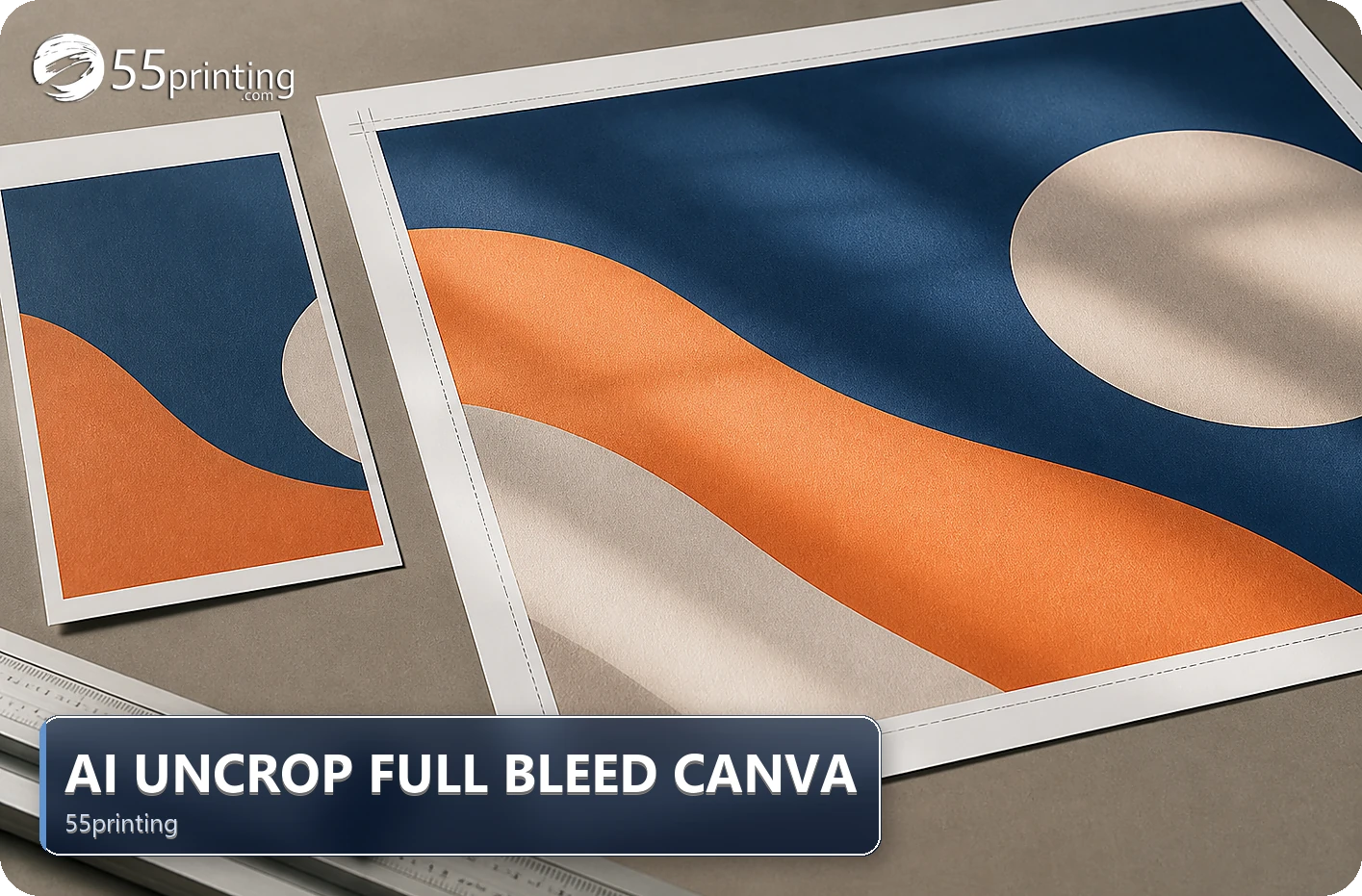
Use the 55printing AI Uncrop route for a flyer image that needs extra border beyond the cut edge. Choose the current local Smart bleed controls, inspect the added border, keep text and logos out of the extension area, and compare the finished canvas with the template and proof. AI Uncrop extends borders; it does not redesign a Canva layout or approve the final PDF.
A Canva flyer can show a white edge when the background stops at the cut boundary. The current 55printing AI Uncrop page offers local image uncrop for JPG, PNG, WebP, or a PDF page, with border, DPI, aspect, and format controls. Treat it as a canvas-extension step and review the content, template, and proof separately.
What kind of flyer edge can AI Uncrop address?
Open the source and identify whether the problem is a background edge, a wrong canvas, a crop, or content that was placed too close to trim. Local Smart bleed can extend border area, but it does not decide which text, logo, face, or object belongs in the new area. A white edge caused by the wrong Canva page setup may need a template rebuild.
| Condition | First response | Boundary |
|---|---|---|
| Background ends at edge | Test local Smart bleed | Inspect the generated border. |
| Wrong page canvas | Return to the Canva source | Extension cannot fix product geometry. |
| Text or logo near edge | Reposition with template | Do not move exact content into generated area. |
| Object continuation needed | Use the current by-request path if suitable | Review the returned result and proof. |
How should you choose the local extension?
Keep the Canva source and choose a working image or PDF page. The current route shows border choices such as standard bleed, extra safe, and wide extend, plus DPI and aspect controls. Select the amount from the product template and the edge risk, not from a habit. Save a named result and retain the original export.
- Record Canva file, product, and page version.
- Check the product template and intended orientation.
- Choose the border amount that matches the workflow.
- Keep text, logos, codes, and faces in the original safe area.
- Download the extension result with a new name.
- Compare the full canvas with the Canva source.
What should you inspect after uncropping?
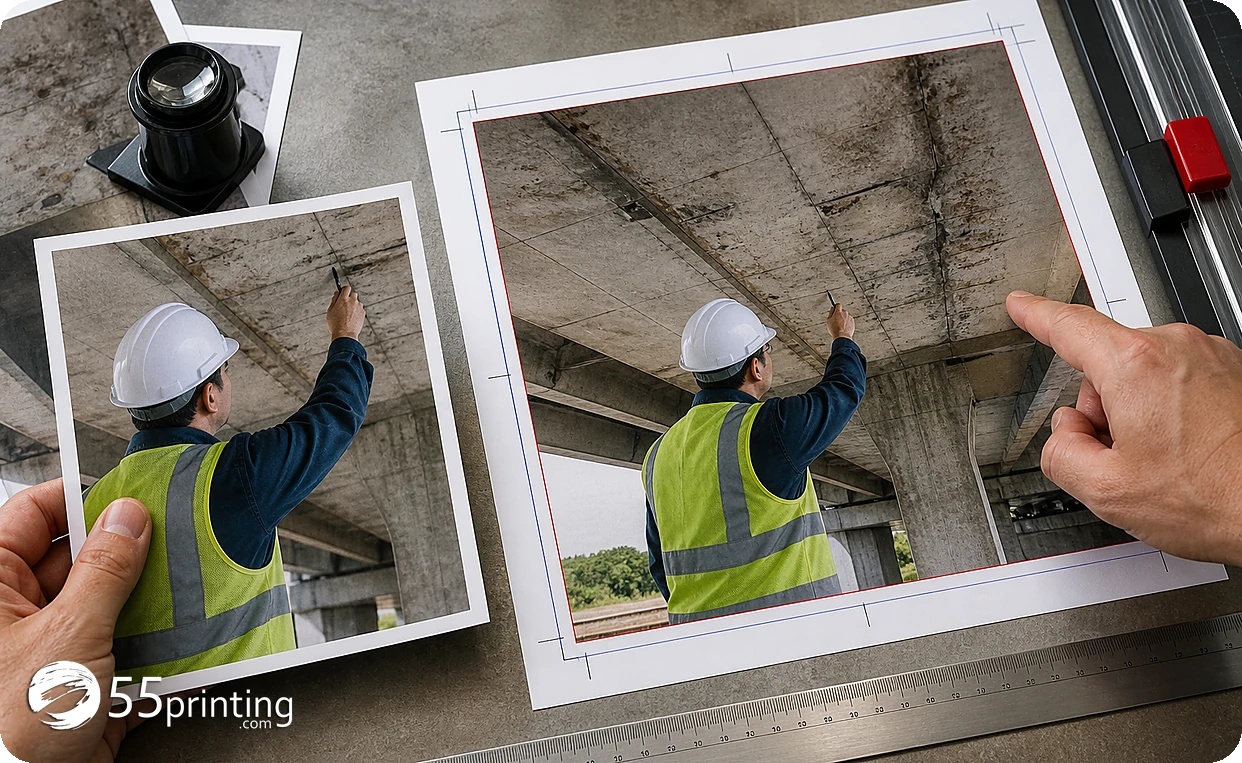
Check the new border for seams, repeated objects, odd color changes, faces, logos, text fragments, and texture breaks. Confirm the full canvas, orientation, and safe area. Reopen the downloaded result instead of trusting the preview alone. If the extension invents an implausible continuation or affects exact content, return to the source design.
A flyer background can be extended while the message remains wrong. Read headline, dates, phone, URL, offer, QR code, and call to action in the Canva export and the proof version.
How do template, uploader, and proof complete the flyer?
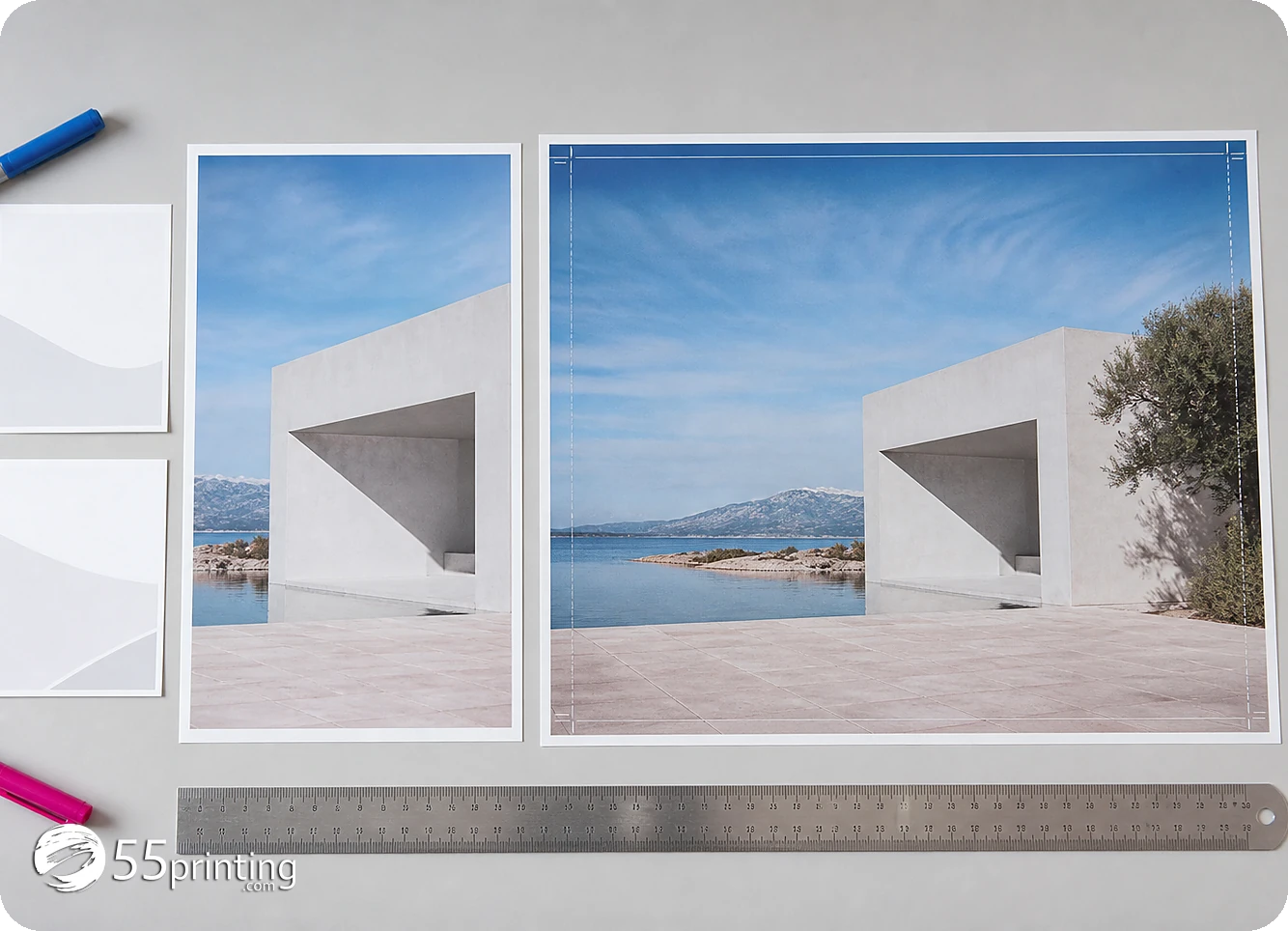
Use the matching guideline template to confirm finished size, bleed, safe zone, and orientation. Put the Canva source, uncropped result, and a clear note into the File Uploader when requested. Use the free PDF proof to review the complete flyer and the new border in product context.
Which Canva flyer jobs need extra care?
Photo background flyer
Inspect faces, repeated objects, and color transitions in the generated border. Keep the headline and CTA on the original design canvas.
Gradient or pattern background
Compare the continuation at normal reading scale and close zoom. If the pattern becomes distracting, rebuild the background in the source editor.
Flyer with QR code near an edge
Keep the code and its quiet space inside the safe area. Use a template and proof after the border extension; do not let generated content crowd the code.
How do you measure the flyer bleed after the edge is extended?
This guide is about a Canva flyer whose background stops at the trim. After you extend that edge, export the PDF and open Print Ready Preflight Check on the export. On October 9, 2026 the hub describes that screen as a check of dimensions, bleed planning, and effective PPI. Write the dimension reading next to the flyer size you built.
The screen does not approve the flyer, and it does not judge whether the new pixels still match the photo. Look at the edge yourself, attach the reading to the File Uploader note, and accept the edge only on the proof.
Questions customers ask
Can AI Uncrop fix every Canva flyer edge?
It can help when the issue is a background edge that needs more border area. It cannot correct a wrong product canvas, reposition text, repair a logo, or produce a convincing continuation for every image. Compare the source and output.
Which border amount should I choose?
Use the current product template and the edge risk to choose the border amount. The route displays several choices, but the right value depends on the finished product and workflow. Record the selected amount with the named result. Record the source, border choice, and result version.
Can text sit in the extended area?
Keep exact text, logos, QR codes, and important objects inside the original safe area unless the design is rebuilt and approved. Generated border content is not a reliable place for business facts or code detail. Record the source, border choice, and result version.
Does AI Uncrop fix a wrong Canva canvas?
No. Return to the source design and match the product, orientation, bleed, and safe zone with the template. An extension can add border area, but it does not replace product geometry or a page-setup correction. Record the source, border choice, and result version.
What if the extended edge looks artificial?
Compare the border at normal size and close zoom. If faces, patterns, gradients, or objects look wrong, use a new source, manual design adjustment, or the current by-request path when suitable. Do not hide the concern in the proof note.
Should I keep the Canva source?
Yes. Keep the Canva source or original export beside the named uncropped result. The source is needed when content, canvas, border, or placement must change and gives the reviewer a comparison record. Record the source, border choice, and result version.
Can a PDF proof replace the source check?
No. The proof can show the proposed flyer, but compare it with the source and the uncrop result. Check headline, dates, URL, QR code, crop, border, and safe zone on the same named version. Record the source, border choice, and result version.
What should the handoff note say?
Name the source, Canva version, uncrop method, border choice, product, and proof checks. Mention any seam, pattern, face, QR, or safe-zone question so the reviewer can inspect the correct edge and file. Record the source, border choice, and result version.
Choose the current border control, reopen the result, and connect the canvas to template and proof checks.