

Word to PDF for Print: Protect Layout Before Handoff
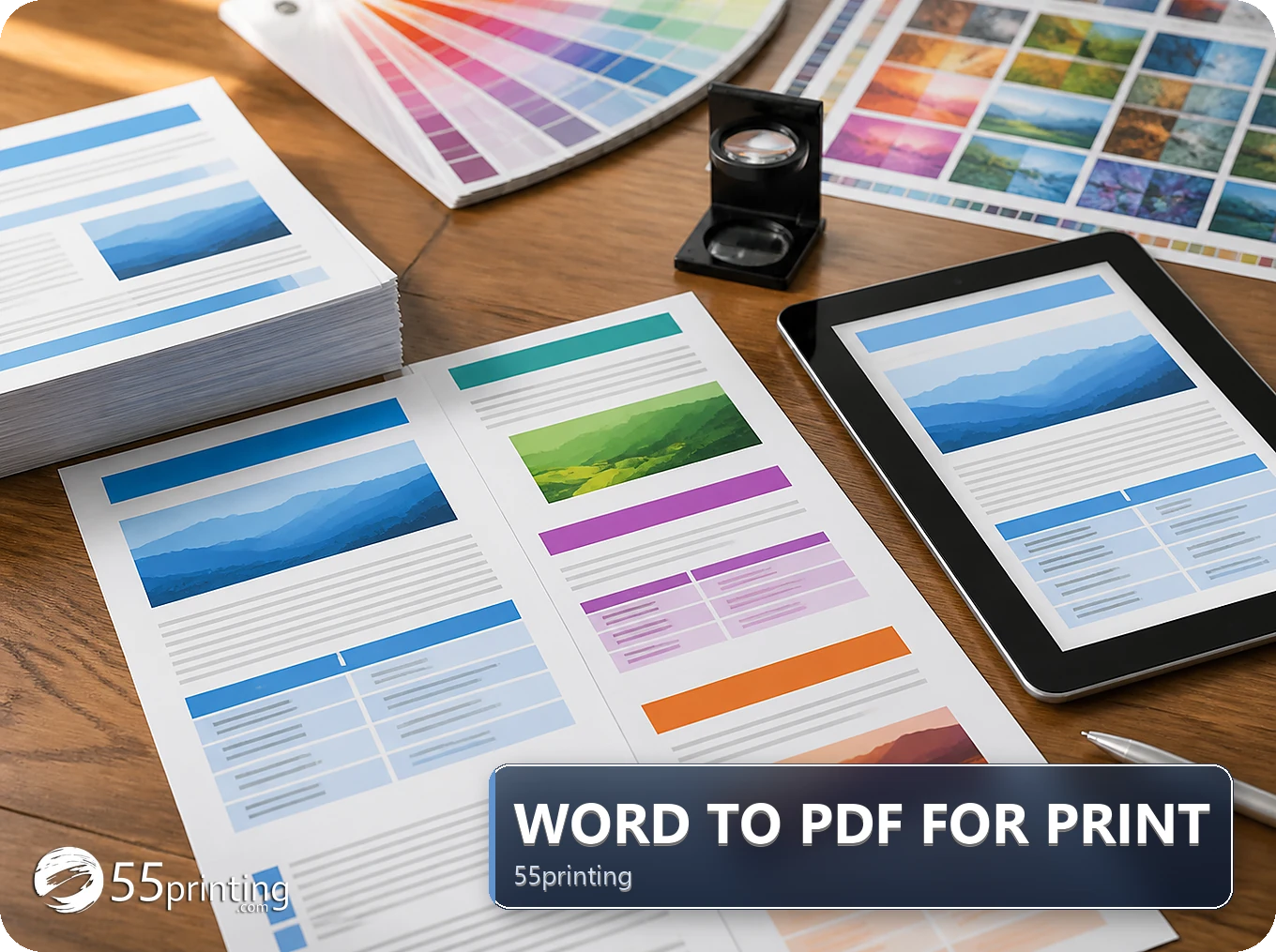
Use Word to PDF when a DOC or DOCX file needs a stable document copy for review or handoff. Confirm page size, breaks, fonts, images, tables, and headers after conversion, then keep the Word source and compare the PDF at finished size. A PDF can preserve the document view without proving that the layout matches a specific print product.
Microsoft Word is useful for documents with paragraphs, tables, forms, and repeated headers, but a DOCX file can reflow when fonts, images, or page settings differ. The Word to PDF tool from 55printing can create a PDF copy for a stable review. Treat the export as a new version: compare it with the source before it moves to the product template, File Uploader, or proof.
What should you check before converting Word to PDF?
Open the source in the application that created it and inspect page breaks, headings, tables, images, headers, footers, and the smallest type. Record the document version and intended product. If the document is a flyer, menu, form, or booklet page, its page size matters as much as the words on it.
Images should be present in the source and not depend on a link that may be unavailable during conversion. Check that captions sit with their images, table rows are not split in an unintended way, and no comment or tracked change remains in the visible copy. Keep a clean source file and create a named conversion copy.
- Save the DOC or DOCX source before conversion.
- Confirm the intended page size and orientation.
- Check images, fonts, headers, footers, and tables.
- Record the source version in the output filename.
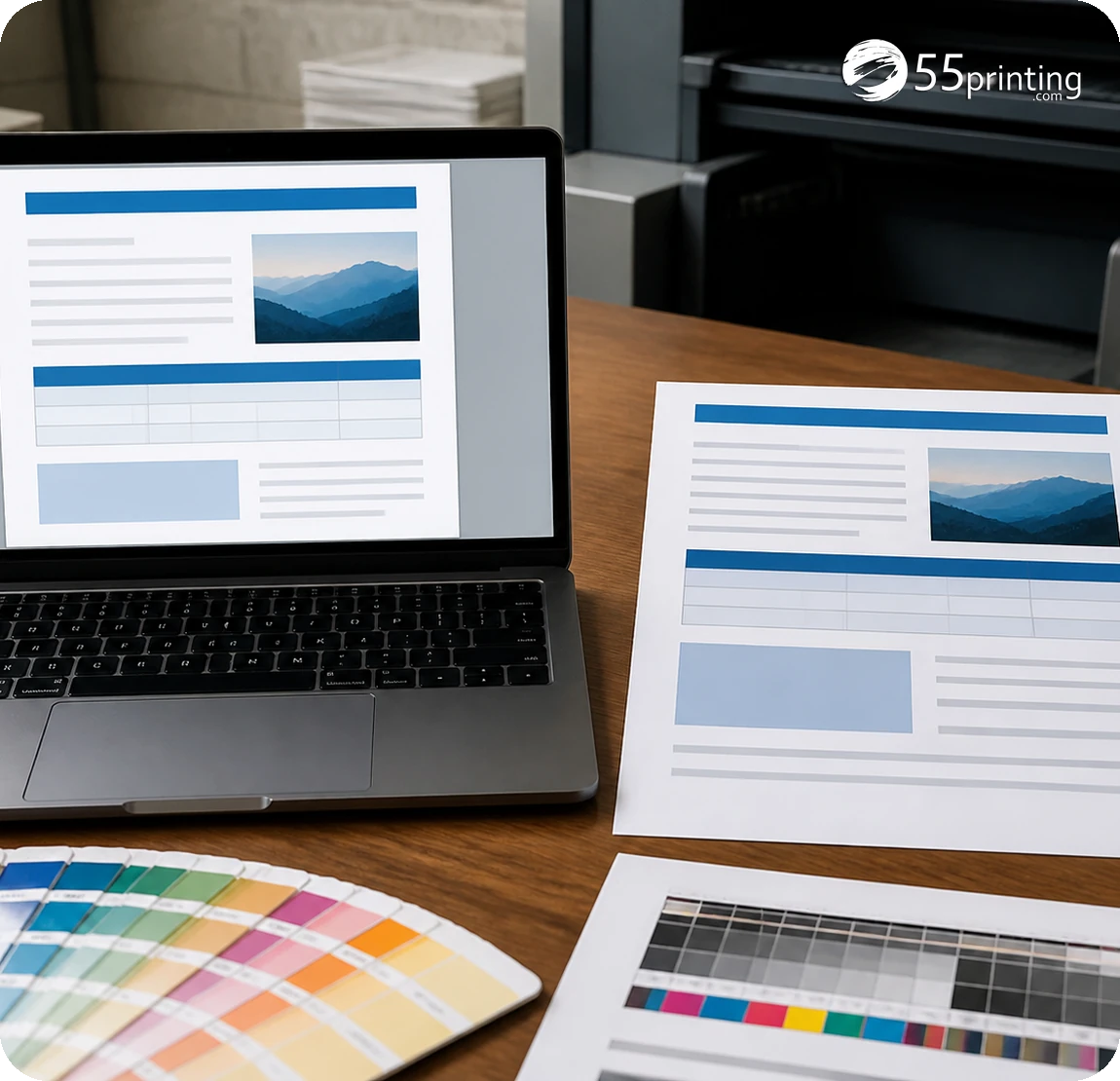
How do you protect page size and breaks?
Confirm the finished canvas before opening the conversion route. A Word page setup can be correct for a letter document and still be wrong for a postcard, menu, or booklet panel. Use the matching 55printing guideline template when the job needs a specific canvas, bleed, safe zone, or panel order.
| Risk | First check | Stop when |
|---|---|---|
| Page break moved | Compare page starts with the source | A heading or table is stranded. |
| Image changed size | Compare image position and crop | A subject or caption moves. |
| Font substituted | Inspect text shape and line breaks | Words reflow or become unreadable. |
| Table split | Review every row and header | A field or row is hidden. |
| Wrong canvas | Check product template first | The PDF needs a layout rebuild. |
What is a traceable Word to PDF sequence?
Open the 55printing Word to PDF route and select a clean DOC or DOCX copy. Follow the visible controls on the current page and name the result with the document and version. Avoid editing the source at the same time, because a later comparison becomes harder when two versions change together.
- Save the source Word file.
- Confirm page size, orientation, and page count.
- Convert one representative page or the complete document.
- Open the resulting PDF in a viewer.
- Compare page breaks, images, tables, type, and margins.
- Record the PDF filename and retain the source.
The PDF is a stable handoff format, not a proof of every production choice. If the product needs bleed or a special panel sequence, solve that in the layout and template stage. If the document contains interactive features or macros, record that those functions are outside the printed PDF copy.
What should you inspect in the converted PDF?
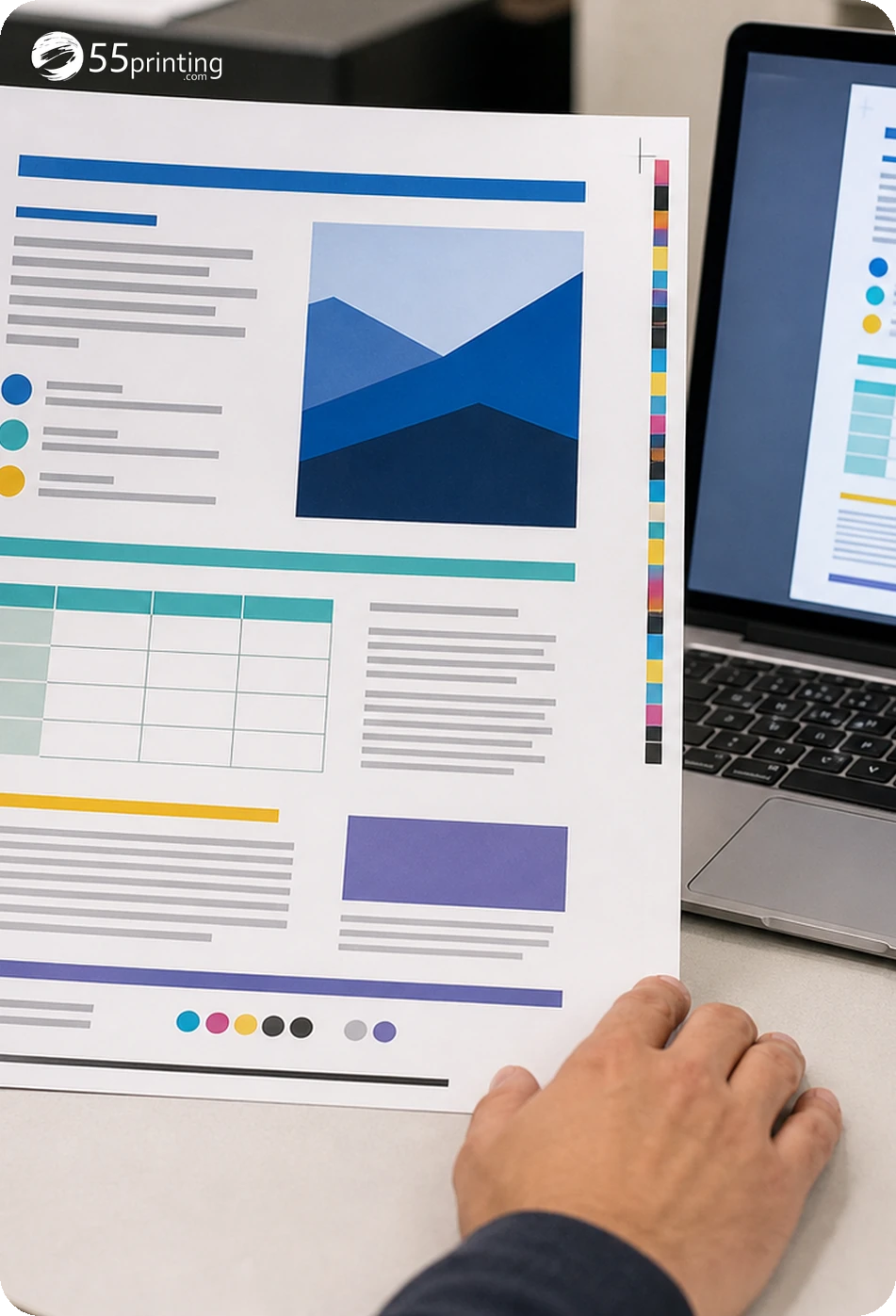
Check the first page, a middle page, and the final page, then inspect every page when the document is short or customer-facing. Look for clipped text, changed line breaks, missing images, substituted fonts, broken tables, blank pages, rotated pages, and content too close to the trim. Open the PDF at normal reading size and close zoom.
Compare exact copy such as phone numbers, URLs, dates, prices, and item codes character by character. A PDF can look polished while one digit has changed. If the file will become a raster image later, review small text before that conversion so the source stays as clear as possible.
Should the PDF replace the Word source?
Keep the Word file as the editable source and the PDF as the named review or print handoff. Use the File Uploader with the product, page count, and version in the note. If the file is close to finished, compare the free PDF proof with the intended layout before approval.
Which Word documents need extra care?
Table-heavy price list
Inspect row breaks, column widths, and small numbers. A table that shifts by one line can change the meaning of the document.
Menu with linked photographs
Open every image and compare its crop and caption. A missing or changed photo should send the file back to the source stage.
Form with a special product size
Check the page canvas and safe zone against the matching template. A standard Word page may not fit the intended finished product.
Questions customers ask
What Word files can I convert to PDF?
The current 55printing route should be checked for its visible accepted file types before use. A DOC or DOCX source is the usual starting point for a Word document. Keep the source file, confirm the page setup, and inspect the resulting PDF instead of relying on the extension alone.
Why did my Word layout change in the PDF?
Page breaks can move when fonts, margins, images, tables, or page settings differ between the source and conversion environment. Compare the source and PDF page by page, check the exact canvas, and return to the Word file when a heading, table, image, or footer shifts.
How do I keep images from disappearing?
Open every image in the source before conversion and avoid relying on an unavailable link. Compare the PDF with the Word document for missing, blank, or changed images. If a photo or logo is absent, correct the source copy and create a new named PDF version.
Does Word to PDF make a file print-ready?
It can create a stable document handoff, but print readiness also depends on product size, bleed, safe zone, page order, copy, and proof. Check the matching template and compare the PDF with the intended finished canvas. Do not treat a successful conversion message as approval.
Can I edit the PDF after conversion?
Minor PDF edits may be possible in some software, but the Word source is usually the clearer place to change copy, tables, or images. Make the correction in the source, convert a new version, and compare it with the prior PDF so the handoff remains traceable.
What should I inspect in a Word form?
Check every field label, line, table row, page break, checkbox, date, phone number, and instruction. Confirm that fields are visible and not clipped at the edge. A form also needs the correct product canvas, so compare the PDF with the applicable template before upload.
Should I keep the DOCX after making the PDF?
Yes, keep the DOC or DOCX as the editable source and the PDF as the review or handoff copy. Give each file a version name and say which one is authoritative. This makes later copy changes and proof questions easier to resolve without guessing.
What happens after the PDF conversion?
Open and compare the PDF, then use the File Uploader with the product and version in the note when the file is ready for handoff. Review the free PDF proof before approval. If the PDF does not match the source or canvas, return to the Word file first.
Protect the source, inspect the converted pages, and use proof review for the final product decision.