

QR Code Generator for Print: Test Destination and Placement
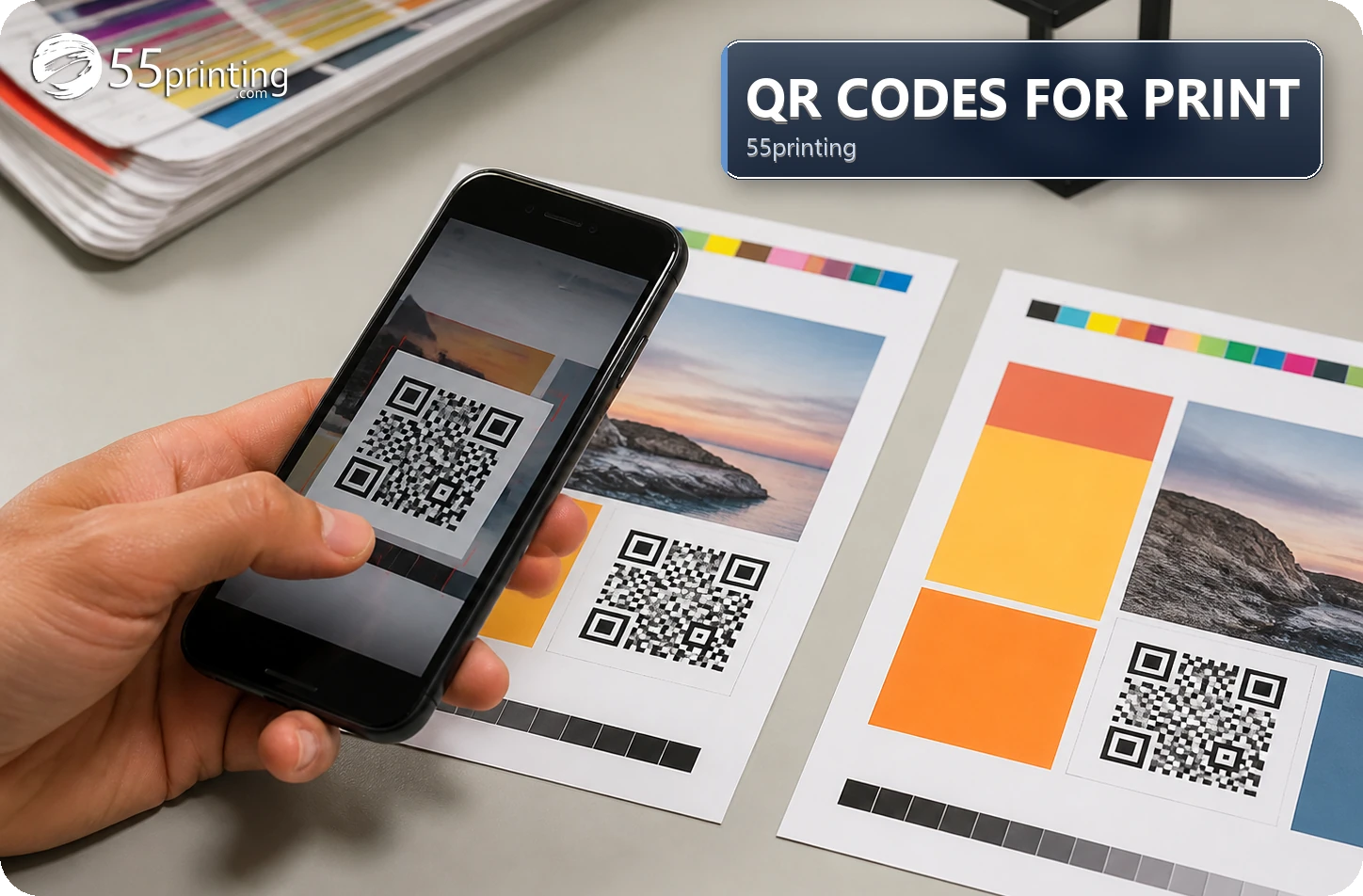
Use the 55printing QR Code Generator to create a code for an approved URL or text, then test the destination and the placed design before print. Keep a clear quiet zone, strong contrast, adequate space for the intended scanning distance, and a versioned source. A generated code can still fail when it is cropped, crowded, too small for the use, or linked to the wrong destination.
The 55printing QR Code Generator can create a code from an approved URL or text, but the generated image is only the beginning. A usable printed code needs a correct destination, clear modules, a quiet zone, sufficient contrast, and a placement that matches the scanning context. Test the code after it enters the actual card, flyer, sign, or proof.
What should you confirm before generating a QR code?
Open the destination in a browser and confirm that it is the intended page, form, menu, or contact path. Check spelling, protocol, redirect behavior, and mobile usability where a safe review is possible. Keep the approved URL in the project notes so the generated image can be compared with the intended destination.
- Confirm the exact URL or text.
- Check the destination on a phone-sized view.
- Record the destination with the design version.
- Do not build from an unapproved placeholder.
How should you generate and save the QR code?
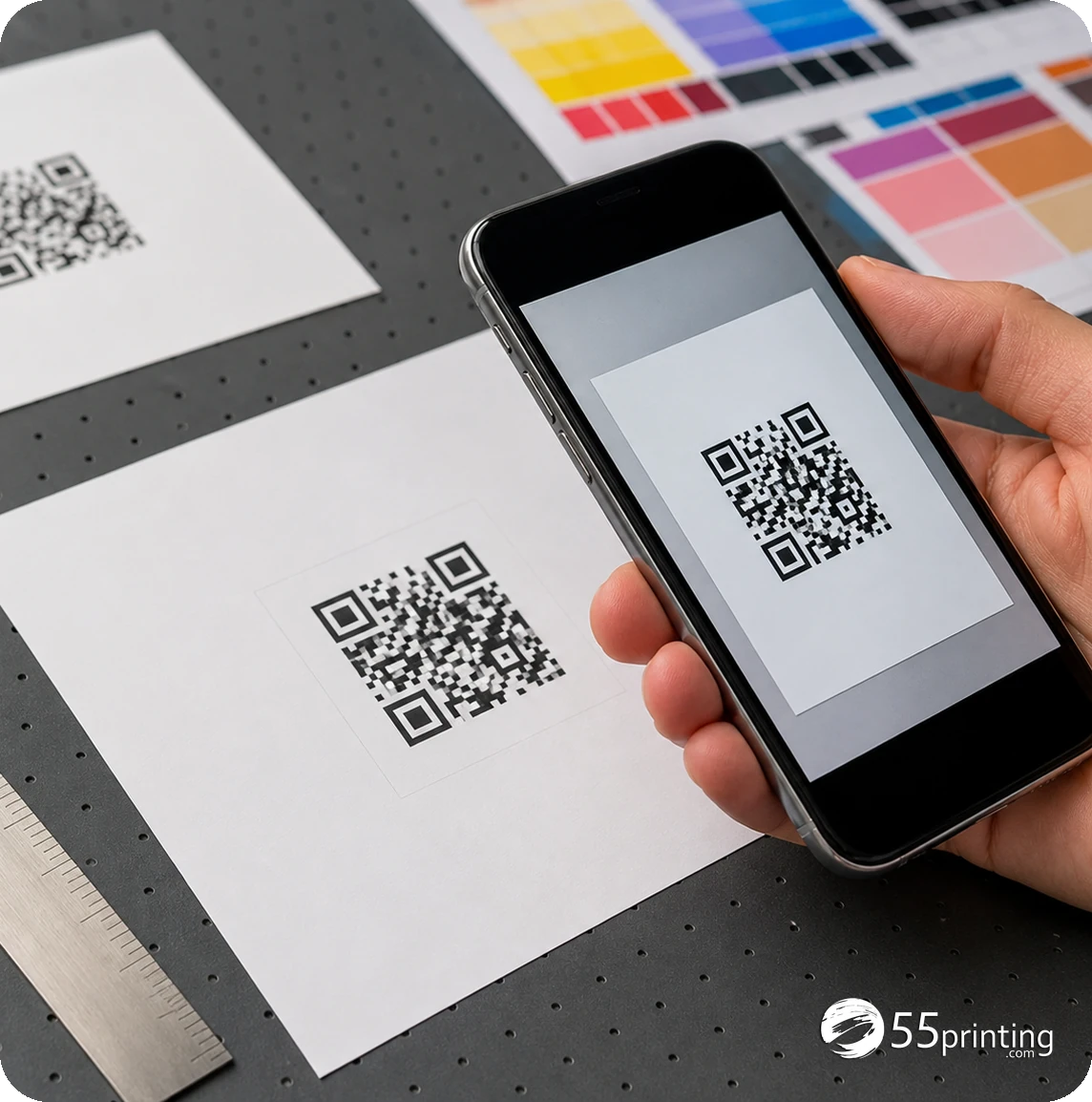
Use the visible controls on the current route and create a versioned output from the approved destination. Keep the original destination and generated file together. If the route exposes style or size controls, treat them as part of the design decision rather than as a guarantee that every printed use will scan.
| Condition | First action | Stop when |
|---|---|---|
| Approved URL | Generate a named version | The destination is still a placeholder. |
| Busy background | Use a quiet area or contrast panel | Modules blend into artwork. |
| Small card placement | Reserve clear space in the layout | The code is crowded or clipped. |
| Outdoor or distant sign | Plan for viewing distance and light | A phone cannot scan the placed test. |
| Proof version | Test the code in the proof context | The destination or mark changed. |
How do you place a QR code for print?
Keep the code square, preserve its proportions, and leave a blank quiet zone around it. Use strong contrast between modules and background. Do not place it across a fold, trim line, rounded corner, heavy texture, or image detail that reduces the scanner’s view. The exact needed space depends on the code, the finished size, the viewing distance, and the surface.
- Place the code on a clear background.
- Preserve its proportions.
- Keep the quiet zone visible.
- Leave it away from trim and folds.
- Check contrast and nearby copy.
- Save the layout version.
How should you test the QR code before approval?
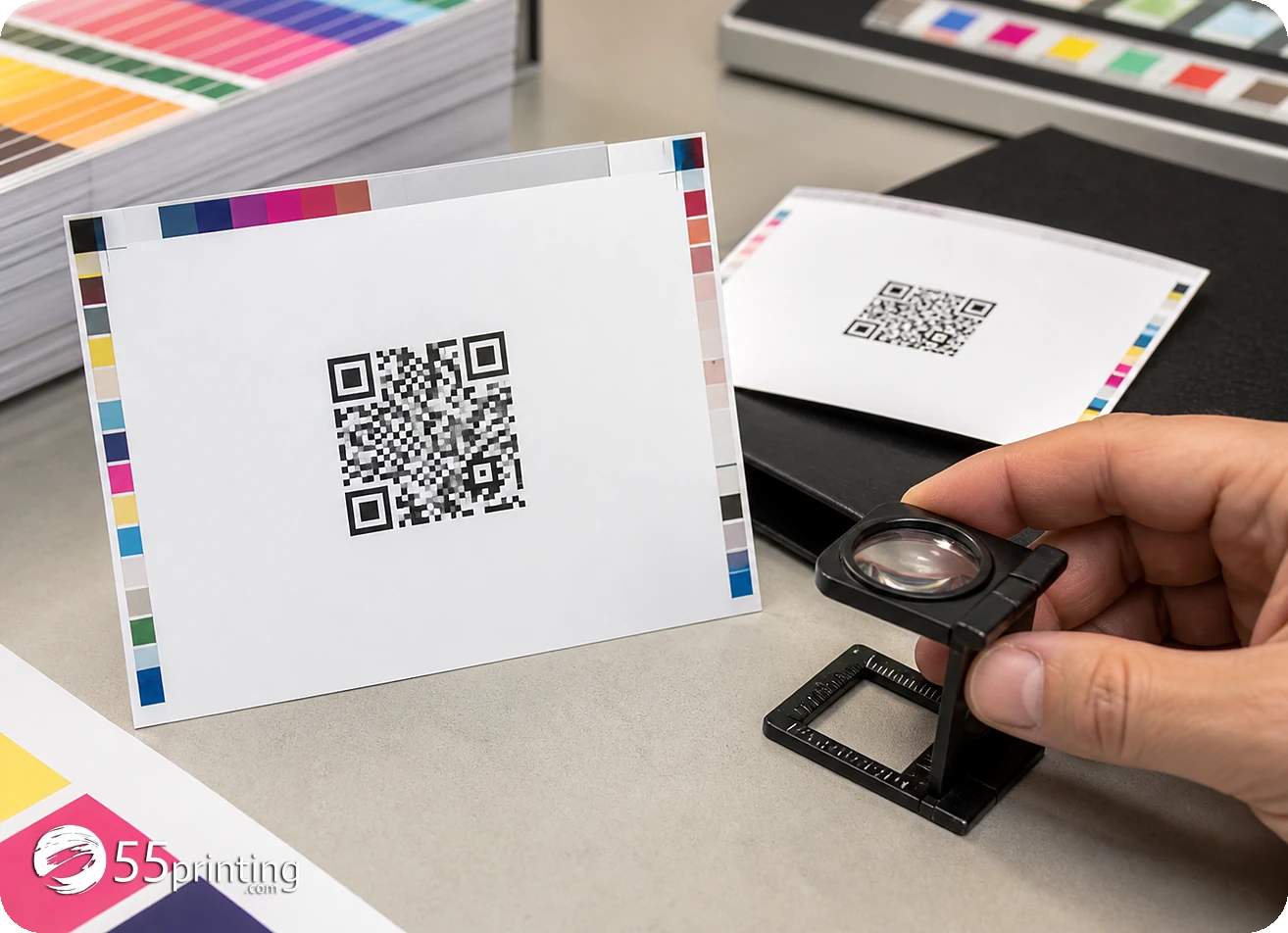
Scan the code from the placed design and from the proof view when possible. Test under the expected reading distance and light, then confirm the destination rather than stopping at the scan beep. Repeat after any resize, crop, color change, or copy edit near the code.
Use the File Uploader with the destination and code version in the note, then compare the free PDF proof with the source layout. A proof can expose crop and contrast problems, but it cannot make a wrong destination correct.
Which QR jobs need extra care?
Small business card
Keep the code away from dense contact text and test it at the size a customer will hold. Confirm the destination before proof.
Outdoor sign
Consider viewing distance, glare, weather, and contrast. A code that scans on a bright monitor may need a different placement in the sign context.
Flyer over a photo
Place the code on a quiet panel or clear area. Do not rely on a semi-transparent overlay if modules disappear into the image.
How do you test a generated code that sits on a colored panel?
Generating the code is step one in this article. Color behind it is a different failure. Place the code, export, and open the file in QR Print Readiness Checker. October 9, 2026 hub scope: decode, printed size, contrast, and quiet zone. If the contrast note is poor, change the panel, not the quiet-zone story you already planned.
The checker does not pick a universal minimum size, and a decode does not prove the landing page is the offer you wanted. Compare the decoded text with the URL you typed, then approve placement on the proof.
Questions customers ask
What should I enter into a QR code generator?
Enter the approved URL or text that customers should receive, then verify that destination before creating the image. Record the exact value beside the generated version. Do not build from a temporary placeholder and assume it will be easy to replace after the code enters the layout.
What is a QR quiet zone?
The quiet zone is the clear space around a QR code that helps a scanner distinguish the code from nearby artwork. Keep it visible and free of text, trim risk, patterns, and heavy texture. A code can be generated correctly and still be weakened by a crowded placement.
What size should a printed QR code be?
There is no single size that fits every job. Consider the code content, finished surface, viewing distance, lighting, scanner, and surrounding space. Place a test at the intended size, keep the quiet zone, and stop when a phone cannot scan the actual design reliably.
How do I test a QR code before print?
Scan the placed design with a phone or known scanner and confirm the destination, not just the scan response. Test from the expected reading distance and repeat after resizing, cropping, color changes, or proof corrections. Check the proof context before approval.
Can I put a QR code over a photo?
You can place it over artwork only when the modules and quiet zone remain clear enough for the intended scan. A plain contrast panel is easier to review than a busy photo. Compare the code in the final layout and proof, rather than relying on the generator screen alone.
Does a QR generator guarantee scans?
No. Generation confirms that an image was created, not that every printed use will scan. Crop, contrast, quiet zone, size, viewing distance, lighting, surface, and destination all matter. Test the placed code and retain the approved URL with the design version.
What if the QR destination changes later?
Decide whether the code points to a stable redirect or a fixed page before print. If the encoded value changes, create a new code and update the design version. Do not replace the destination in a note while keeping an old QR image in the layout.
Should I proof a QR code in the PDF?
Yes. Use the proof to check placement, crop, contrast, quiet zone, and nearby copy, then scan the code when the proof view supports a safe test. The proof cannot correct a wrong destination, so compare the code with the approved source value before approval.
Generate from approved text, preserve the quiet zone, scan the placed code, and proof the final layout.