

QR Codes on Door Hangers: Test the Destination and Outdoor Placement
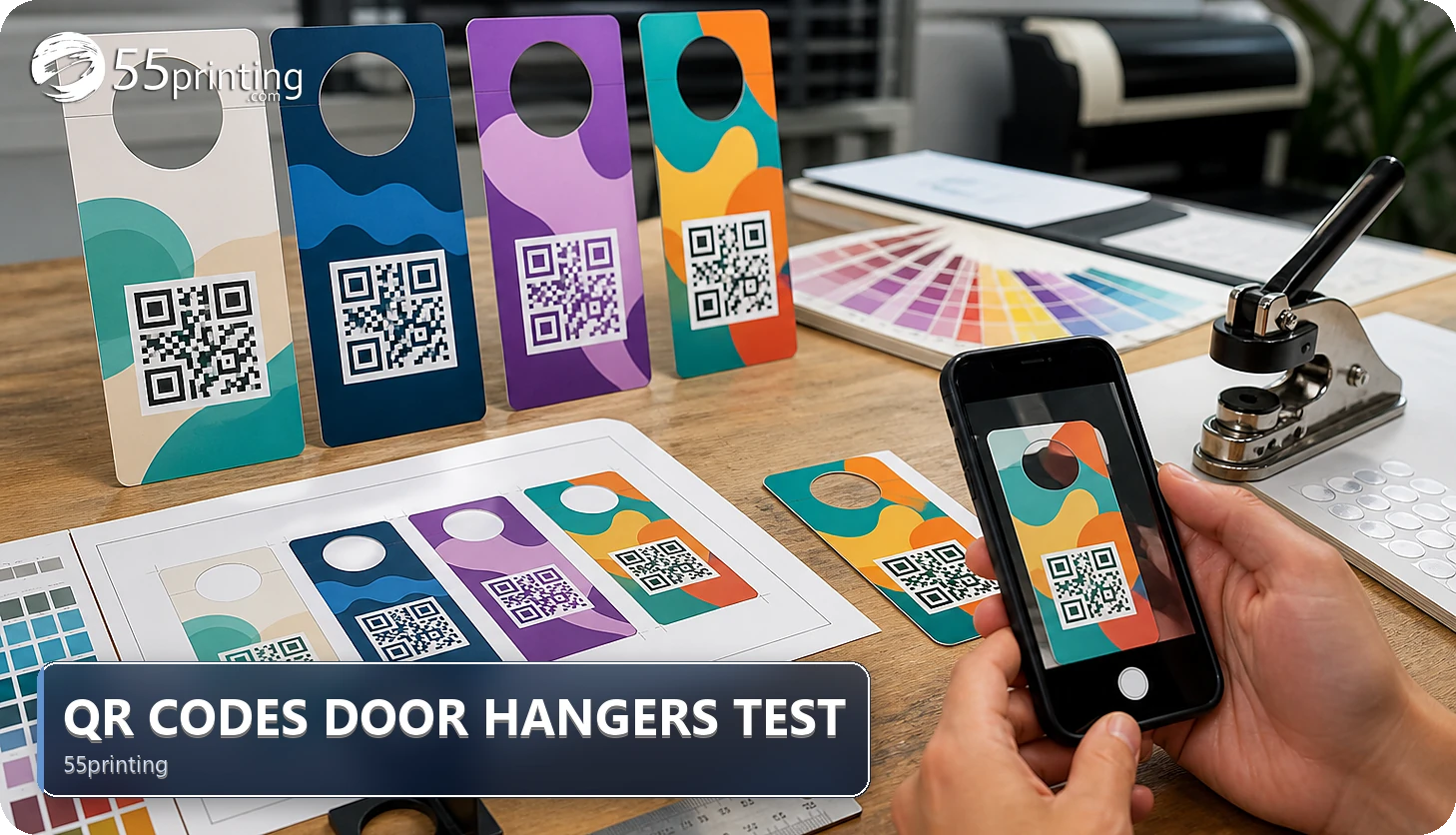
Use the 55printing QR route to create and test the destination, then review the code on the door-hanger canvas under realistic phone, lighting, and placement conditions. Protect quiet space and contrast, keep the code away from trim and holes, and compare the named design in proof. A scan test is a snapshot, not a permanent guarantee.
A door hanger may be seen on a shaded porch, in bright sun, at an angle, or while a customer holds a phone near the printed piece. The current 55printing QR route describes preview, full-size file, contrast, quiet space, and phone testing. Pair those checks with the door-hanger template and proof; do not turn one successful scan into a universal claim.
What should the QR destination say before printing?
Open the final destination and compare its page, offer, phone action, menu, schedule, or form with the printed call to action. Use the approved URL, not a staging or temporary page, and record the code version and test date.
| Check | Evidence | Stop when |
|---|---|---|
| Destination | Phone opens intended page | Wrong, private, or expired page |
| Scan | Code reads in test context | Repeated attempts are needed |
| Placement | Quiet space and safe zone remain clear | Hole, trim, or art crowds code |
| Message | Printed CTA matches landing page | Customer expectation differs |
How should you test an outdoor door-hanger scan?
Scan the named code with a phone under more than one realistic condition when the job calls for it: shade, brighter light, an angled piece, or a hand-held distance. Record the phone context and destination. If the code or layout changes, repeat the test for the new version.
- Use the final approved URL.
- Check the generated preview.
- Scan the code on a phone.
- Test a realistic lighting or angle condition.
- Confirm the page matches the CTA.
- Save the code and artwork versions.
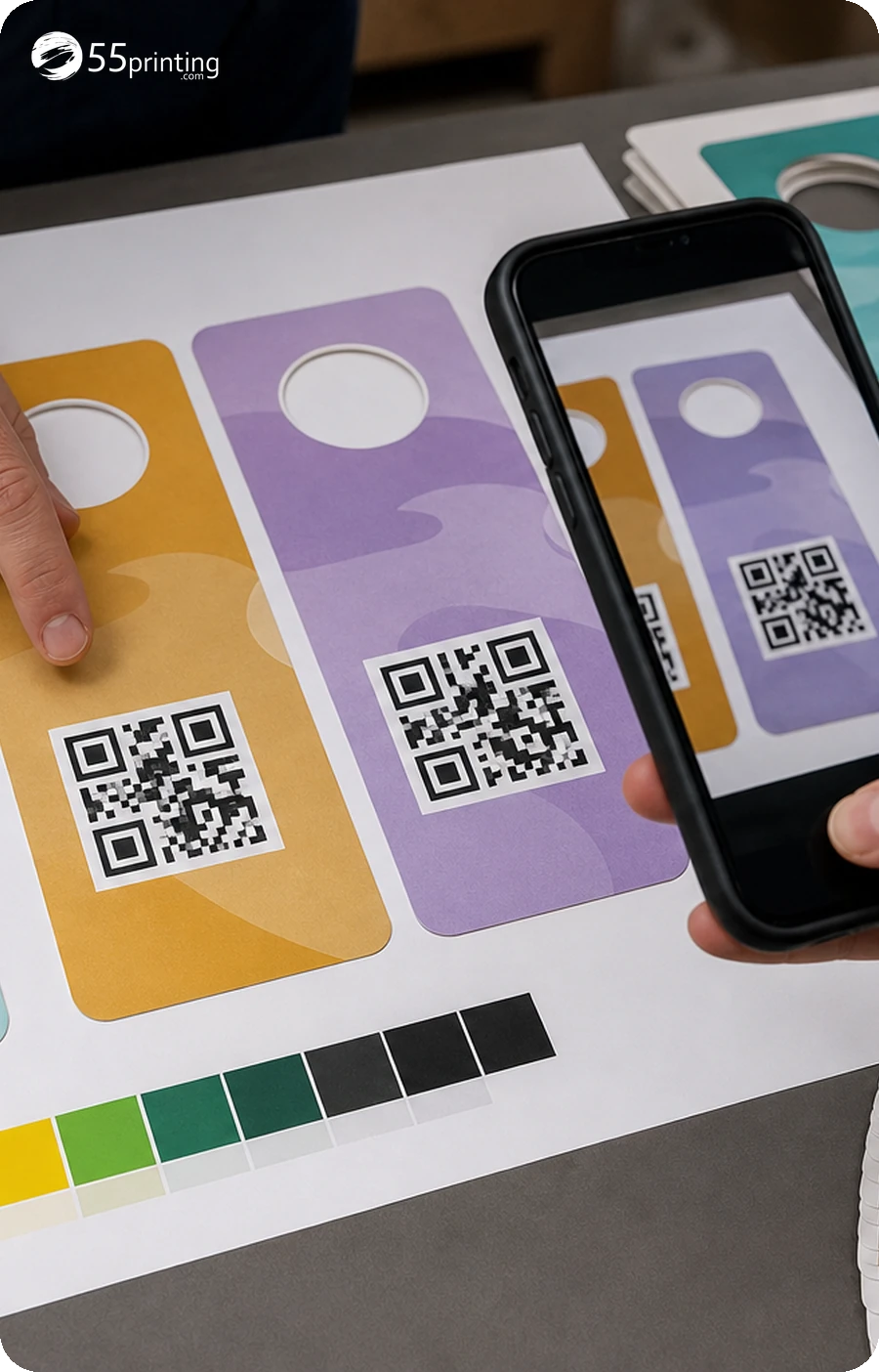
What placement checks matter on a door hanger?
Use the matching door-hanger template to locate trim, hole, fold, and safe areas. Keep the code and quiet space away from a hole, edge, border, photo texture, or crowded type. Check contrast and add a short instruction that matches the destination.
Do not let a hole or trim operation cut into the code. A QR test cannot correct a product canvas or a code that is physically crowded by the finished shape.
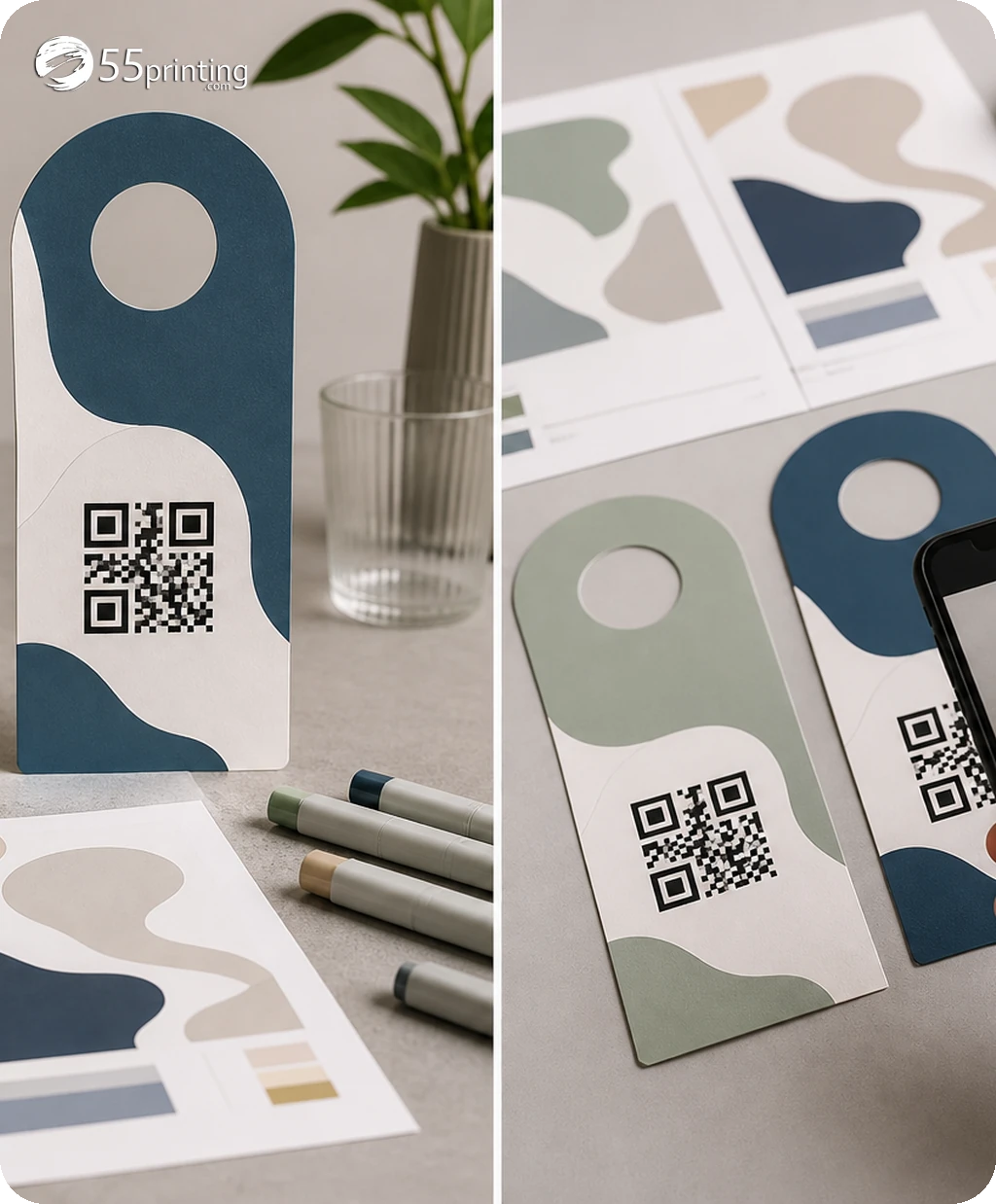
How do proof and handoff complete the QR job?
Use the free PDF proof to inspect the complete door hanger, QR placement, hole, crop, contrast, and printed instruction. Put the named artwork and destination test into the File Uploader when requested. Keep the scan result separate from the proof result.
Which door-hanger QR jobs need extra care?
Neighborhood service offer
Check the landing page, phone action, service area, and printed CTA. Review the code away from the hanging hole and trim.
Restaurant delivery door hanger
Compare menu, hours, ordering page, and scan instruction. Test under lighting that resembles a porch or entryway.
QR code near a die-cut hole
Move the code and quiet space inside the safe area. Use the template and proof rather than relying on a flat screen preview.
Questions customers ask
Why test a door-hanger QR code outdoors?
Outdoor light, angle, distance, nearby texture, and the hanging shape can differ from a desk preview. Test the final destination and named artwork in a realistic phone context, then review code placement and quiet space in proof. Record the phone context and artwork version with the result.
What should the code open?
It should open the approved page promised by the printed instruction, such as a menu, service page, offer, or contact action. Compare the URL and page content with the source before the code moves to proof. Record the phone context and artwork version with the result.
Can a proof test the destination?
A proof can show code placement, crop, contrast, hole, and nearby artwork. It does not replace opening the destination and scanning the code. Keep the phone test and proof record tied to the same artwork version. Record the phone context and artwork version with the result.
Where should a door-hanger QR go?
Place it inside the product safe area with quiet space around it, away from the hole, trim, folds, borders, and crowded artwork. Use the current template and inspect the complete shape rather than a cropped thumbnail. Record the phone context and artwork version with the result.
Should I test more than one phone?
Use a realistic test context and repeat after any code or layout change. Additional devices can provide useful evidence, but no finite test covers every camera, lighting condition, or customer distance. Record what was tested. Record the phone context and artwork version with the result.
Can I put a logo inside the QR?
Only use styling supported by the current QR workflow and check the result on a phone. Preserve quiet space and contrast, and compare the code in the actual door-hanger layout before approval. Record the phone context and artwork version with the result.
What if scans fail at an angle?
Check destination, export, quiet space, contrast, crop, nearby art, and product placement. Correct the named version and retest; do not assume the customer will hold the hanger in one ideal position. Record the phone context and artwork version with the result.
What should the handoff note say?
Name the QR and artwork versions, destination, test date, phone context, product side, hole/trim checks, and proof question. Mention any angle, lighting, contrast, or crop concern for the reviewer. Record the phone context and artwork version with the result.
Check destination, phone scan, quiet space, hole, trim, contrast, and proof with the named version.