

QR Codes: Test the Destination Before Printing
Use the 55printing QR route to create a preview and test the destination on a phone before printing. Confirm the page, scan context, quiet space, contrast, product placement, and proof separately. A successful scan today does not prove that a future destination or every printed copy will work.
A QR code has two jobs: encode the intended destination and remain usable in the printed context. The 55printing QR route can create a preview and send a full-size file by email. Your review still needs to cover the live destination, the phone test, the design placement, and the named proof version.
What should you check before placing a QR code?
Open the destination as a customer would. Check the page, menu, form, phone action, offer, or download that the printed message promises. Compare the URL with the approved source and remove draft, staging, expired, or mistyped destinations from the production file.
| Question | Evidence to record | Stop when |
|---|---|---|
| Does it open? | Phone opens the intended page | Dead, private, or wrong page |
| Is the message right? | Page matches the printed CTA | Offer or service differs |
| Can it be scanned? | Preview and phone test succeed | Scan needs repeated attempts |
| Will the design support it? | Quiet space, contrast, safe placement | Edges or surrounding art crowd it |
How should you test the QR scan?
Generate or open the preview, then test it with a phone under the lighting and distance a customer may use. Test more than one angle when the design will be seen on a counter, wall, mailer, or handout. Record the destination, device context, and date with the artwork version.
- Use the intended final URL.
- Check the preview before download.
- Scan the code from the phone camera.
- Confirm the landing page and printed call to action agree.
- Save the QR file with a named version.
What design checks support a reliable scan?
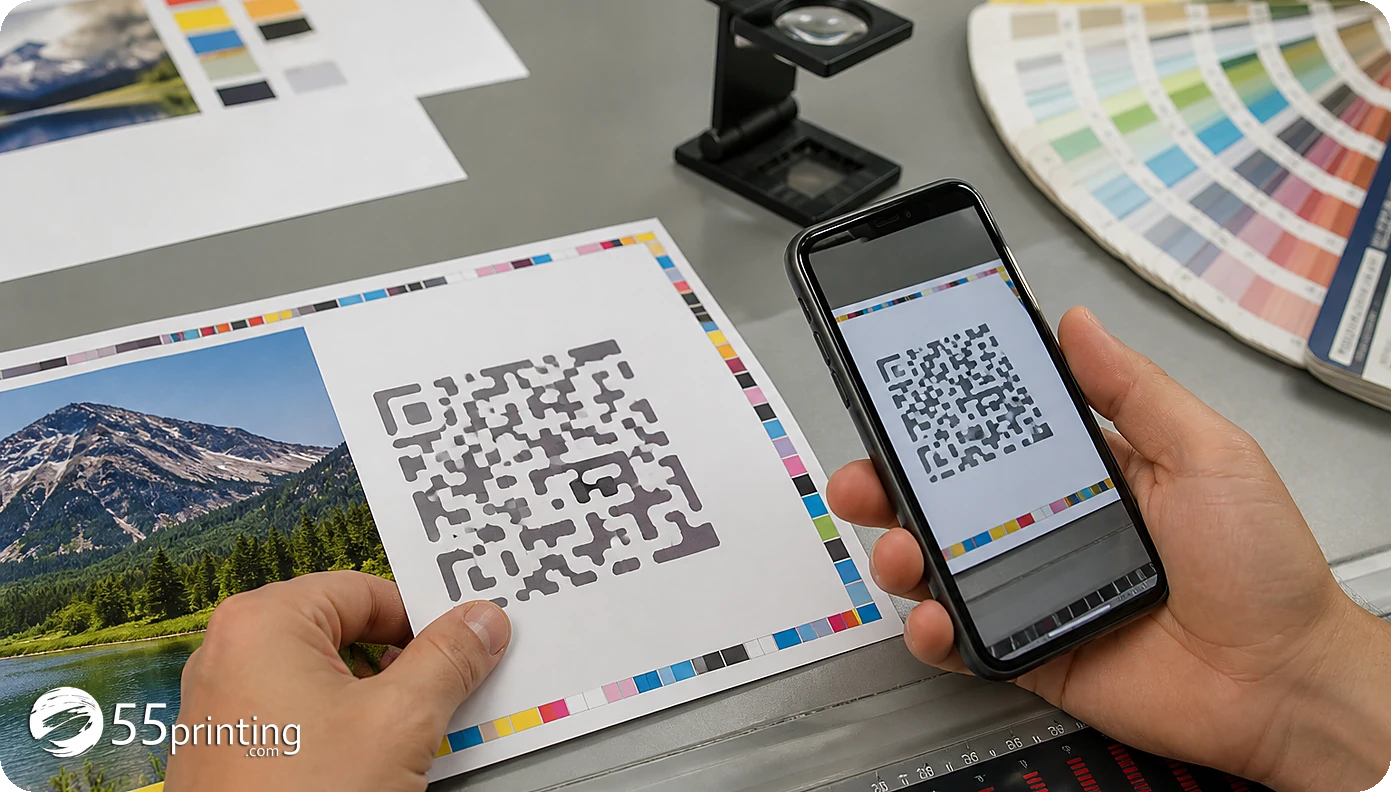
Keep the code away from trim and nearby details. Preserve the quiet space shown or required by the QR workflow, and compare dark-on-light or other high-contrast treatments in the actual layout. Do not let a logo, border, texture, photo, fold, or crop intrude into the code or its surrounding space.
The current QR route also describes a short line of context such as “Scan for hours” or “Scan to order.” Match that line to the page the code opens. A readable call to action helps the customer understand what to expect before scanning.
How do template, proof, and handoff fit together?
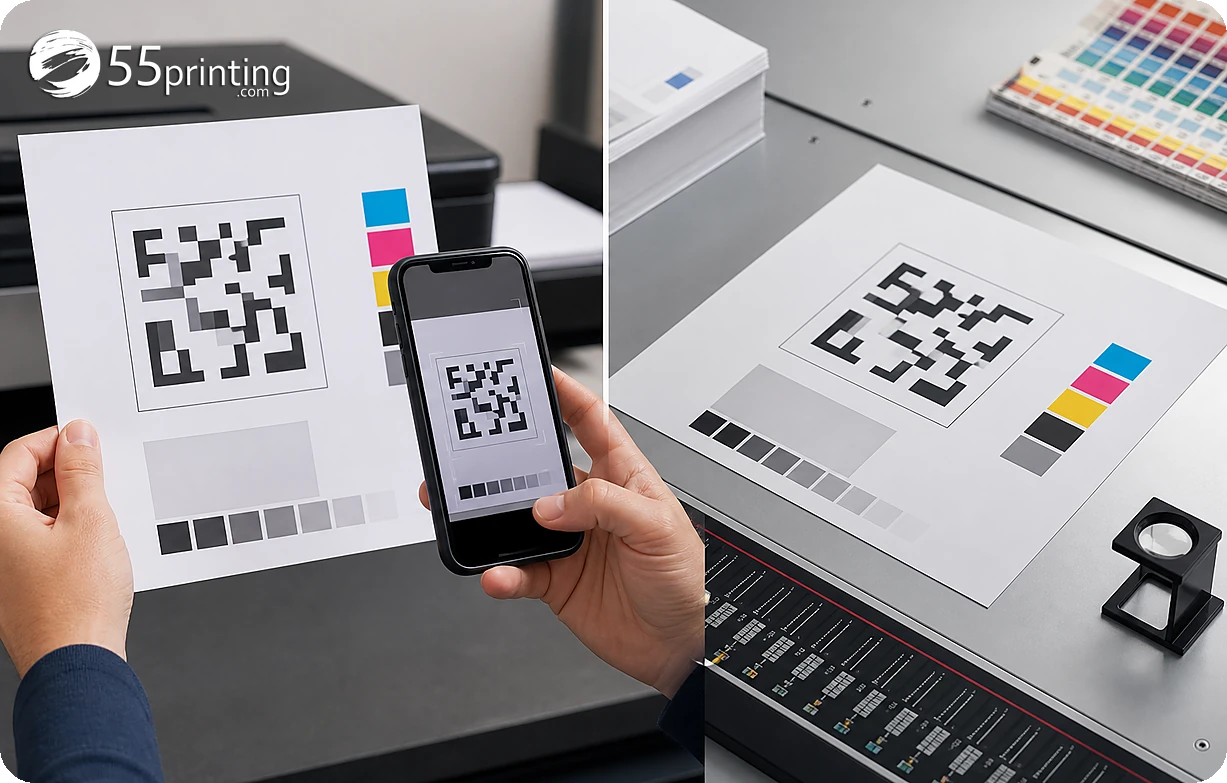
Use the matching guideline template for product size, bleed, safe zone, and orientation. Then place the versioned QR artwork in the File Uploader or the agreed handoff path. Use the free PDF proof to inspect placement, contrast, crop, and the printed call to action. The proof shows the proposed file; keep the destination test as a separate record.
Which QR jobs need extra care?
Restaurant menu
Confirm the menu page, hours, and language before the code is placed on a table card or flyer. Test under indoor lighting and compare the short scan instruction.
Event registration
Check the event date, registration status, and mobile page. A destination that closes after the event needs a reviewed replacement or an approved campaign plan.
Large outdoor sign
Check contrast, clear space, crop, and the distance from which the sign will be approached. Keep the product template and proof record with the phone test.
Questions customers ask
Why test a QR destination before printing?
The printed code sends a customer to the encoded destination, so a wrong URL can make an otherwise attractive piece unhelpful. Open the page, compare it with the approved message, and record the tested version before the artwork moves to proof.
Can a preview replace a phone scan?
No. A preview can show the generated code, while a phone scan checks whether the intended camera can read it in a real viewing context. Use both checks and record the destination, device context, and artwork version. Repeat the scan after any code or layout change.
What if the URL is temporary?
Pause the print decision and ask whether the destination will remain useful for the life of the piece. If a campaign URL changes, record the approved redirect or replacement plan. Do not treat a temporary page as a durable destination without review.
Does a proof test the QR destination?
A proof can show code placement, crop, contrast, and surrounding design. It does not replace opening the destination and scanning the code. Keep the phone test and proof comparison as separate checks tied to the same artwork version. Record both results in the handoff note.
Where should a QR code go?
Place it inside the product safe zone with the quiet space around it. Keep it away from trim, folds, borders, photos, and crowded text. Use the matching template and inspect the actual product layout rather than relying on a thumbnail.
Should I add text beside the code?
A short instruction can explain what the customer will receive, such as hours, a menu, or registration. Match the wording to the destination and review its line breaks, contrast, and safe placement with the rest of the artwork. Keep the instruction readable at the intended viewing distance.
What if the scan works only sometimes?
Check the destination, code export, quiet space, contrast, crop, surrounding artwork, lighting, and viewing distance. Retest a corrected named version and ask for proof comparison when the code is part of a printed product. Record the condition that changed the result.
What should the handoff note say?
Name the QR version, final destination, test date, product side, and checks completed. Mention any unresolved placement question and ask the reviewer to compare the same version in proof. Do not include full card numbers or unrelated private information. Include the source artwork version.
Open the intended page, scan the named QR version, and review its placement in proof.