

Online Designer for Business Cards: Match the Canvas Before Ordering
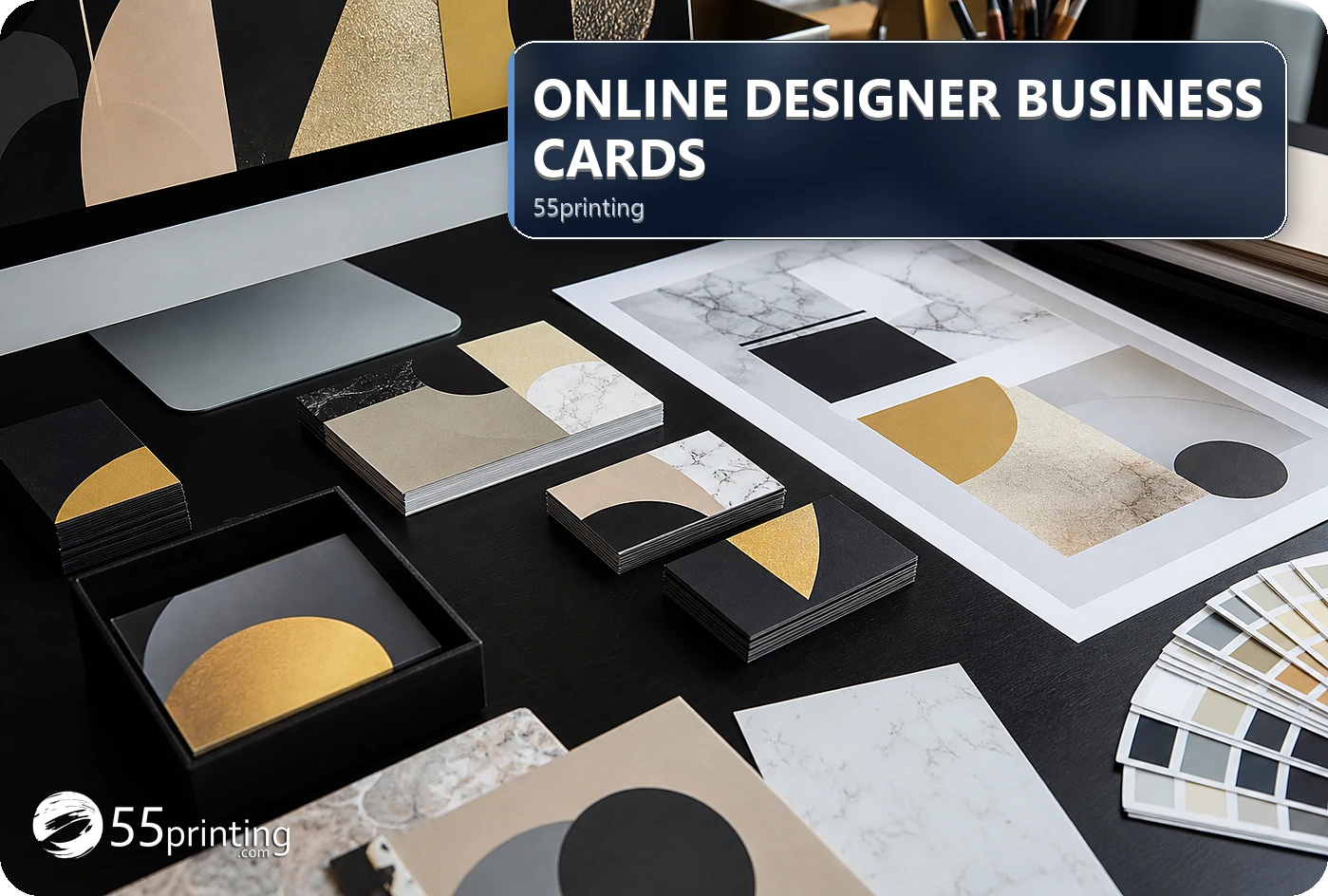
Start with the business-card product and matching canvas before using the 55printing Online Designer route. The route currently presents an account boundary in the observed guest check, so do not promise anonymous access or a specific editor screen. Keep copy, logo, size, bleed, and safe-zone decisions traceable, then review the named design in proof before any order step.
An online business-card workflow can fail when a design is created for one card size and later attached to another product. The current Online Designer route returned HTTP 200 but presented “My Account | 55printing.com” in the observed guest check. Treat access as a current-state fact, not a promise of anonymous editor access, and use the product template and proof to control the design decisions.
What should you identify before designing a business card?
Record product, size, orientation, sides, paper or finish choices when applicable, and the exact copy source. Mark the logo, name, title, phone, email, URL, QR code, and background elements. Do not start with a generic card canvas and plan to force it into a different product later.
| Decision | First check | Risk |
|---|---|---|
| Product | Match the intended card type | Wrong canvas reaches handoff. |
| Orientation | Choose portrait or wide orientation for the job | Copy and logo reflow. |
| Content | Use approved source copy | One character changes contact data. |
| Access | Read the current route state | Anonymous access is assumed. |
How should you set the business-card canvas?
Use the matching guideline template to confirm product size, bleed, safe zone, and orientation. Set the design to that product before placing exact text and logos. Keep the guide or template separate from production artwork and record the version used.
- Identify product and side.
- Open the current access path.
- Match canvas and orientation to the template.
- Place exact content inside the safe zone.
- Check bleed and background edge.
- Save a named design version.
What should you review before an order step?
Compare every name, title, phone, email, URL, QR destination, logo, and line break with the approved source. Inspect background through bleed, content inside the safe zone, crop, contrast, and small type. Reopen the named export or preview and compare it with the product template.
If the route asks for account access, follow the current customer-facing instructions or use the support path. Do not infer that the visible editor, saved design, or cart is available to every guest.
How do proof and the order handoff fit together?
Use the free PDF proof to compare the named design in product context before any order step. Keep the source copy, template version, preview, and proof notes together. If the designer route is unavailable or the design needs a custom canvas, use the appropriate upload or assisted-design path instead of forcing a different SKU.
Which business-card jobs need extra care?
Two-sided card
Check front/back pairing, orientation, logo placement, and any different safe-zone treatment. Name each side in the source and proof note.
QR business card
Check the destination separately, keep quiet space around the code, and review the code in product placement. A card preview does not replace a scan test.
Designer access boundary
Read the current route state and account instructions. Keep the design plan ready for the correct path without promising that a guest can enter the editor.
Questions customers ask
Can a guest use the Online Designer?
The observed route returned HTTP 200 but presented “My Account | 55printing.com” during a guest check. Access can change, so read the current customer-facing instructions and do not promise anonymous editor access in a help article. Record the product, access state, and design version with the proof.
Which canvas should I choose?
Choose the exact business-card product and match its current template, size, orientation, bleed, and safe zone. Do not use a similar canvas and plan to force the design into another product later. Record the product, access state, and design version with the proof.
What copy should I check?
Compare name, title, phone, email, URL, QR destination, logo, and line breaks with the approved source. Business cards contain short exact details, so one changed character can alter the contact path or brand identity. Record the product, access state, and design version with the proof.
Can the designer check print quality?
Use the current preview and any visible notices as review inputs, then check the product template and proof. A designer warning or clean screen view does not replace source comparison, geometry review, or a named proof. Record the product, access state, and design version with the proof.
What if I need a custom card size?
Pause the standard designer workflow and use the current template, custom-product, or assisted-design path that fits the requested size. Do not force a custom design into a standard canvas or rely on a resized preview. Record the product, access state, and design version with the proof.
Should I test a QR code separately?
Yes. Open the destination and scan the QR version in a phone context, then check quiet space, contrast, crop, and safe placement in the card proof. A designer preview shows placement but does not prove the destination works. Record the product, access state, and design version with the proof.
Does the proof approve the order?
A proof is a review step for the proposed file and product placement. Compare the named design with the source and template, resolve questions, and follow the current customer-facing order instructions after the review. Record the product, access state, and design version with the proof.
What should the design note say?
Name the product, canvas, side, source version, template, exact details checked, access boundary, and proof question. Mention any QR, crop, contrast, or custom-size concern so the reviewer compares the correct design. Record the product, access state, and design version with the proof.
Read the current access path, use the product template, compare exact content, and review the named design in proof.