

Resize a Print Design When the Product Changes
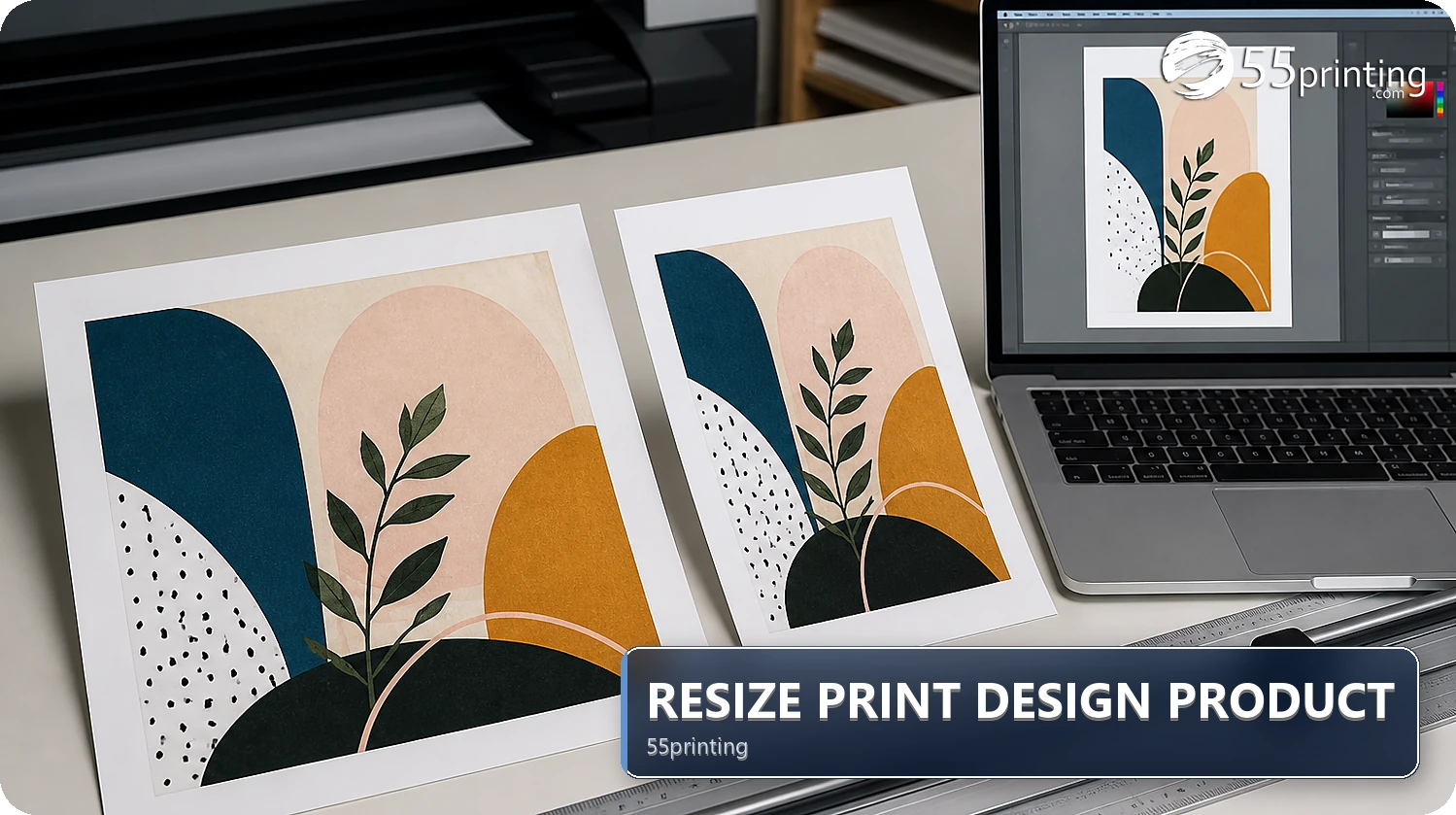
When a product changes, confirm the new canvas, bleed, and safe zone before moving the design. Resize background artwork only when it still fits; recheck text hierarchy, logo proportions, margins, crop, and reading order. A business card layout should not be stretched into a flyer and treated as approved. Use the current Online Designer route, template, and proof.
A business card, postcard, and flyer can carry the same brand while needing different hierarchy and spacing. The 55printing Online Designer route may help with a new canvas, but the current route and account state should be checked before promising access. Resize is a layout task, not a command to stretch every object.
What should you confirm before resizing?
Open the matching guideline template and record finished size, orientation, bleed, safe zone, and any fold or panel structure. Mark the parts that must remain exact, such as logos, phone numbers, QR codes, and legal copy. Decide whether the new product needs a reflow rather than a scale.
| Change | First response | Risk |
|---|---|---|
| Business card to postcard | Rebalance hierarchy | Small type and empty gaps. |
| Postcard to flyer | Rebuild reading order | Card layout is stretched, not designed. |
| Portrait to wide format | Reposition groups | Crop or awkward margins. |
| Different bleed/safe zone | Use new template | Important content near trim. |
| Same product, new version | Reopen and compare | Old assets remain in the layout. |
How should you move a design to a new product?
Keep the original design unchanged and create a new version. Set the new canvas first, then place the background, logo, headline, body copy, contact details, and call to action. Scale background art only when the crop remains intentional. Reflow text and groups when the new ratio changes reading order.
- Save the original version.
- Confirm the new product template.
- Set canvas and orientation.
- Place background and exact marks.
- Rebuild text hierarchy and spacing.
- Save the new product version.
What should you inspect on the resized layout?
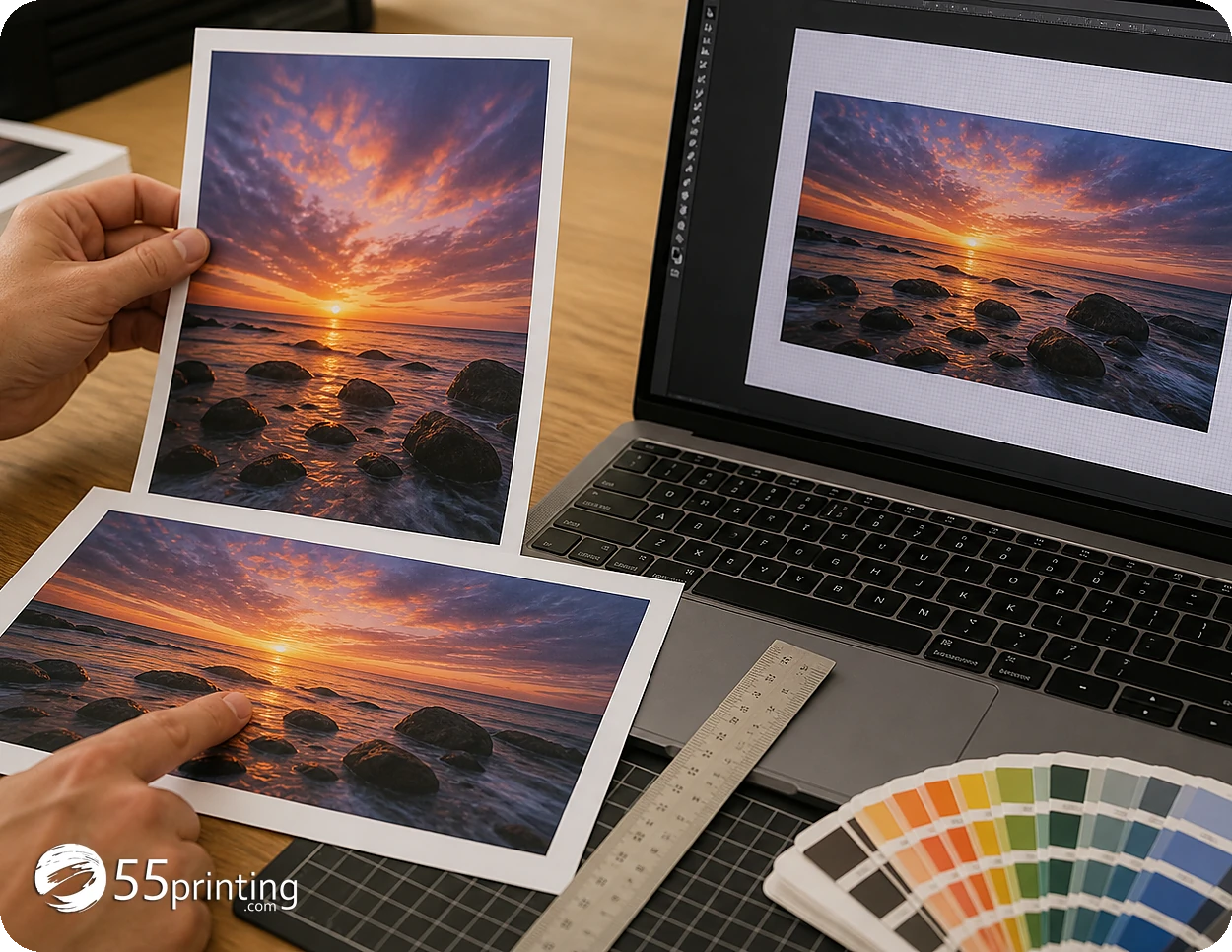
Read the new design at the size and distance a customer will use. Check headline dominance, body size, line breaks, logo proportions, phone numbers, QR codes, crop, margins, bleed, and safe zone. Compare the old and new versions side by side, but judge the new product on its own template.
- Read every word and number.
- Check logo shape and proportions.
- Confirm the CTA remains visible.
- Inspect crop and background coverage.
- Check safe-zone distance.
- Save and reopen the new version.
How do you connect a new product layout to proof?
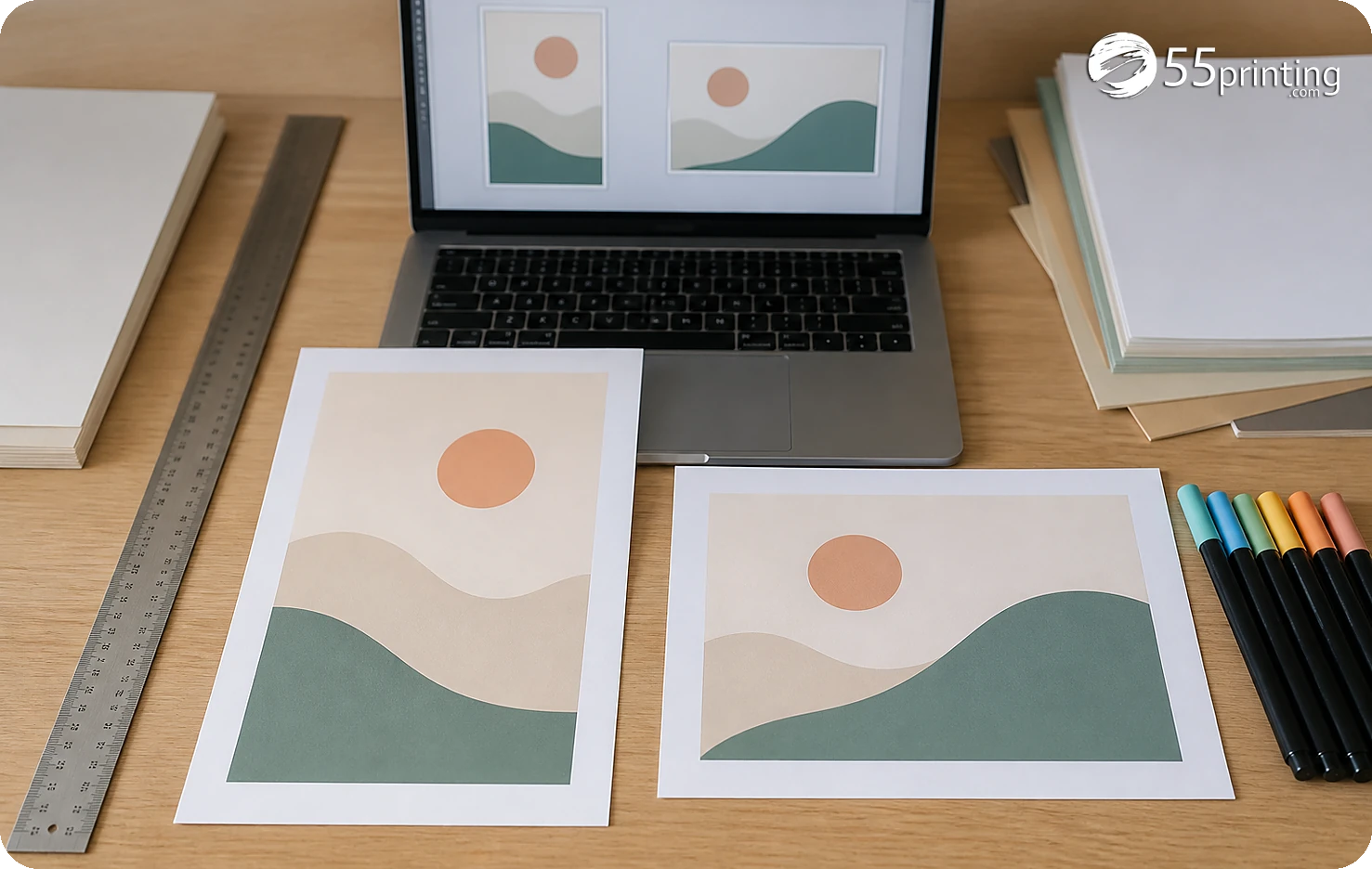
Use the File Uploader with the product, version, and changed canvas in the note. The free PDF proof should show the proposed product so crop, copy, image order, and placement can be compared. Keep the old design version separate from the new handoff.
Which product changes need extra care?
Business card to postcard
Give the headline and offer enough space for the larger format. Do not leave a tiny card hierarchy floating in a new canvas.
Postcard to flyer
Rebuild the reading path and contact block. A larger sheet can need more structure, not just larger objects.
Same product, new orientation
Set the new template, check crop and safe zone, and reopen the saved version before proof.
How do you prove the resized file matches the new product?
Changing products is the whole point of this article, so the export has to carry the new size. Open it in Print Ready Preflight Check and read the dimensions. The October 9, 2026 hub entry also covers bleed planning and effective PPI. Write the dimension reading beside the new product name. If it still shows the old size, the resize did not leave the studio.
A matching size does not mean the layout survived. Preflight will not restack your text. Use the inspection already in this article, then the proof, and keep the old product file out of the order.
Questions customers ask
Can I move a card design to a postcard?
You can use the design as a starting point, but confirm the postcard canvas, bleed, safe zone, hierarchy, and crop first. Reflow the headline, offer, logo, and contact block instead of stretching every object from the card. Save the postcard as a separate version and reopen it before proof.
Can I stretch a card layout to a flyer?
Do not treat a stretch as a finished flyer. A larger canvas often needs a new reading order, text scale, spacing, and image crop. Build a new product version, compare exact marks, and use the flyer template and proof before handoff. Record the rebuild as a new version.
What should change first?
Confirm the new product and template first, then set canvas, orientation, bleed, and safe zone. Place the background and exact marks before rebuilding text groups. This order makes geometry errors visible before copy is polished and helps protect important details on the new product.
How do I protect a QR code?
Keep the QR code inside the new safe zone, preserve its quiet area, and inspect it at the intended product size. A resize does not prove that a code still scans, so include destination, contrast, crop, and proof checks. Record the code version in the note.
Should I keep the old design?
Yes. Save the original and label the new product version separately. The old file provides a comparison and lets you recover exact copy or assets if the new canvas reveals a layout problem. Do not overwrite the only source; retain both versions for proof.
Does resizing preserve logo proportions?
It can preserve a proportional object when the layout allows it, but inspect the result after moving it. Check lettering, spacing, corners, and surrounding safe-zone distance rather than assuming the resized logo is approved. Compare with the source mark and record the reviewed version.
What if the new product is wide?
Use the wide-format template and rebuild the reading path. Reposition groups, check crop, and give the headline and CTA room. Do not keep portrait spacing when the new canvas changes how the design is read; save and reopen the new version before proof.
What should the proof note say?
Name the old and new products, version, changed groups, exact marks checked, and canvas concerns. Ask the reviewer to compare crop, text, logo, QR code, bleed, and safe zone on the new proof. Include the source version and the reason for resizing.
Confirm the new canvas, rebuild hierarchy, reopen the version, and connect it to template and proof review.