

Online Designer Flyers: Match Safe Margins Before the Proof
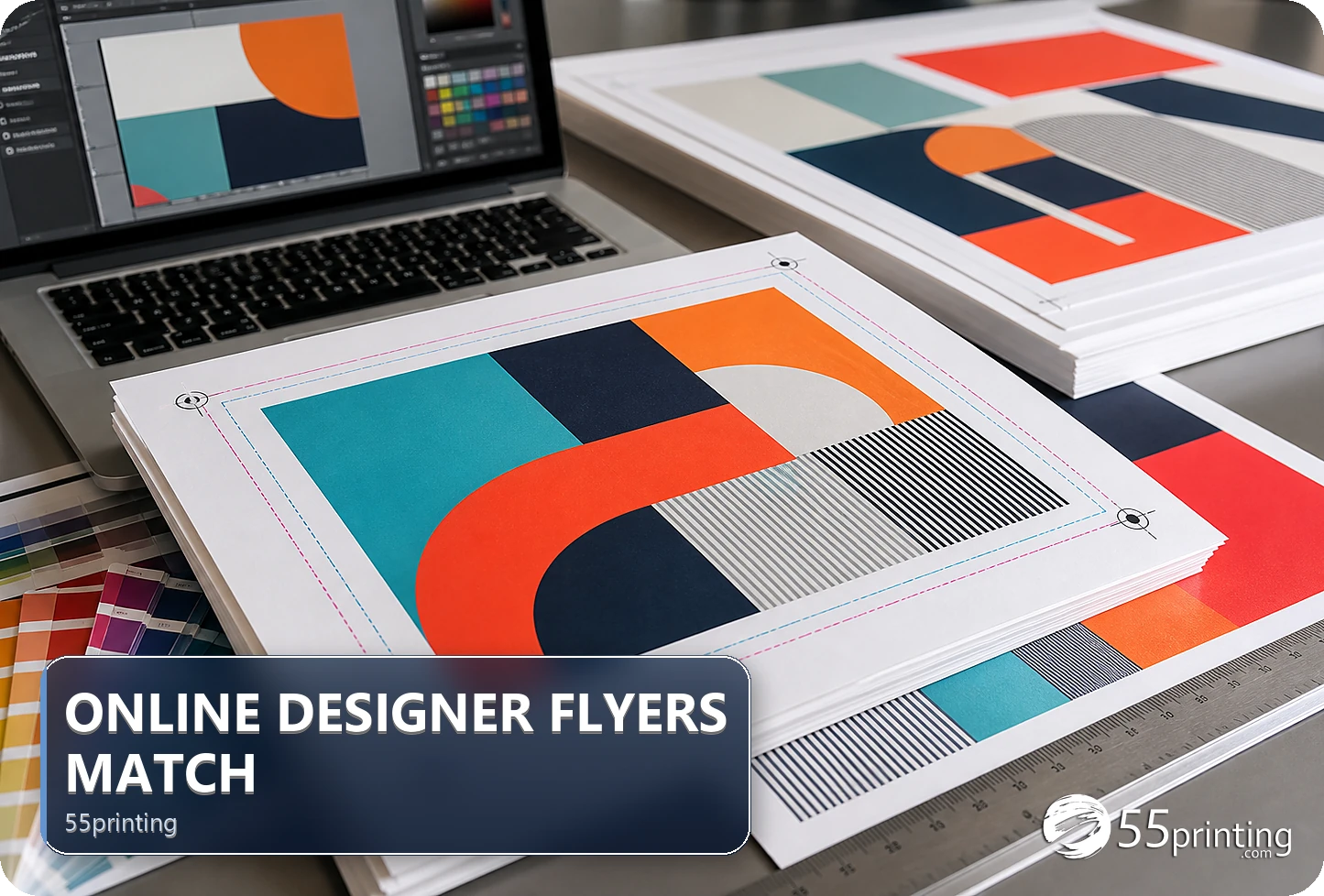
Match the flyer product and template before using the 55printing Online Designer route. The observed guest route presented an account page, so editor access should be rechecked rather than promised. Keep important text, logos, QR codes, and faces inside the safe area, extend backgrounds through bleed, and review the named design in proof.
Flyer margins are product geometry, not a decorative preference. The current Online Designer route returned an account page in the observed guest check, while the template route supplies the safer starting point for size, bleed, and safe zone. Do not promise a particular editor screen or treat a preview as approval.
What should you identify before setting flyer margins?
Record product, finished size, orientation, page side, and the job of each content block. Mark headline, body copy, phone, URL, QR code, logo, face, fold, and background areas. Use the exact product template rather than a similar rectangle.
| Element | Margin response | Risk |
|---|---|---|
| Headline | Keep clear from trim | Wrap or crop changes meaning. |
| Phone/URL | Keep inside safe area | One lost character breaks contact. |
| QR code | Protect quiet space | Nearby art affects scanning. |
| Background | Continue through bleed | White edge at trim. |
How should you set safe margins and bleed?
Match the canvas to the current flyer template, place exact content inside the safe zone, and extend background artwork through the bleed area. Keep the template layer separate from production artwork and save a named design version. If the editor uses different guides, compare them with the downloaded template before export.
- Record product and template version.
- Set size and orientation first.
- Place exact content inside safe area.
- Extend background through bleed.
- Check QR quiet space and logo edges.
- Reopen the named export.
What should you review before proof?
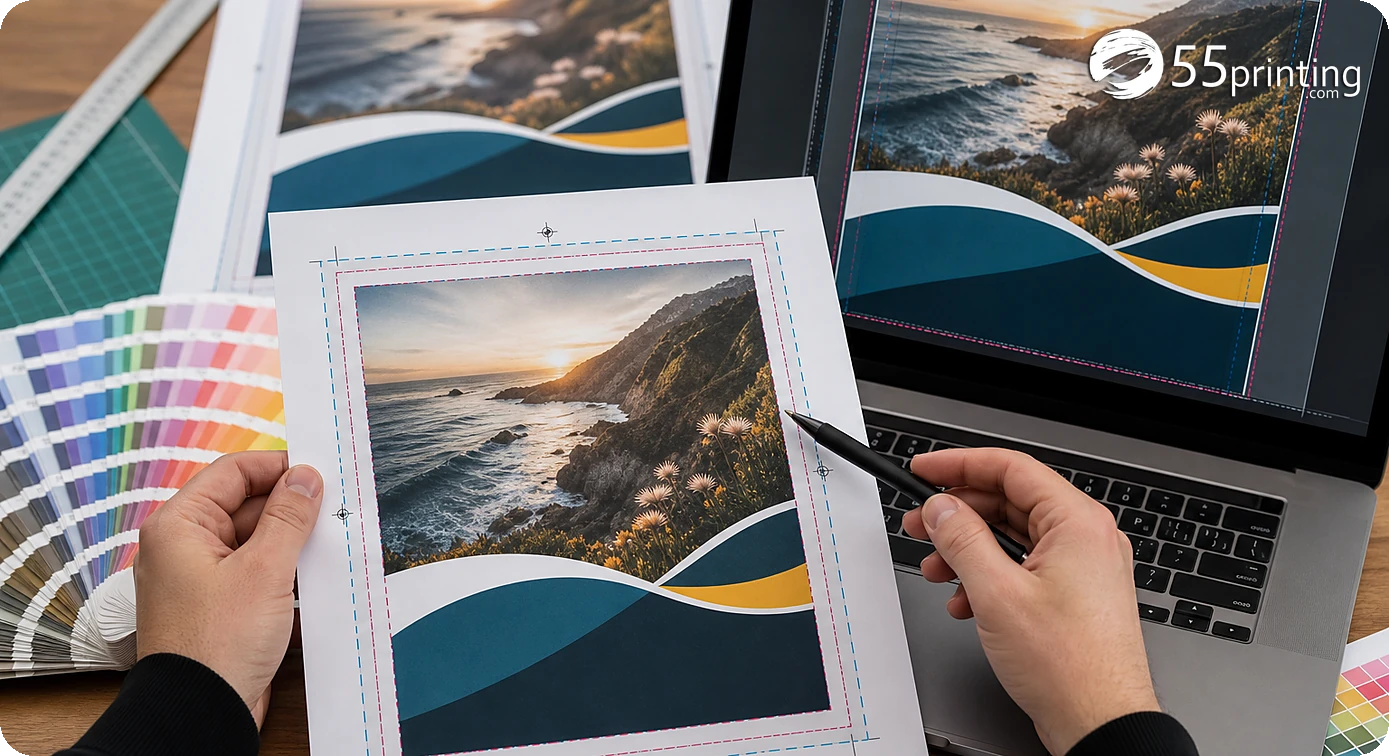
Read the flyer in scan order. Compare headline, body copy, date, offer, phone, URL, logo, QR destination, crop, contrast, line breaks, and small type with the approved source. Confirm the background reaches bleed and no important content sits in a trim-risk area.
If the current route requires account access, follow its customer-facing instructions or use the correct assisted path. Do not infer guest access, saved-design behavior, or order controls from an older article.
How do template and proof complete the flyer?
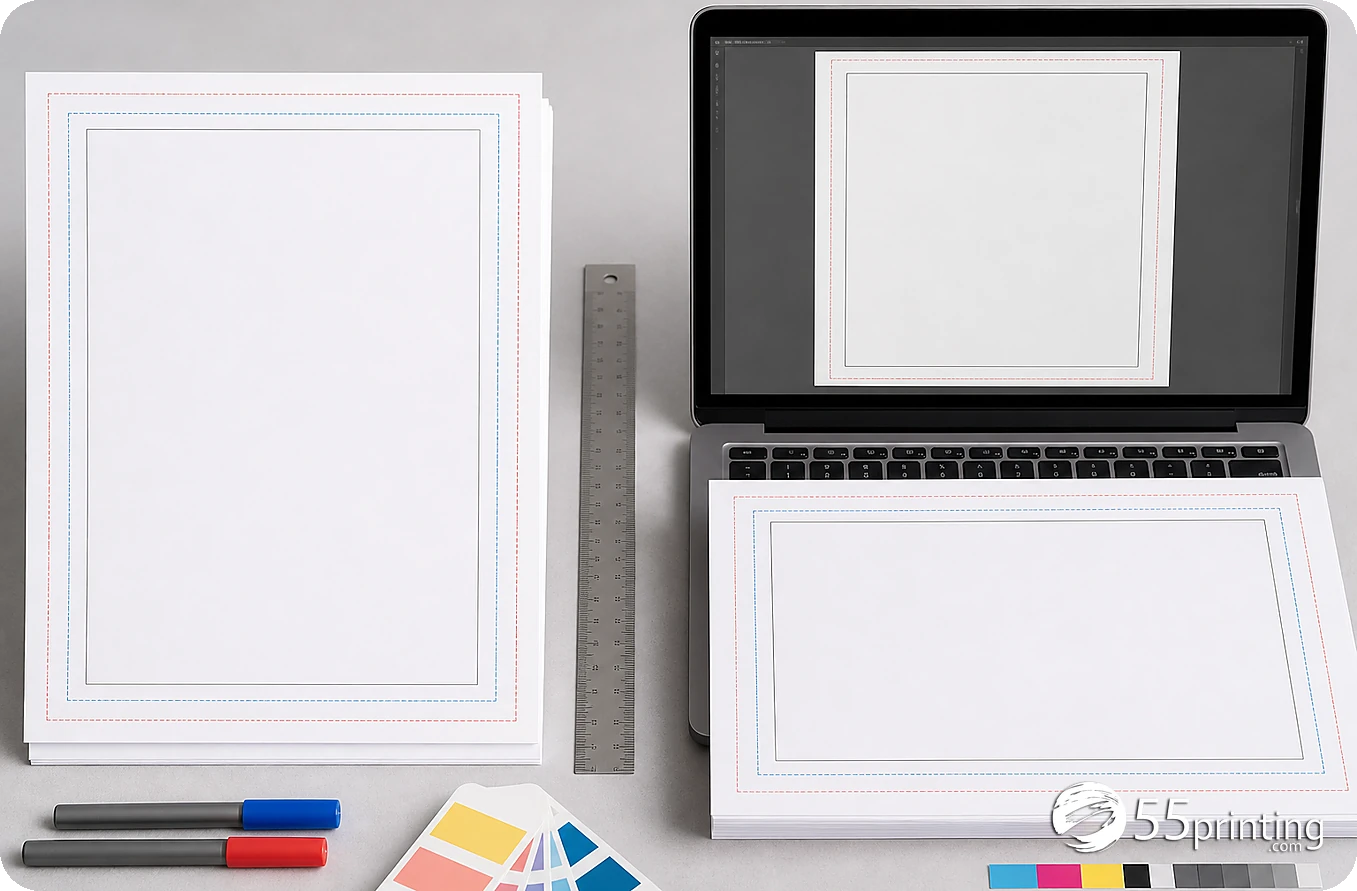
Use the matching template for size, bleed, and safe zone, then use the free PDF proof to compare the named design in product context. Keep the source copy, export, template version, and notes together. If the flyer needs a custom canvas, choose a path that supports it rather than forcing the design into a different product.
Which flyer jobs need extra care?
Event flyer
Check date, time, address, URL, QR destination, and scan order. Keep the CTA and contact line inside safe placement.
Photo flyer
Protect faces and logos from trim while allowing the background to bleed. Review crop and contrast in the proof.
Small-type offer flyer
Read the details at product scale and compare every character with the approved copy. A margin check cannot fix cramped hierarchy.
Questions customers ask
What is a safe margin on a flyer?
It is the area inside the trim-risk boundary where important text, logos, faces, phone lines, URLs, and QR codes should remain. Use the current product template rather than assuming one margin fits every flyer size or orientation. Record the product, template, and design version with the review.
What should extend through bleed?
Background colors, photos, patterns, and other artwork intended to reach the cut can continue through the bleed area. Keep exact content in the safe zone and reopen the export to check for edge and crop changes. Record the product, template, and design version with the review.
Can a guest use Online Designer?
The observed route returned HTTP 200 but presented “My Account | 55printing.com” in a guest check. Access can change, so read the current instructions and do not promise anonymous editor access. Record the product, template, and design version with the review.
Can safe margins fix wrong copy?
No. Margin work controls placement, not spelling, names, dates, phone numbers, URLs, or approved meaning. Compare copy with the source before layout and check the final line breaks in proof. Record the product, template, and design version with the review.
Should a QR code touch the margin?
Keep the code and its quiet space inside the safe area, away from trim and crowded art. Test the destination separately and compare code placement, contrast, and crop in the product proof. Record the product, template, and design version with the review.
What if a flyer needs a custom size?
Use a current template or product path that supports the requested size. Do not force a custom canvas into a standard flyer product because the screen preview appears close. Record the product, template, and design version with the review. Ask for clarification when the template or access path is unclear.
Does a preview approve the flyer?
No. Compare the preview with the approved copy, template, source assets, and proof. Check headline, crop, safe margin, bleed, URL, QR, logo, and small type before any customer-facing order step. Record the product, template, and design version with the review.
What should the handoff note say?
Name the product, template, orientation, source version, access state, margin checks, bleed treatment, QR result, and proof question. Mention any custom-size or crop concern so the reviewer checks the correct file. Record the product, template, and design version with the review.
Match the product template, protect safe margins, extend backgrounds through bleed, and review the named design.