

Online Designer: Save, Reopen, and Check the Preview
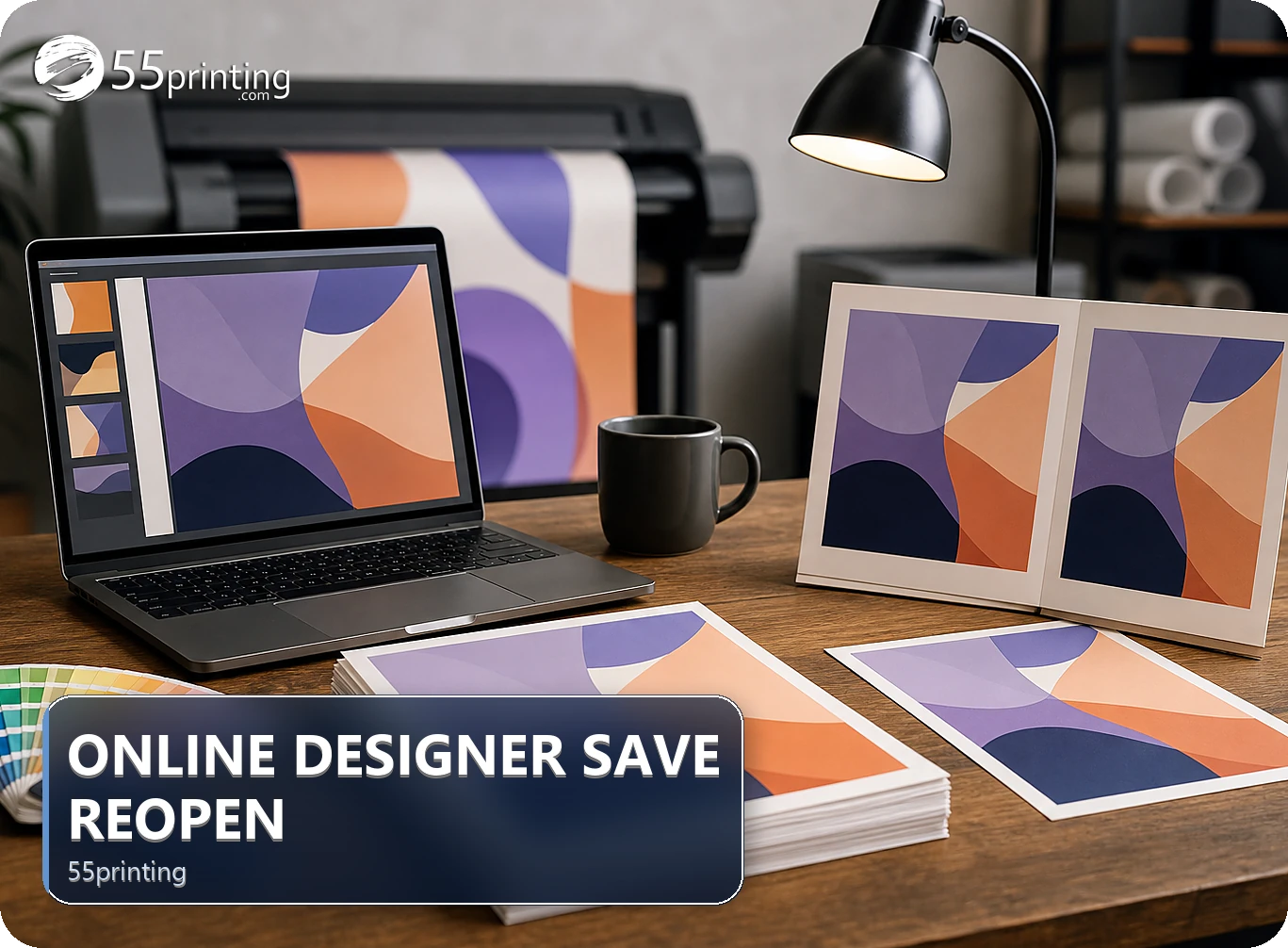
Save a named design, reopen the saved version, and inspect the complete canvas before treating an Online Designer preview as current. Check images, text, crop, product size, and page state in a fresh view. A stale tab or thumbnail can hide a missing asset; use the current 55printing route and proof path before an order decision.
The current 55printing Online Designer route should be checked as a customer would see it; when researched on 2026-08-10 it returned a My Account page. That account boundary is part of the workflow. Once inside the appropriate design session, a saved version must be reopened and compared before a stale preview becomes a production assumption.
What should you confirm before using Online Designer?
Confirm the current route, account state, product canvas, and whether the design is saved under the intended project. Do not promise an anonymous route when the current page asks for account access. Keep the source assets named outside the designer so a missing image can be found again.
| State | Next check | Risk |
|---|---|---|
| Freshly edited canvas | Save a named version | Unsaved changes are lost or unclear. |
| Saved design reopened | Compare every asset | Missing or changed image is missed. |
| Old tab or thumbnail | Close and reopen current version | Preview does not match saved state. |
| Product changed | Check canvas and layout | Elements keep the wrong geometry. |
| Order decision | Use template and proof | Preview is mistaken for approval. |
How should you save a design for review?
Use a filename or project label with product, side/page, and version. Keep the original image and logo assets in a separate source folder. Record the intended canvas and the change made in this version. A saved design is easier to verify when its role is explicit.
- Confirm product and orientation.
- Save the design with a version label.
- Record changed text and assets.
- Keep source images and logos separate.
- Close the stale preview.
- Reopen the saved design.
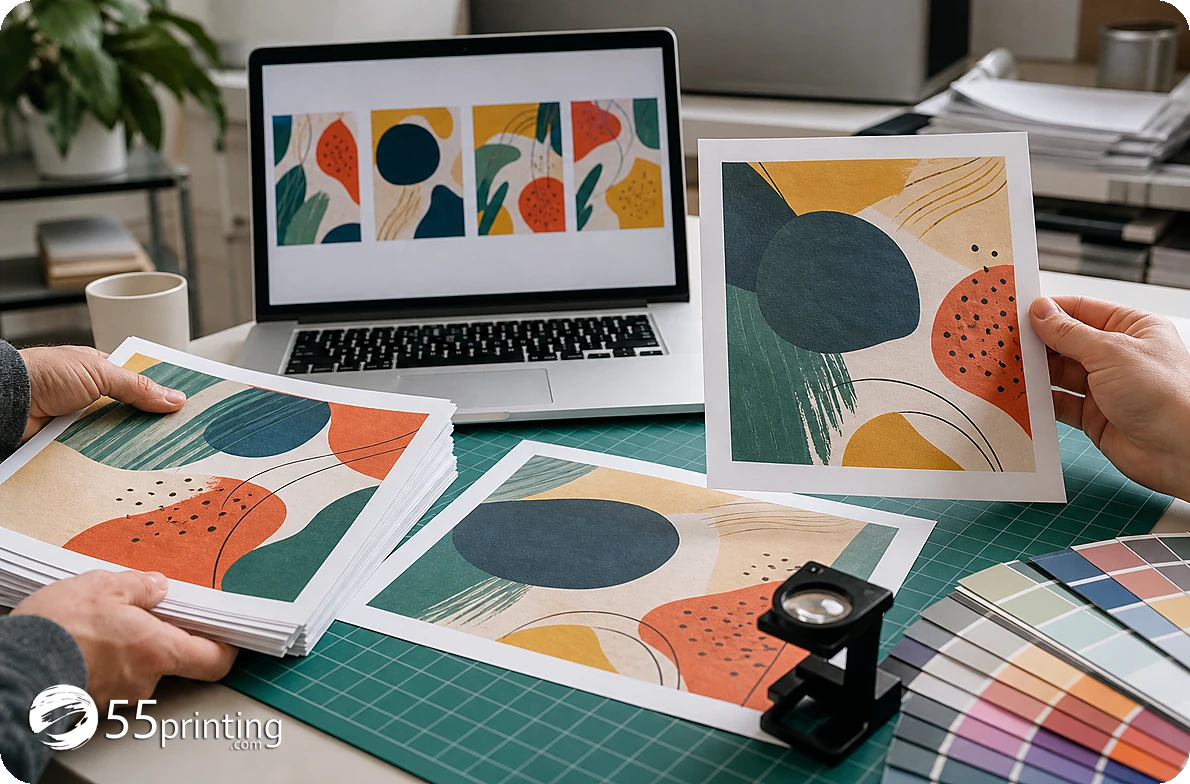
What should you inspect after reopening?
Compare the reopened design with the source and the saved version. Check every image, logo, word, number, crop, margin, background, and page/side. Zoom out to read the complete hierarchy, then zoom in on small type and exact marks. If an image is missing or stale, stop and restore the correct source before handoff.
- Confirm product canvas and orientation.
- Check image presence and crop.
- Read phone numbers, URLs, and small type.
- Compare logo proportions and colors.
- Check front/back or page state.
- Record the reopened version.
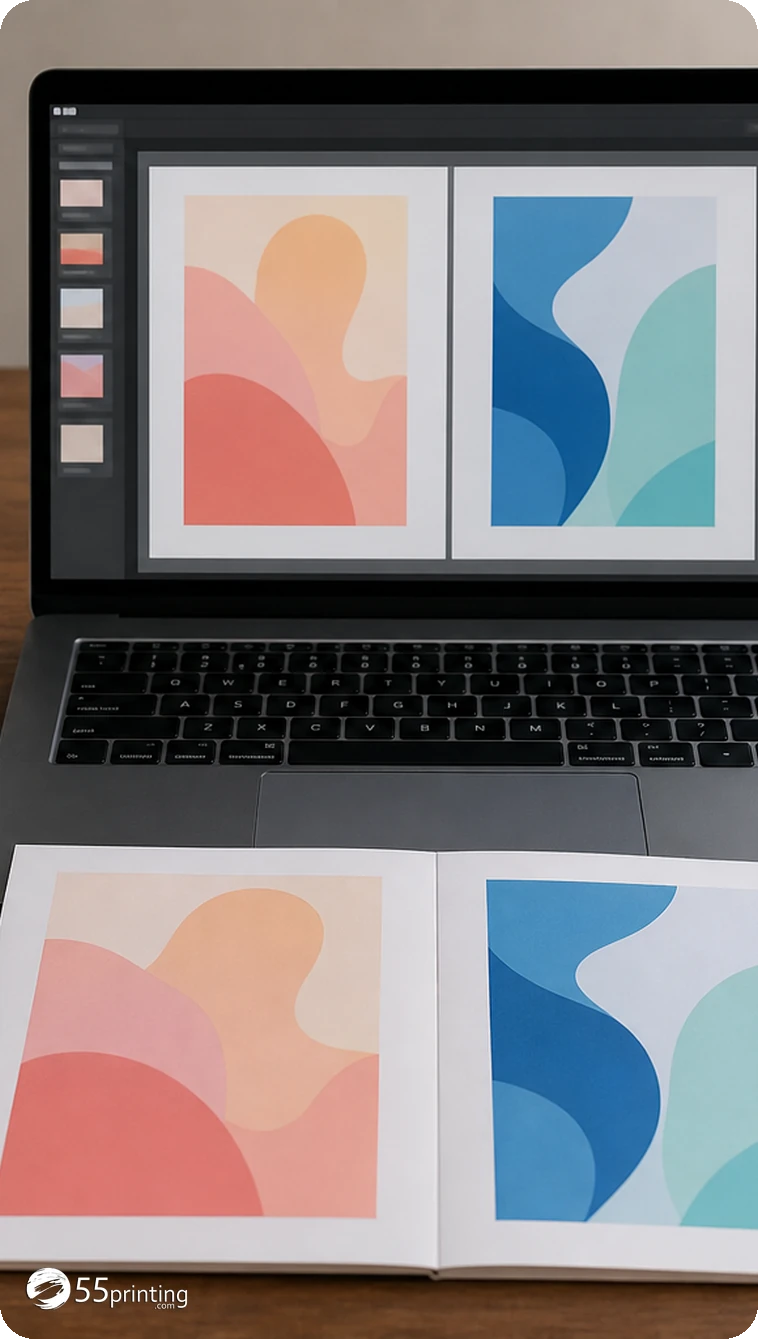
How do you move from preview to proof?
Review the matching guideline template for canvas, bleed, and safe zone. Then use the File Uploader with the saved version in the note. The free PDF proof is the separate approval step; a designer preview should not replace it.
Which reopen jobs need extra care?
Design with a linked photo
Reopen and inspect the actual image, rather than the frame alone. Check crop, resolution, and whether the source remains attached before the version moves to proof.
Front and back business card
Check both sides after reopening. One side can be current while the other remains an older saved version, so compare page state and exact copy before handoff.
Design changed to another product
Confirm the new canvas and rebuild spacing where needed. A saved file is not proof that every element fits the new geometry, bleed, and safe zone.
Why is the reopened preview not the PPI of the download?
This article’s risk is trusting the picture after you save and reopen. Download the file, then open that download in Print Clear. Record effective PPI and the size-fit signal. Both are in the October 9, 2026 hub description, with color signals. Compare them with the product size. The on-screen preview can look sharp while the downloaded file does not.
Print Clear does not repair the download. A weak PPI means you rebuild in the studio before proof, which is the stop this article wants. A solid reading still goes to the proof with the note attached. Save that note with the download filename so the next reopen has a number to compare.
Questions customers ask
Why should I reopen a saved design?
Reopening tests the saved state instead of trusting a stale editing tab. Compare images, text, crop, product canvas, and page state after the fresh load. Record the version reviewed before treating the design as ready for the next proof step and keep the source asset list.
What if an image is missing?
Stop and compare the reopened version with the source asset list. Restore the correct image or save a corrected version, then reopen it again. Do not approve a missing image because the frame or thumbnail still looks complete; the full canvas must show the intended asset.
Does a preview prove the design is ready?
No. A preview shows a design state, while a proof checks the proposed output in a separate review. Confirm canvas, bleed, safe zone, text, images, and exact marks before asking for or approving the proof. State which saved version the reviewer should use.
Should I save several versions?
Use named versions when the product, side, or major asset changes. Keep the source files and a short change note so a reviewer knows which version was reopened. Too many unlabeled copies make a correct comparison harder, so archive or label obsolete versions.
Can a stale tab show old artwork?
Yes, a stale tab can differ from the saved design or current source. Close or refresh the old view, reopen the named saved version, and compare the complete canvas. Keep the version identifier in the upload note and proof request.
Does changing products resize everything safely?
A product change can alter canvas proportions and safe areas. Recheck text size, crop, margins, and element placement on the new template. Do not assume that a saved layout fits a different product without review; save a new version after the rebuild.
What route access should I expect?
Read the current 55printing route before promising access. The route returned a My Account page when checked on 2026-08-10, so account state may be part of the workflow. Do not promise anonymous editing when the current page does not show it.
What should the proof note say?
Name the product, saved version, reopened check, changed assets, and the region that needs comparison. State whether the current preview is a review copy or handoff candidate. Clear notes help the proof review start from the right design and avoid an older tab.
Save a named version, compare the full canvas, and connect the current design to template and proof review.