

Browser PDF to JPG: A No-Upload Review Path
Use the browser PDF-to-JPG path when the current route performs the conversion in the browser and the file can remain on the device for that step. Keep the source PDF, test one representative page, inspect page count, crop, type, and dimensions, and treat the result as a JPG copy. Browser conversion does not approve artwork or replace a proof.
A browser conversion on the 55printing PDF to JPG route can be useful when a document needs a raster preview and the current route does the conversion locally in the browser. That fact describes this step’s handling boundary; it does not mean every later route is local. Keep the source, read current route wording, and decide whether a JPG is actually needed.
What does a browser-only PDF-to-JPG path answer?
It can answer whether a PDF page can be exported into a JPG or PNG for a local review task, subject to the current route and browser resources. It does not answer whether the artwork is correct for a product, whether the file meets a separate upload requirement, or whether the output is approved for production.
| Question | What this route can show | What still needs review |
|---|---|---|
| Does a page render? | A local export result | Page count, crop, orientation, and type. |
| Does the file stay on the device during conversion? | Current route wording and observed behavior | Any later upload or support handoff. |
| Is the JPG print-ready? | Pixel output for review | Product template, file role, and proof. |
| Is a sensitive source appropriate? | Handling decision for this route | Project policy and the destination route. |
Use the current page as the evidence for current behavior. Do not turn “browser” into a blanket promise about storage, retention, or every associated tool.
How should you prepare a PDF before a local conversion?
Keep the original PDF in a protected source location and make a copy with a filename that identifies the page or project. Decide whether the document contains customer names, unpublished details, or exact marks that should not be altered. A local conversion can reduce one handling step, but it does not remove the need to minimize unnecessary information.
- Confirm the page size, orientation, and page count.
- Choose a representative page when the document has different layouts.
- Keep the PDF source separate from the JPG output.
- Close unrelated tabs or applications when the file is large.
- Record why the JPG is needed and who will review it.
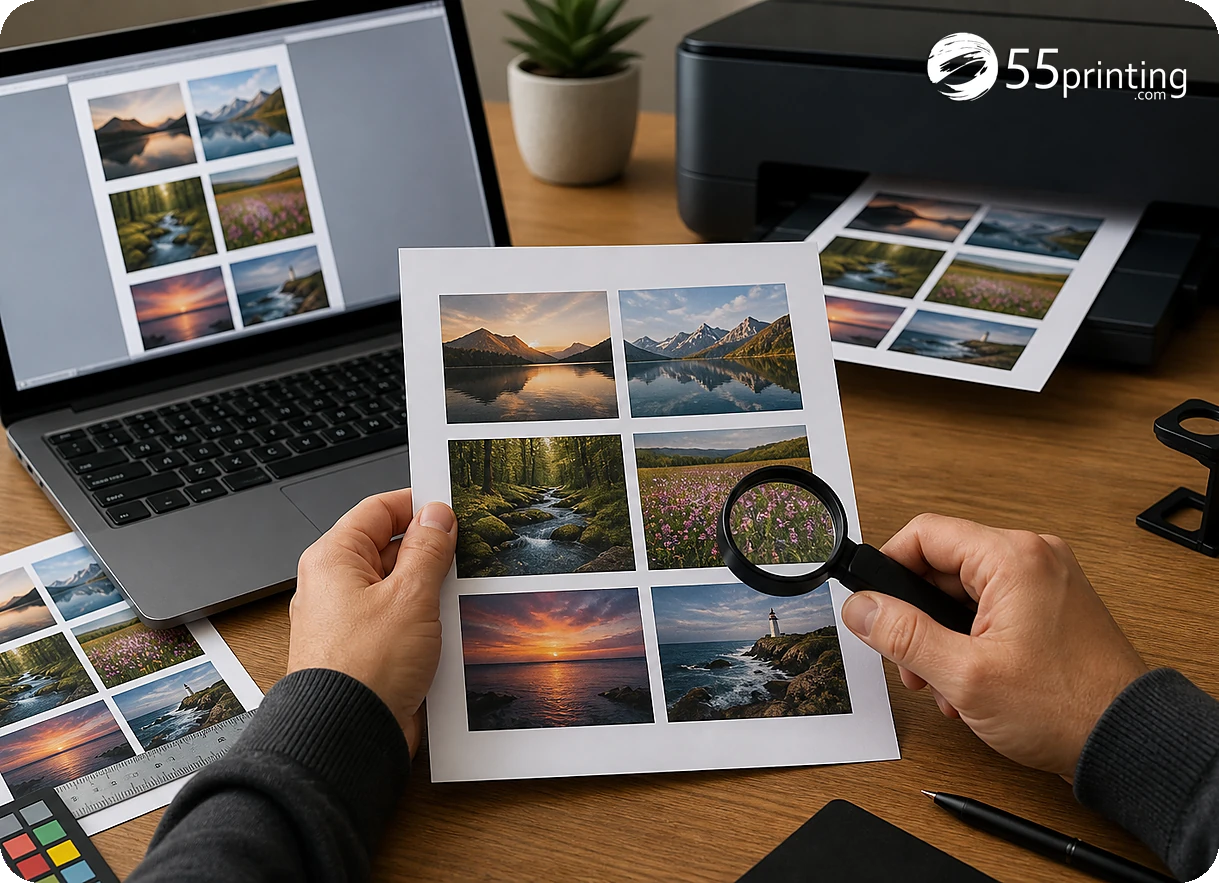
How do you review a browser-generated JPG?
Open the output at normal reading size and close zoom. Compare page count and orientation with the PDF. Inspect crop, small type, thin rules, logos, QR codes, gradients, and image edges. If the route creates one image per page, name the files with page numbers before sharing them.
- Compare the first and last page count.
- Check page order and orientation.
- Inspect the outer crop and blank margins.
- Read the smallest important type.
- Check exact marks and QR codes.
- Record the output version beside the source PDF.
A JPG can look acceptable in a small thumbnail while hiding a clipped edge or a soft word. Review the complete page and use a proof for the final layout decision.
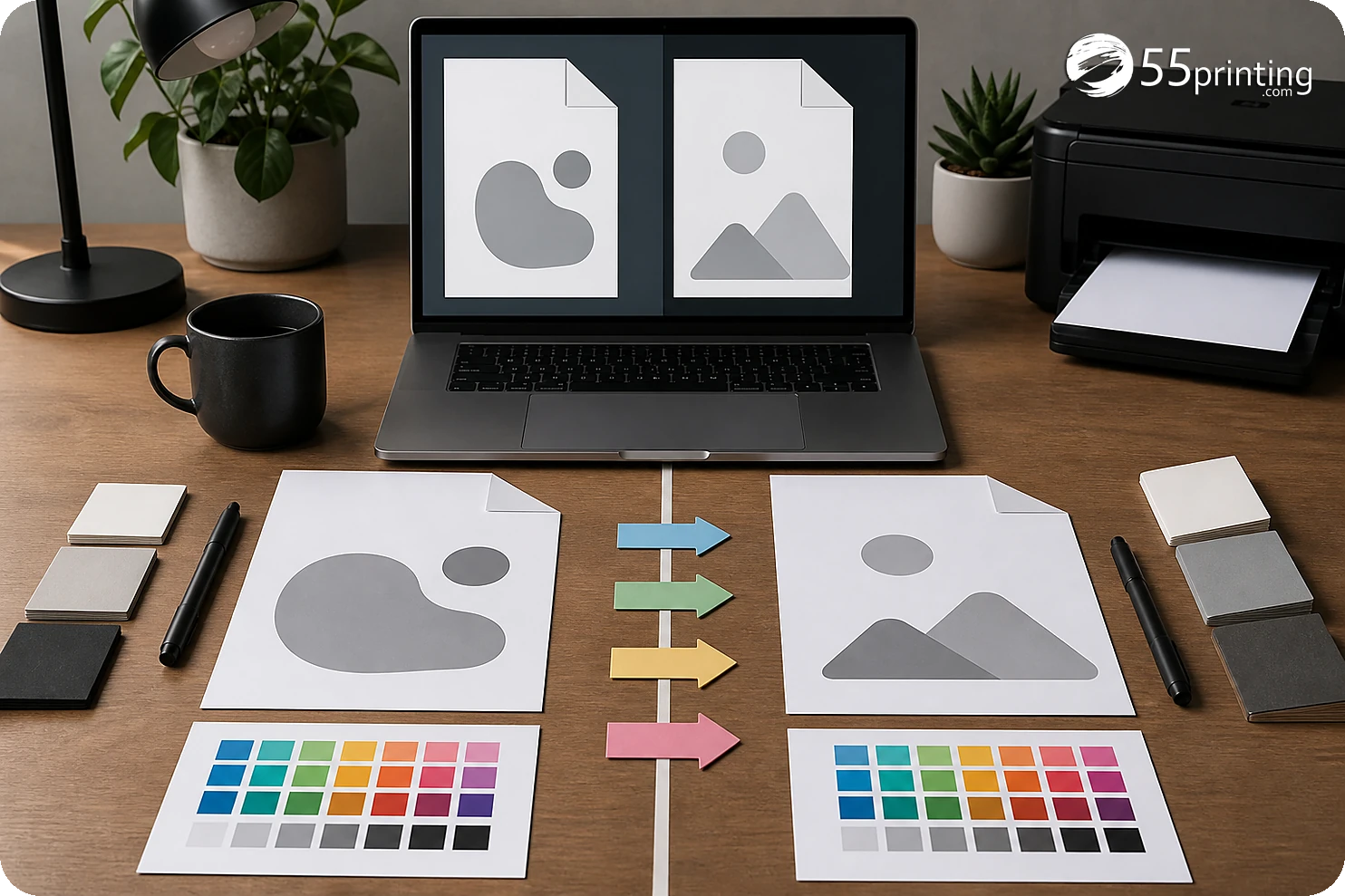
When should you choose a different path?
Use another workflow when the document is too large for the available browser memory, when the destination requires a PDF, when you need edits rather than conversion, or when the current route does not answer the handling requirement. Do not add a customer-data upload merely to solve a local preview task.
How do you separate local conversion from production handoff?
After review, decide whether the recipient needs the PDF source, the JPG preview, or both. Review the matching guideline template for product size, bleed, and safe zone. Then use the File Uploader only when the project requires that handoff. The free PDF proof is the visual approval step; it is separate from the local conversion decision.
Which browser conversion jobs need extra care?
Unpublished internal handbook
Use the current local route wording as one handling input, keep the source, and share only the page image needed for review.
Multi-page client proof
Label each JPG with its page number and compare order, crop, and small details before sending the review copy.
Production upload request
Do not assume a local JPG replaces the requested PDF. Check the template, file type, uploader note, and proof path.
How do you fix a sideways JPG and still avoid an upload?
The browser path in this article exists so a review JPG can be made without handing the PDF to a server. If that JPG comes out sideways, stay on the same kind of path. Open Rotate Files and turn it 90, 180, or 270 degrees. October 9, 2026 hub text: the turn runs in the browser and does not upload the file.
Do not switch to an uploader just to rotate a review image. Rotation is not a DPI change and not a production handoff. When the JPG is upright, keep the press PDF separate, which is the split this article already draws, and use the proof for the print file.
Questions customers ask
Does browser conversion mean no upload?
Use the current route wording and observed controls for that step. A browser-based conversion can keep the source on the device during conversion, but a later File Uploader or support handoff is a separate action with its own handling boundary. Record which route performed each action.
Is a browser-generated JPG private?
Do not make a blanket privacy claim from the word browser. Check the current route’s visible handling language, keep the source separate, remove unnecessary data, and ask when a project requires a specific handling condition. Browser handling and project policy remain separate questions.
Can I use the JPG for production?
Only when the current workflow requests a JPG and the page passes the product, file, and proof checks. A local conversion confirms an export, not production readiness. Keep the PDF when it is the authoritative layout or vector source, and identify the JPG as a copy.
What if the PDF has many pages?
Export and name pages separately, then compare count, order, orientation, and crop with the source. Test a representative page first when layouts differ, retain the original multi-page PDF, and record whether the images are for review or a requested handoff.
What if the browser slows down?
Large documents can use substantial browser memory. Work from a copy, close unrelated work, test one page, and choose another conversion path when the current browser cannot produce a reliable result. Do not infer a limit that the route does not state; record the failed test instead.
Can this fix a wrong product size?
No. Conversion changes the file representation, not the intended product geometry. Use the matching guideline template to confirm page size, bleed, and safe zone before deciding whether the JPG has a role. A browser export cannot replace a product setup check.
Should I keep the source PDF?
Yes. Keep it when it is the authoritative layout, contains vector content, or may be needed for a later proof. Name the JPG as a review or raster copy so the two files are not confused, and retain the source inventory for page comparison.
What should I check before sharing?
Check page count, orientation, crop, dimensions, readable type, thin lines, logos, QR codes, and the intended file role. Open the JPG at normal reading size and close zoom, then state whether it is a preview or handoff copy and which source PDF it came from.
Read the current route, retain the PDF, inspect the JPG, and separate conversion from proof and upload.